

Channel Partner
How Channel Partners configure workflows in the management account and how clients configure product settings within a workflow.
As a Channel Partner, you configure workflows in the management account, and your clients interact with those workflows differently depending on their account type. How a client configures product settings within a workflow depends on whether the account is centrally managed or standalone.
Management Account
Channel Partners configure workflows in the management account. The live workflow serves as the workflow configuration used by all centrally managed clients for whom the use case is provisioned.
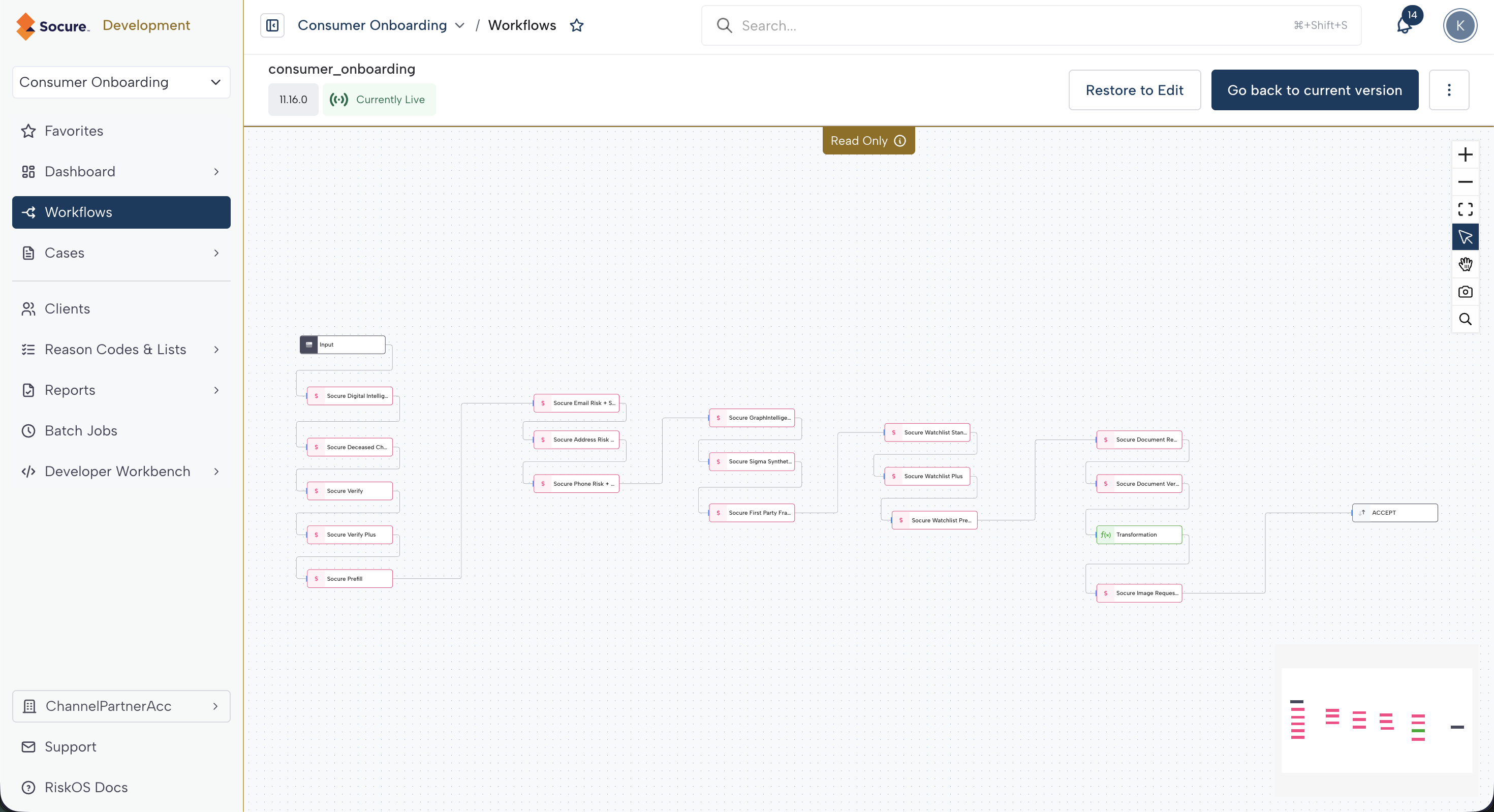
Centrally Managed Client
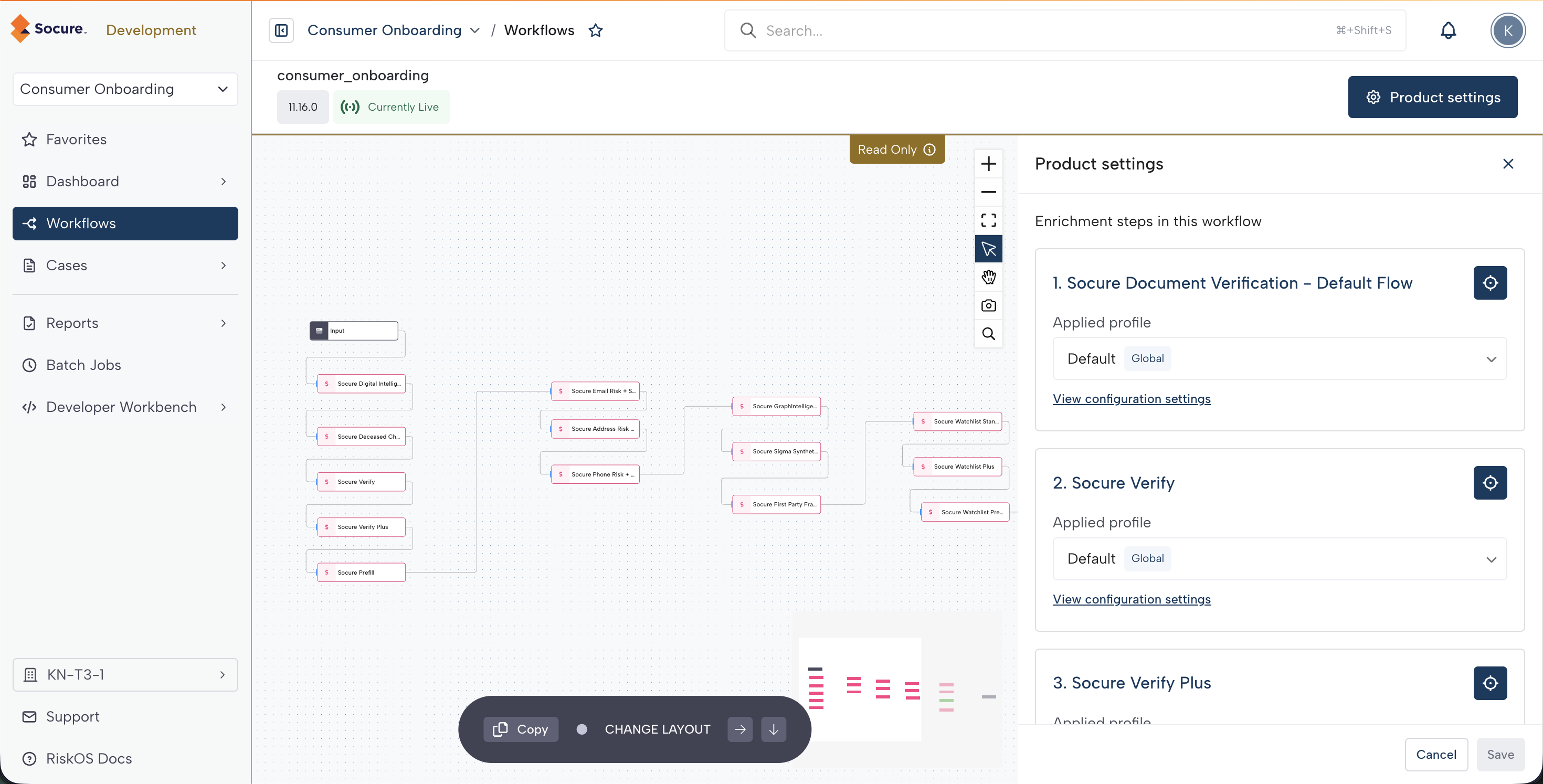
Centrally Managed clients can only view the live workflow configuration — they cannot change it. A Centrally Managed client can configure product settings through Product Settings in the workflow configuration.
Selecting Product Settings opens a tab on the right. If the live workflow includes any of the following products, the client can configure the product settings profile for that product:
- Verify
- Verify Plus
- Watchlist Standard
- Watchlist Plus
- Watchlist Premier
- Document Verification (DocV)
- Secondary Document Capture
- Selfie Reverification
- Selfie Intelligence
Standalone client
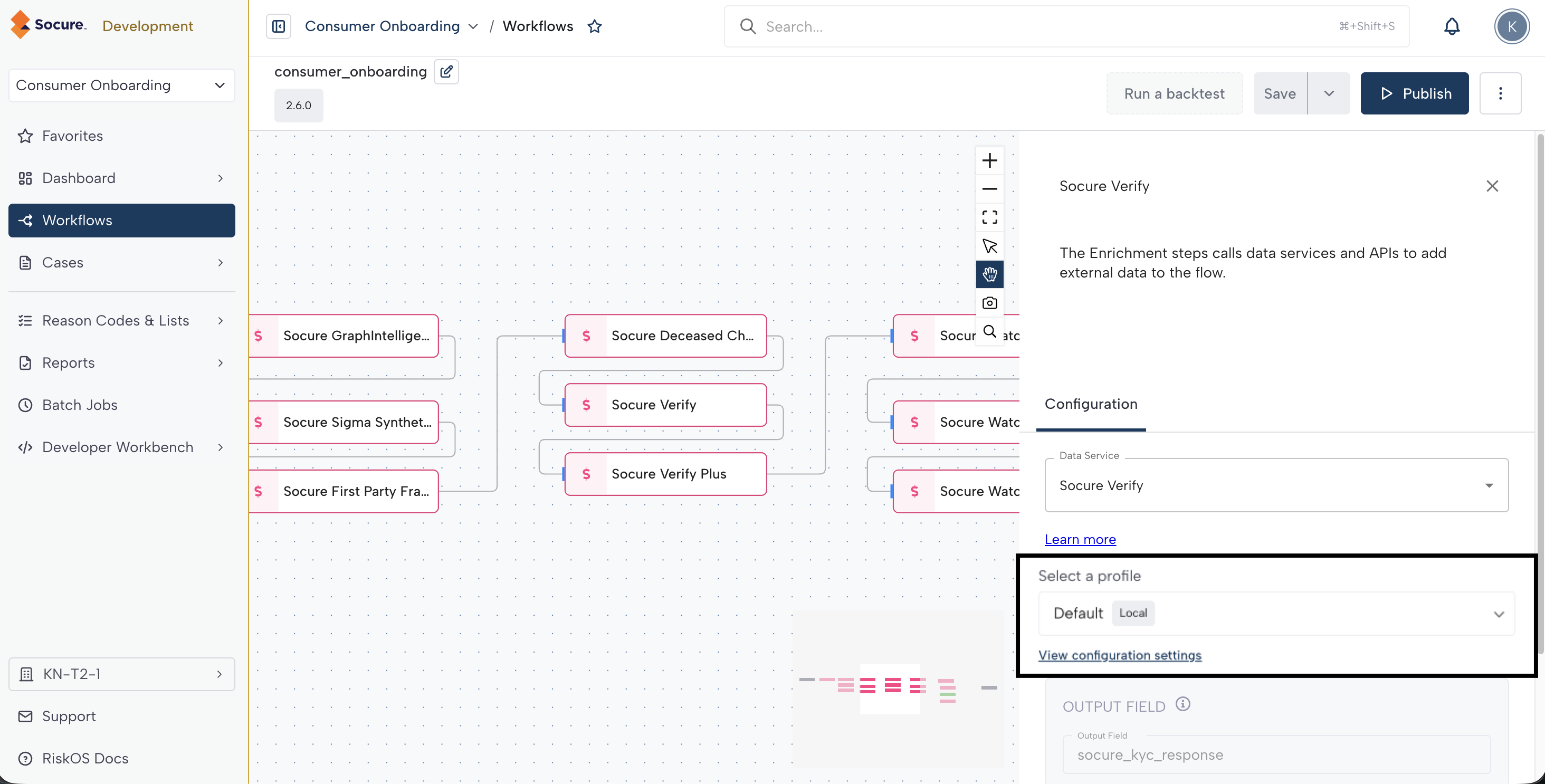
Standalone clients can fully update the workflow configuration and deploy a new live workflow. A Standalone client configures product settings in the workflow editor by clicking an enrichment step.
Clicking the enrichment step opens a tab on the right. If the enrichment step is for any of the following products, a dropdown lets the client configure the product settings profile:
- Verify
- Verify Plus
- Watchlist Standard
- Watchlist Plus
- Watchlist Premier
- Document Verification (DocV)
- Secondary Document Capture
- Selfie Reverification
- Selfie Intelligence
Updated 29 days ago