
Access Governance Best Practices
Guidelines for managing user access, role hygiene, and security across Channel Partner client accounts in RiskOS™.
Access governance is the practice of regularly reviewing and maintaining who has access to what across your client accounts. As a Channel Partner managing multiple clients, a consistent governance approach prevents permission drift, reduces security risk, and simplifies audits.
Why it matters
Over time, user accounts accumulate. Team members change roles, leave the organization, or no longer need access to certain features. Without periodic review, client accounts can end up with:
- Orphaned accounts — users who no longer work at the client but still have active credentials.
- Over-provisioned users — users with more permissions than their current role requires.
- Inconsistent environments — Sandbox and Production access that has drifted out of alignment with the intended configuration.
Principles
| Principle | Description |
|---|---|
| Least privilege | Grant the minimum permissions needed for a user to do their job. Start with View Only and expand to Full Access only when required. |
| Separation of duties | Avoid assigning a single user both workflow creation and Production deployment permissions unless their role requires it. |
| Environment isolation | Keep Sandbox and Production role assignments independent. Test new permission sets in Sandbox before applying them to Production. |
| Regular review | Audit user access on a recurring schedule — quarterly at minimum. |
Access review checklist
Use this checklist quarterly (or more frequently for high-security clients) to review each client account:
Role assignments
Custom roles
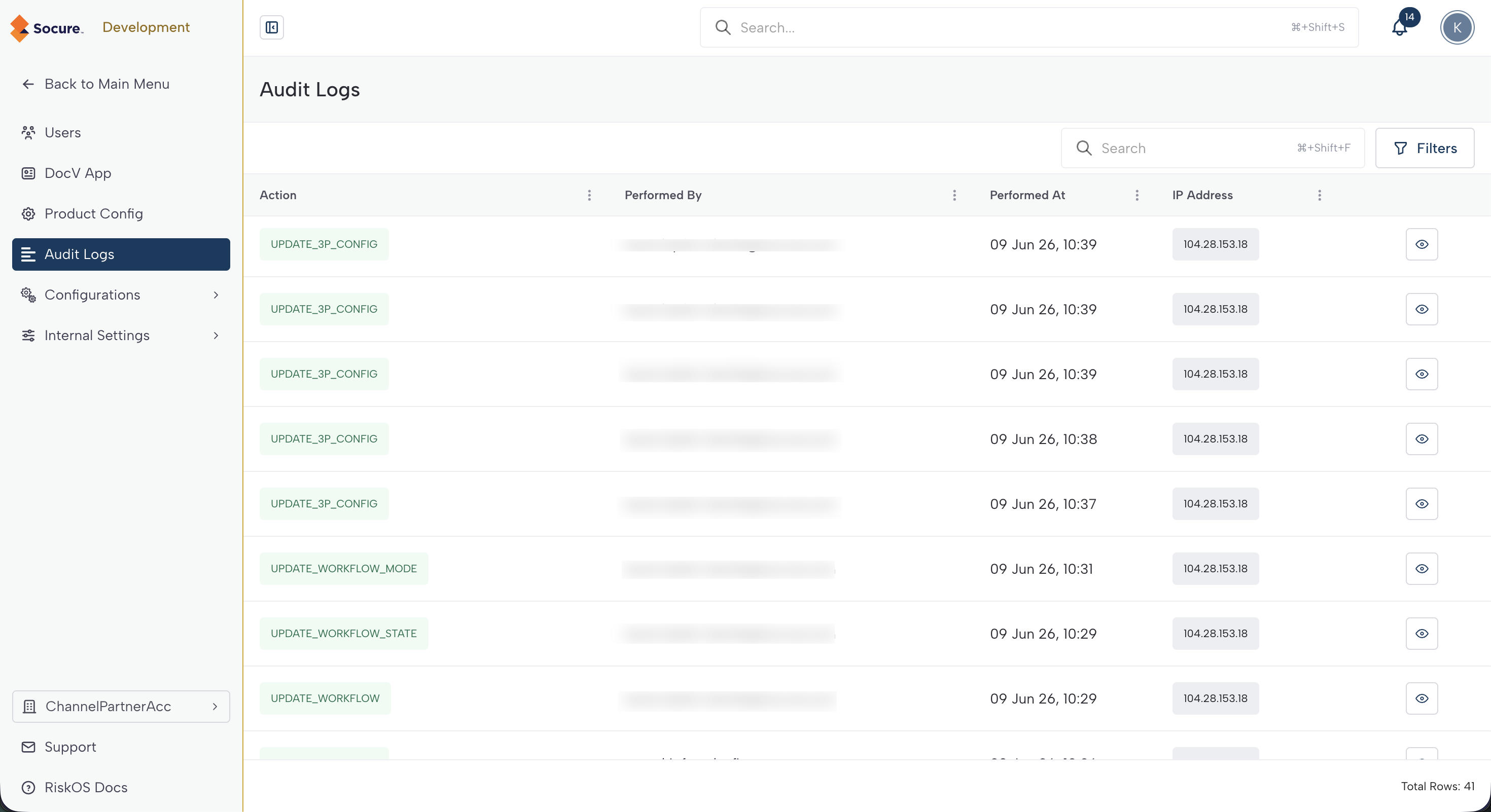
Audit logs
Environment management strategy
graph LR

    A["Create role/user"]
    B["Assign in Sandbox"]
    C["Validate in Sandbox"]
    D["Replicate to Prod"]
    E["Verify Prod access"]

    A --> B --> C --> D --> E
| Phase | Environment | Actions |
|---|---|---|
| Setup | Sandbox | Create the custom role. Assign it to a test user. |
| Validation | Sandbox | Have the test user verify they can perform their intended tasks — and only those tasks. |
| Promotion | Production | Assign the same role to the Production user list. |
| Verification | Production | Confirm the user can access the expected features in Production. |
Important:
Sandbox and Production user lists are independent. Creating a user or role in Sandbox does not automatically create it in Production. You must configure both environments separately.
Common anti-patterns
| Anti-pattern | Risk | Recommendation |
|---|---|---|
| Granting Full Access to all categories | Users can modify or delete resources they should not touch. | Start with View Only. Upgrade to Full Access only for specific categories the role requires. |
| Sharing credentials between users | Actions cannot be attributed to a specific person in audit logs. | Create individual accounts for each user. |
| Keeping departed users active | Former team members retain access to sensitive data. | Delete user accounts when team members leave. |
| Identical Sandbox and Production access | No safety net for testing changes before they affect live traffic. | Assign broader access in Sandbox, narrower access in Production. |
| Naming roles after people | Roles become meaningless when the person leaves or changes jobs. | Name roles by function: "Case Reviewer", "Workflow Admin", "Report Viewer". |
| Never reviewing access | Permissions drift over time as responsibilities change. | Schedule quarterly access reviews using the checklist above. |
Tier-specific considerations
| Consideration | Standalone Clients | Centrally Managed Clients |
|---|---|---|
| Who manages users | Both the Channel Partner and the client can manage users. Coordinate with the client to avoid conflicting changes. | Both the Channel Partner and the client can manage users. |
| Workflow permissions | Standalone users can create and deploy workflows. Grant Workflows: Full Access carefully — this includes Production deployment. | Centrally Managed users cannot modify workflows regardless of role. The tier restriction overrides role permissions. |
| Configuration access | Standalone users with the right role can modify tags, statuses, and queues. | Centrally Managed users have no access to configurations regardless of role. |
| Audit responsibility | Both the Channel Partner and the client should review audit logs. | The Channel Partner should review audit logs, as the client has limited ability to self-correct. |
For full tier capability details, see Account Models and Tiers.
Troubleshooting
| Issue | Cause | Resolution |
|---|---|---|
| A user has access they should not have | The user may be assigned multiple roles, and permissions are additive. | Review all roles assigned to the user in Assign Roles. Remove the role granting excess permissions. |
| Audit logs show actions by an unknown user | A Channel Partner user may have switched into the account and performed the action. | Check if the action timestamp aligns with a Channel Partner session. Channel Partner actions are logged under the Channel Partner user's identity. |
| Users were created without your knowledge | Another user with the Users: Full Access permission created them. | Review the audit logs and consider restricting the Users permission category to View Only for most roles. |
Related articles
| Topic | Guide |
|---|---|
| Understand the UAM model | Users & Roles Overview |
| Create and manage user accounts | Manage Users |
| View and create roles | Roles & Permissions |
| Assign roles to users | Assign Roles |
| Understand tier-based restrictions | Account Models and Tiers |
Updated about 1 month ago