

Download Data Reports
Download RiskOS™ evaluation data as CSV reports for internal analysis, with options for data reports and compliance report generation.
Note:
There are two types of reports available:
- Data Reports — Found under the Requests section.
- Compliance Reports — Located in the Compliance section (see the next section for details).
How to generate Data Reports
Reports let you download data from RiskOS™ in CSV format.
Report Requests
To manage and request reports, navigate to Reports > Requests. Here, you can view all previously requested reports and initiate new ones.
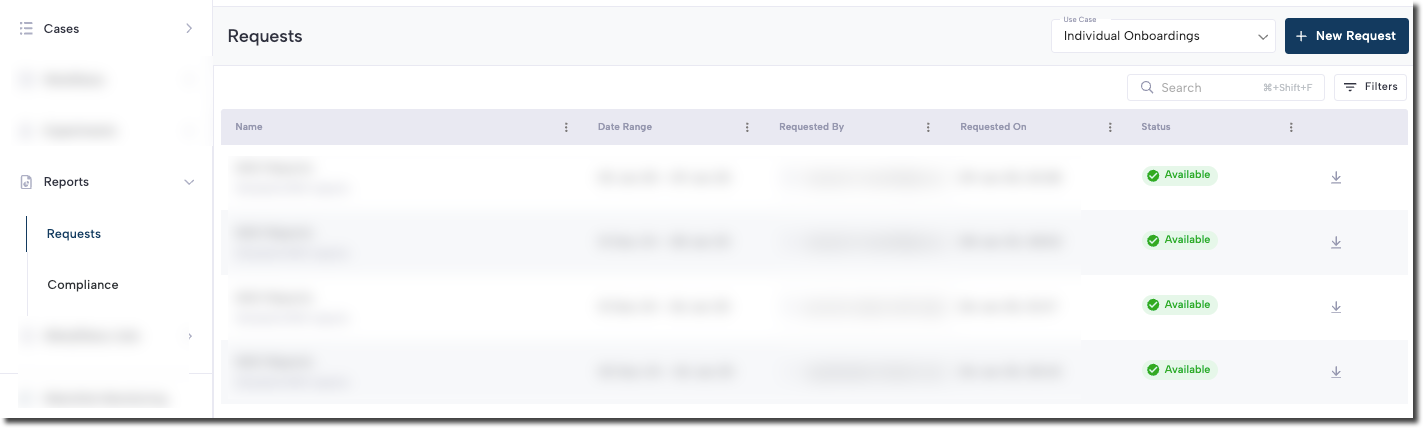
- Click the New Request button in the top-right corner to create a new report request.
- Select a template and timeframe for the report.
- For the timeframe, you can:
- Choose a preset timeframe from the options on the left.
- Create a custom timeframe using the calendar.
- Click Confirm once your template and timeframe are selected.
- If the request is successful, a popup will appear in the bottom-left corner with a green checkmark and the message: BI Request submitted successfully.
- The request will initially show as Pending. Refresh the page to see its updated status.
- You will also receive an in-app notification when the report is ready to download.
- Once the status changes to Available, click the Download button to retrieve the requested data.
Updated 6 months ago
Did this page help you?