

How to Use Case Queues
Manage and track flagged cases using RiskOS™ case queues, including filtering by status, previewing cases, and making decisions.
Case Queues allow users to manage and track cases that have been flagged for manual review in a workflow.
Each case can be reviewed in detail using the Case Preview panel or the Single Case View, helping users make quick and informed decisions. For more information, see Review a Case.
Case List views
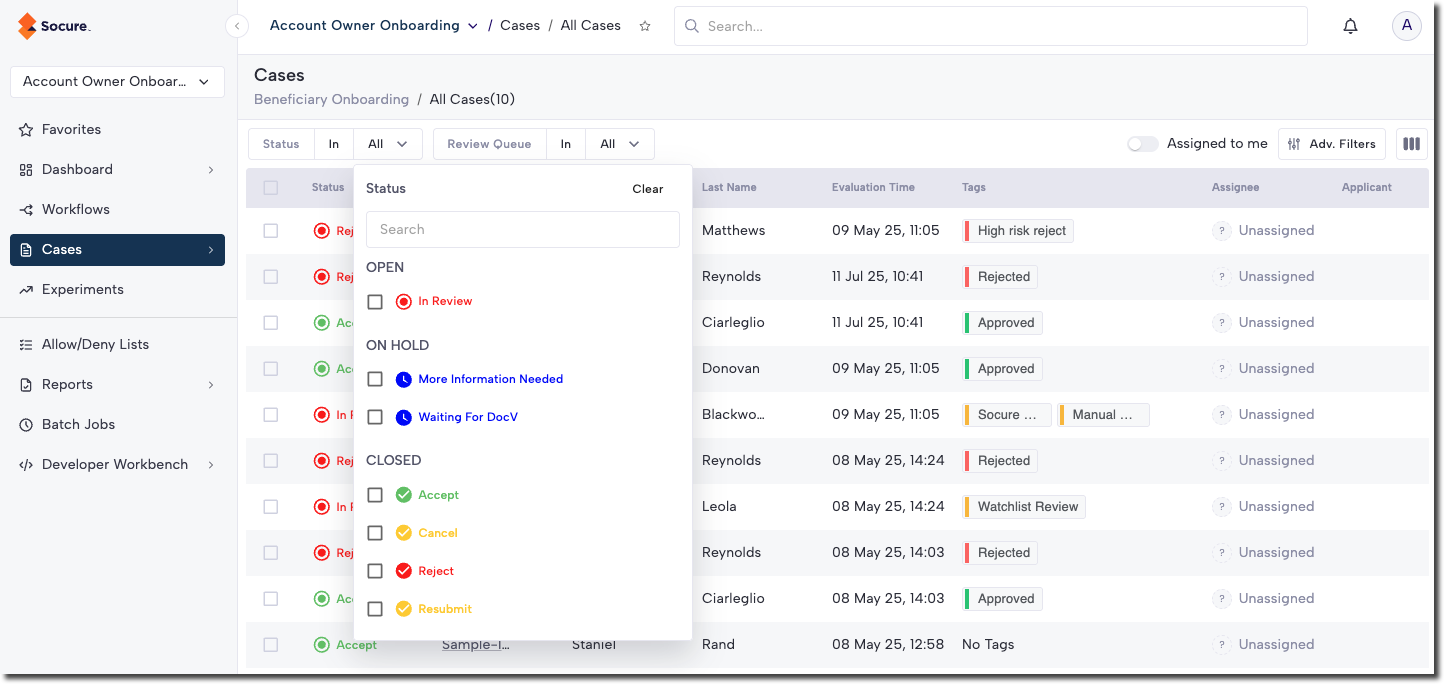
Each Case Queue has a Status menu, which includes the following default Statuses along with any custom Sub-Statuses:
Displays all cases that require a decision.
Lists cases currently paused or awaiting additional action before they can be processed.
Shows all cases with decisions made within the past seven days.
Filter, sort, and search in a Case Queue
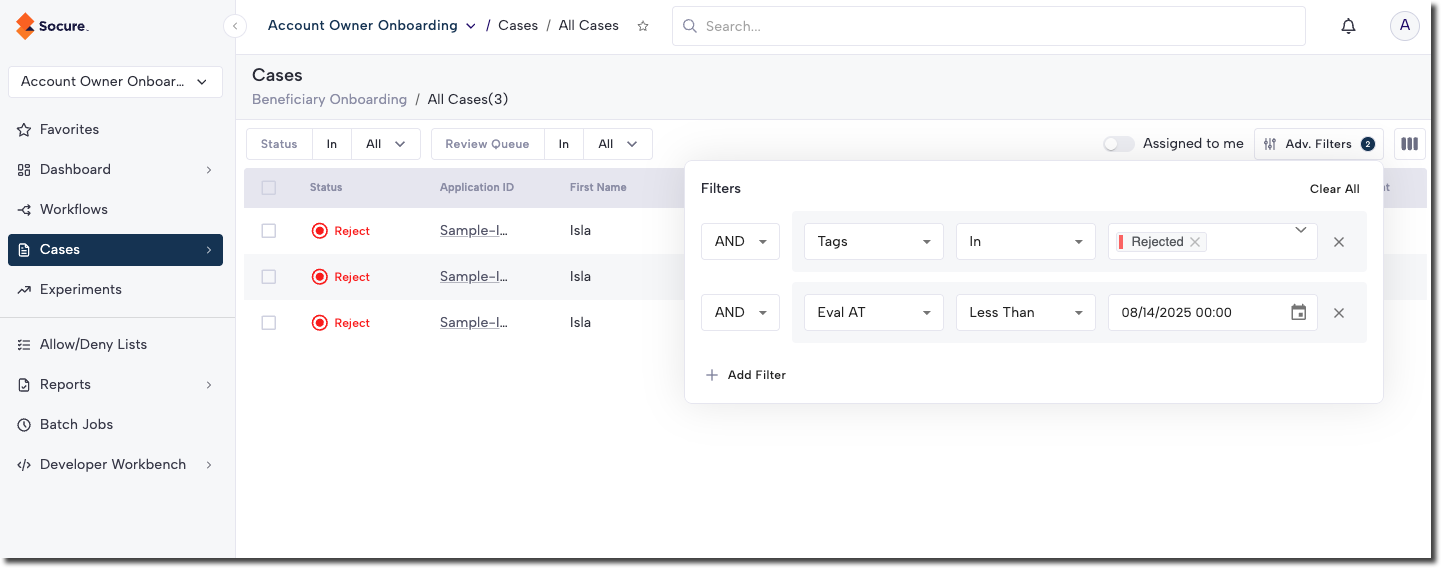
You can filter cases using multiple fields within the Case Queue. Commonly used filters include Status, Tags, Assignee, Submitted At, and Application ID. You can also add more filters as needed. These filters are case-insensitive and designed to handle minor typos or variations in values.
To apply a filter, click the Adv. Filter button and select the filter options you want to use.
Assigned to me
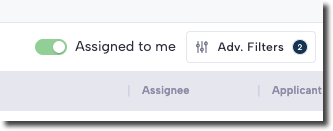
Next to the Adv. Filter button is a toggle for Assigned to me. Turning this on will automatically filter the queue to show only the cases assigned to you.
It’s a quick way to focus on the cases you need to review.
Updated 6 months ago