

Capture App Flow Setup
Create and configure Capture App flows for document and selfie capture in RiskOS™, including per-environment settings and transaction overrides.
How it works
RiskOS™ supports two types of configuration for Capture App flows:
Create or edit Capture App flows—Document Verification, Secondary Document, Selfie Intelligence, or Selfie Reverification—inside the environment where they run (Sandbox or Production).
Flows do not sync automatically between environments.
Make branding, theme, and copy changes in Sandbox first. Once finalized, publish them and then replicate the same configuration in Production.
For full customization instructions, see Customization, Branding, and Copy.
Flow configuration
-
Create or edit a flow
In the RiskOS™ Dashboard, navigate to Settings > DocV App > Flow. You can create a new flow using + Add Flow or duplicate an existing one by opening its three-dot menu and selecting Clone.
Note: You can create multiple flows to support different verification paths (for example, onboarding vs. step-up verification). Flow names should indicate their purpose so your systems can route users correctly.
Each environment supports a maximum of 12 flows. Contact your Account Manager if you require more.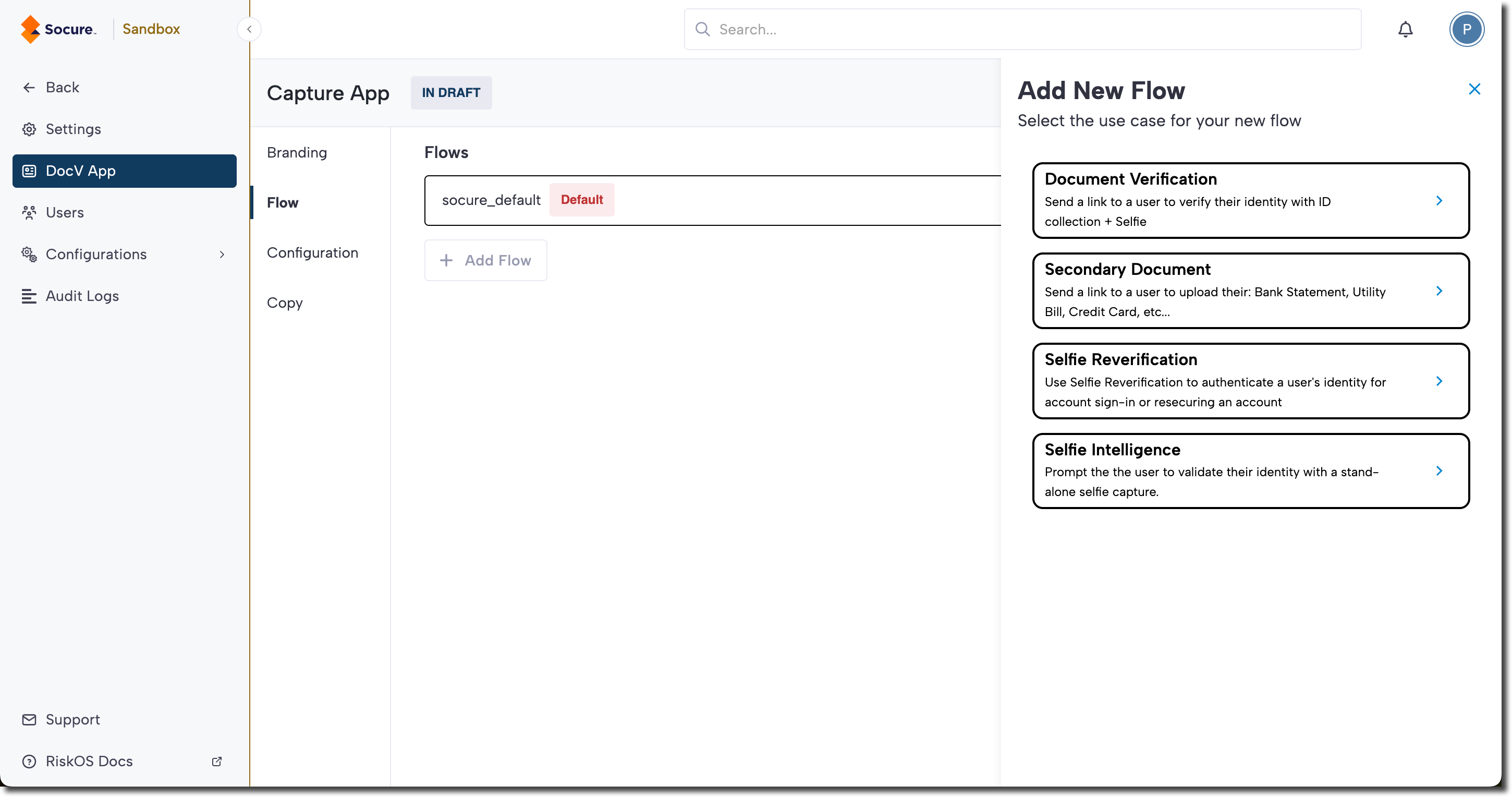
-
Configure flow options
When creating or editing a Capture App flow, configure the following options to define how the flow behaves. These settings determine which document types users can submit, whether users must provide a selfie, and how long their session link remains valid.
Core optionsFeature Description Flow Name Display name for the flow. Set as Default Flow Makes this the default flow in the current environment. Enable For Platform Restrict the flow to a specific platform: Web, Mobile, or All Platforms. When set to a single platform, the session is bound to that platform type, preventing it from being completed on a different one. This helps mitigate link-forwarding attacks. Skip Splash Screen Starts Capture App flow without the splash/intro screen. Document Type Accept license only, or license + passport. If set to license-only, the user skips document type selection. Accept Digital ID (mDL) Enables the flow to accept a Mobile Driver's License (mDL) from a supported digital wallet (such as Google Wallet or Samsung Wallet). When enabled, a Verify with Digital Wallet option appears on the document selection screen for all sessions using this flow. Socure onboards your account to each supported wallet and enables mDL at the account level before this option becomes available. For the consumer experience, see Digital ID (mDL). Selfie Capture Enable/disable selfie capture (availability depends on integration/version). Enable Selfie Auto-Capture UI Enables the updated selfie UI with automatic capture. Native SDKs fall back to the standard frame if unsupported. Enable Auto Submit Automatically submits each captured image for processing as soon as it passes the Capture App quality checks, so the consumer doesn't confirm each image manually. This reduces user interactions during capture while verification behavior stays the same. Link Validity The allowed time window (minutes/hours/days) for a user to start the capture session after the link is issued. Default is 1 day. 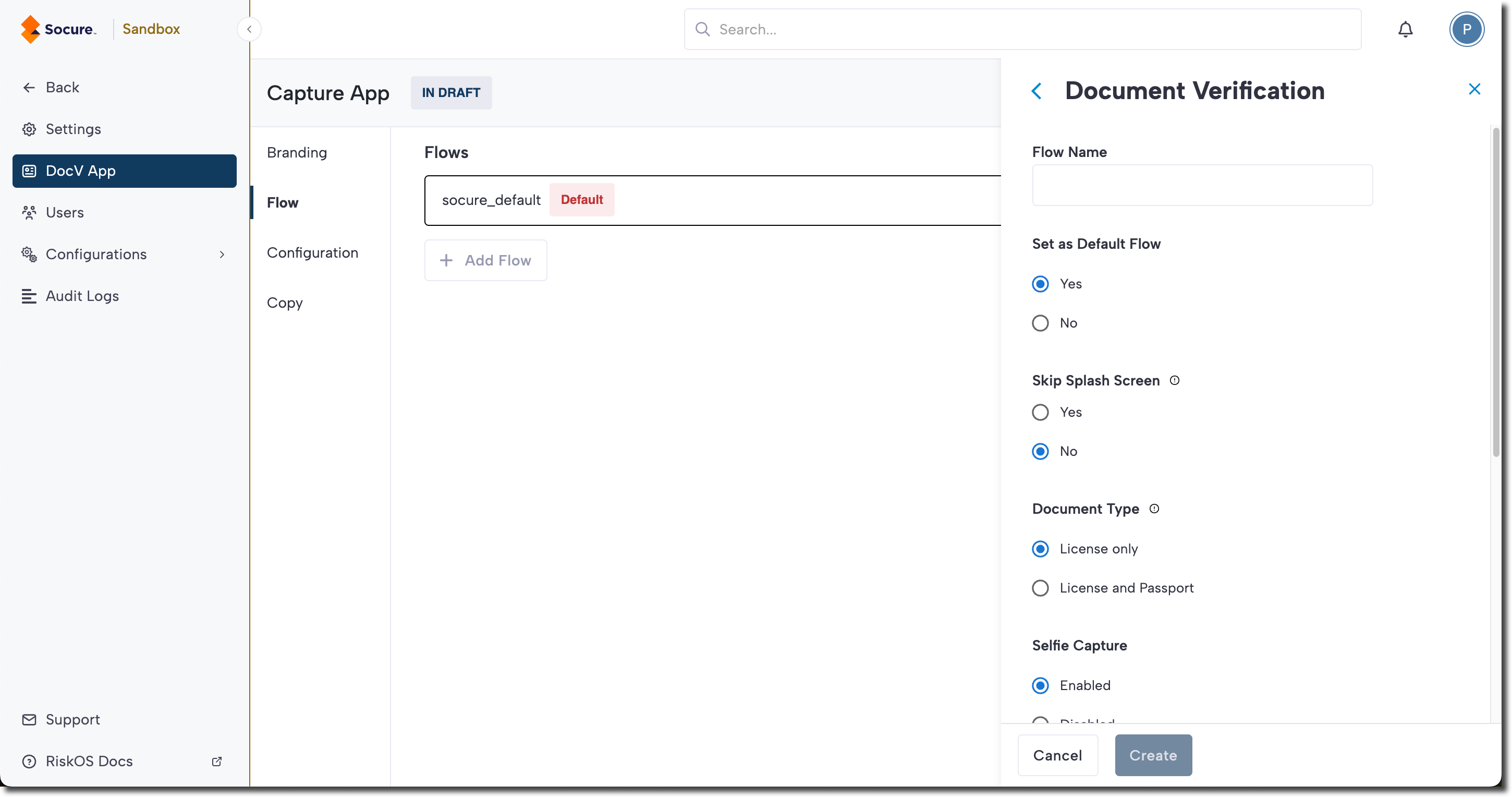
-
Save the flow
Click Create to apply the configuration in the current environment.
Note: For redirect, logos, colors, fonts, and text, see Customization, Branding & Copy. These settings must be configured in Sandbox and then published to Production.
Per-transaction configuration via the Evaluation API
You can override certain flow behaviors for a single transaction by including fields under data.individual.docv.configin your request to the /api/evaluation endpoint. These overrides let you adjust document requirements, flow routing, language, SMS delivery, and redirect behavior without modifying your environment-level flow configuration.
Use these options when you need dynamic, one-off adjustments that differ from the default Capture App flow your environment is configured to use.
Common overrides
Example request
The following example shows a typical Evaluation API request with several per-transaction overrides applied.
{
  "id": "APP-123456",
  "timestamp": "2025-07-31T15:00:10.761Z",
  "workflow": "consumer_onboarding",
  "data": {
    "individual": {
      "given_name": "John",
      "family_name": "Smith",
      "date_of_birth": "1989-05-07",
      "phone_number": "+19998887777",
      "address": {
        "line_1": "1234 N College Ave",
        "locality": "New York City",
        "major_admin_division": "NY",
        "country": "US",
        "postal_code": "10001"
      },
      "docv": {
        "config": {
          "document_type": "license",
          "send_message": true,
          "language": "en-us",
          "redirect": {
            "method": "POST",
            "url": "https://example.com/docv"
          }
        }
      }
    }
  }
}
config fields
config fields| Field | Type | Description | Example |
|---|---|---|---|
config | Object | Configuration options controlling Capture App behavior and document verification flow for a given transaction. | See config schema below. |
→ document_type | String | Restrict to a single document type (license or passport) for a simplified flow. Users skip the document type selection screen when passed. | "license" |
→ send_message | Boolean | Set to true to send an SMS to the provided phone number with the document request URL. Defaults to false. - US & Canada: sent from short code 33436 - Other countries: sent from +1 (510) 330-19xx | true |
→ language | String | Determines Capture App UI language. Defaults to en-us. | "en-us" |
→ redirect | Object | Object containing post-capture redirect behavior. | See redirect schema below. |
→ redirect.method | String | Accepts GET or POST. Required if redirect is provided. | "POST" |
→ redirect.url | String | The destination URL to send the consumer after capture. Can include query strings for transaction tracking. Required if redirect is provided. You can configure a common redirect link for all DocV sessions in the configuration > redirect settings section of the RiskOS™ Dashboard. | "https://example.com/docv" |
Updated 2 months ago