
Viewing Your Dashboard
Navigate the RiskOS™ Dashboard as a client account user, including the sidebar, use case selector, and settings.
When you log in to your RiskOS™ client account, the Dashboard provides access to the features available under your plan tier. This article explains the layout and navigation elements you see as a client user.
Dashboard layout
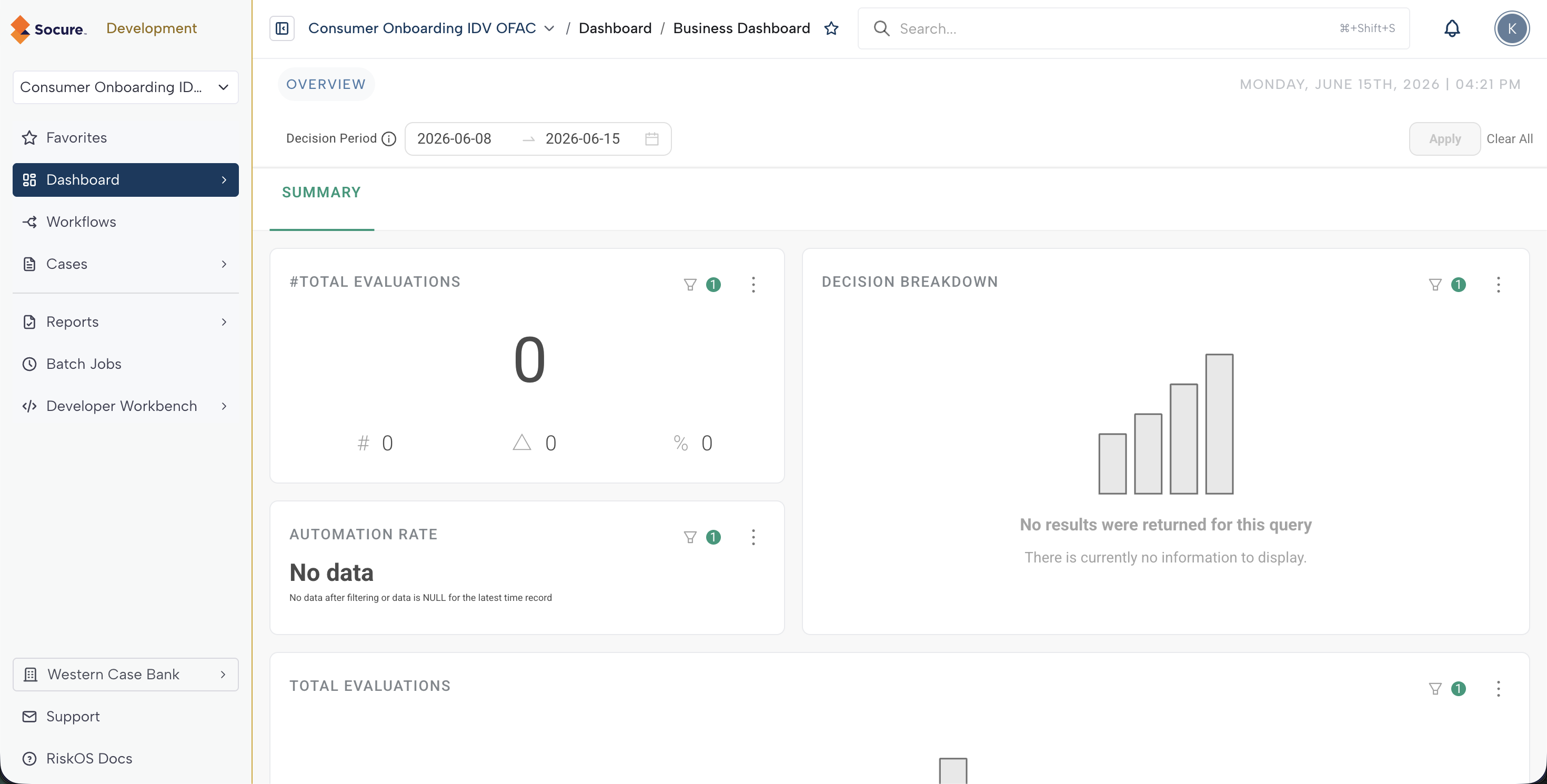
Your Dashboard has three main areas:
- Sidebar (left) — Your primary navigation
- App bar (top) — Search, notifications, and your user menu
- Main content area (center) — The page you navigated to
Sidebar
The sidebar is your primary navigation. It contains links to the features available under your account tier.
Global items
These items are always visible in the sidebar, regardless of which use case you have selected:
| Item | Standalone | Centrally Managed | Description |
|---|---|---|---|
| Reason Codes & Lists | Available | No access | View reason codes and manage allow/deny lists. |
| Batch Jobs | Available | Available | Run and monitor bulk processing operations. |
| Reports | Available | Available | Generate and view reports. |
| Developer Workbench | Available | No access | Manage API keys, webhooks, and IP filtering. |
Use case items
After you select a use case from the use case selector dropdown, these items appear:
| Item | Standalone | Centrally Managed | Description |
|---|---|---|---|
| Dashboard | Available | Available | Business and Operations dashboards for the use case. |
| Workflows | Full access | View only | View, create, and manage workflows for the use case. |
| Cases | Available | Available | View and manage fraud cases, including review queues. |
Settings items
Click Settings in the sidebar to access:
| Item | Standalone | Centrally Managed | Description |
|---|---|---|---|
| Users | Available | Available | Manage users and roles for your account. |
| Document Verification | Available | Available | Configure DocV settings (when enabled). |
| Product Configuration | Available | View only | View or configure product settings. |
| Audit Logs | Available | Available | View the activity audit trail for your account. |
| Configurations | Available | No access | Manage tags, statuses, and queues. |
Use case selector
The use case selector is a dropdown at the top of the sidebar. When you select a use case:
- The Dashboard, Workflows, and Cases items appear in the sidebar, scoped to that use case.
- Clicking Workflows shows only the workflows for the selected use case.
- Clicking Cases shows the case queues for that use case.
If you have not selected a use case, only the global navigation items are visible.
App bar
The top bar contains:
- Search — A global search field
- Notifications — A bell icon that opens the notification drawer. A badge shows the unread count.
- User menu — Your avatar. Click it to access Settings or Logout.
Notifications
Click the bell icon in the app bar to open the notification drawer.
- Filter by category — Use the filter controls at the top to narrow notifications by type.
- Infinite scroll — Older notifications load as you scroll down.
- Close — Click the X button or press Escape to dismiss the drawer.
What you will not see
Some features visible to your Channel Partner are not available in your client account:
| Feature | Why it is hidden |
|---|---|
| Clients hub | The Clients hub is a Channel Partner management tool. You do not manage other client accounts. |
| Account switcher | Only Channel Partner users with the Account Switcher permission can switch between accounts. |
| Client View banner | This banner appears when your Channel Partner views your account. You do not see it during normal use. |
Keyboard shortcuts
| Shortcut | Action |
|---|---|
| Shift+Ctrl+Arrow (Windows/Linux) | Collapse or expand the sidebar |
| Shift+Cmd+Arrow (macOS) | Collapse or expand the sidebar |
| Escape | Close the notification drawer |
Troubleshooting
| Issue | Cause | Resolution |
|---|---|---|
| A sidebar item is missing | Your tier or role does not include access to that feature. | Check your tier in Understanding Your Tier. Contact your Channel Partner if you need access. |
| Dashboard shows no data | You may not have selected a use case, or no data exists yet. | Select a use case from the use case selector dropdown. |
| Cannot access Settings | Your role may not include the required permission. | Contact your Channel Partner or an admin to review your role assignments. |
Related articles
| Topic | Guide |
|---|---|
| Overview of your client account | Client Accounts |
| Understand your tier | Understanding Your Tier |
| Manage users in your account | Managing Your Users |
Updated 3 months ago