

DocV Web SDK Capture App Customization
Customize the DocV Web SDK Capture App flow with branding, themes, and configuration options deployed through the RiskOS™ Evaluation endpoint.
Customize Your Capture App Flow
The Predictive Document Verification (DocV) Web SDK includes customizable options that allow you to modify the user interface and user experience of the Capture App flow.
After completing your SDK integration, use this section to learn how to build and deploy a customized flow that matches your organization's style, branding, and document verification use case.
Step 1: Build your Capture App flow in RiskOS™
On the DocV App page in RiskOS™:
- Select your Capture App flow use case, then customize the Capture App UI to match your application's theme.
- When you are finished, save the flow to the Production environment.
Step 2: Deploy your custom flow
The DocV Web SDK requires you to make a POST request to the /api/evaluation endpoint to generate a docvTransactionToken. You can deploy your custom flow settings using the data.individual.docv.config object parameters in the API request body. The docvTransactionToken returned in the API response will automatically apply your Capture App flow settings to the transaction.
curl --location 'https://riskos.socure.com/api/evaluation' \
  --header 'accept: application/json' \
  --header 'authorization: Bearer a182150a-363a-4f4a-xxxx-xxxxxxxxxxxx' \
  --header 'content-type: application/json' \
  --header 'X-API-Version: 2025-01-01.orion' \
  --data-raw '{
  ...
    "docv": {
      "config": {
        "send_message": false,
        "language": "en",
        "use_case_key": "customer_use_case_key",
        "redirect": {
          "method": "GET",
          "url": "https://www.socure.com",
        "document_type": "license"
        },
      },
      ...
    }'
The following table lists the config object parameters:
| Parameter | Type | Description |
|---|---|---|
send_message | Bool | Set to
|
language | Optional | Determines the language package for the UI text on the Capture App. Note: Socure can quickly add support for any new language requirement that is not listed above. For more information, contact [email protected]. |
use_case_key | String | Deploys a customized Capture App flow on a per-transaction basis. Replace the customer_use_case_key value with the name of the flow you created in theRiskOS™ Dashboard.
|
redirect | Object | Contains the method and url parameters for redirecting the consumer after the document capture and upload process is canceled or completed on the Capture App. |
method | String | Defines the redirect method. Possible values are GET or POST. This parameter is required if redirect is provided. |
url | String | Specifies the redirect destination URL. You can also pass values using query strings to uniquely identify each transaction. This parameter is required if redirect is provided. |
document_type | String | Specifies a single acceptable document type for the transaction and implements a simplified flow. Possible values are:
document_type value is incorrect or is not provided, the Document Request endpoint will use the document type defined in the Flow settings on the DocV App tab in RiskOS™. |
How the redirect object works
redirect object worksThe optional redirect object conforms to the following type:
{
  url: string;
  method: 'GET' | 'POST';
  headers?: { [key: string]: string };
  delay?: number;
}
The redirect object allows you to redirect the consumer after the Capture App flow is canceled or successfully completed using the following fields:
url: Sets the destination website address. You can also pass values using query strings to uniquely identify each transaction.method: Defines the redirect method. Possible values areGETorPOST.headers: Adds optional headers to the request.delay: Adds a delay before redirecting, specified in milliseconds (for example,5000for 5 seconds).
How document_type works
document_type worksThe document_type field sets a default acceptable document type for the transaction using the values license for driver's license or passport for passport. After the SDK is launched, the Capture App flow will implement a simplified flow that skips the Selected ID Type Screen and starts the consumer on the Document Capture Screen. See Document Verification Flow for more information.
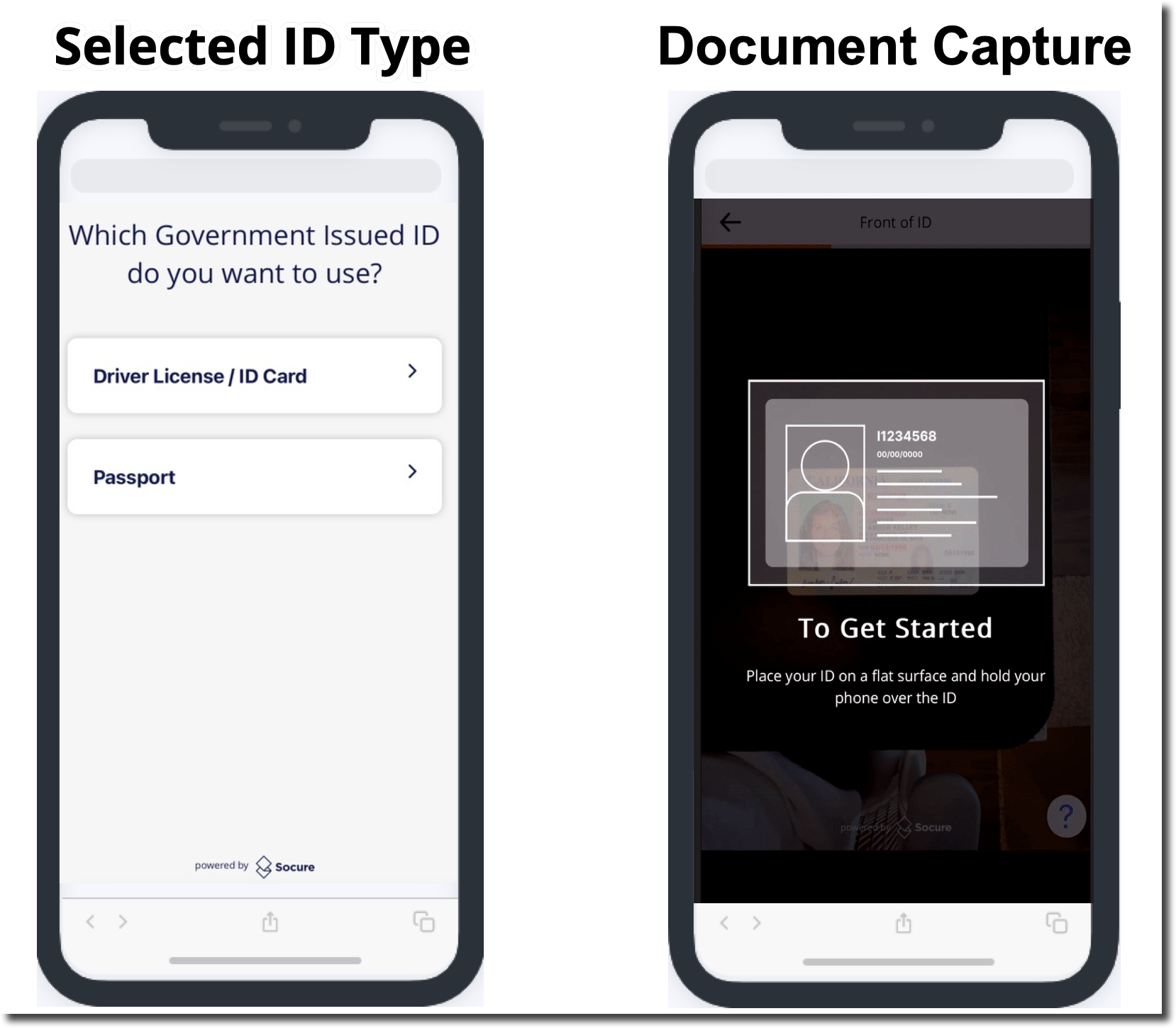
The Selected ID Type Screen and Document Capture Screen in the Capture App flow.
Step 3: Redirect to the Capture App
When you call the <Anchor label="/api/evaluation" target="_blank" href="https://help.socure.com/riskos/reference">/api/evaluation</Anchor> endpoint, the API response includes a one-time-use document request URL that is used to redirect the consumer to the Capture App flow. Depending on your integration workflow, the consumer can access the document request URL using one of the three methods listed in the tabs below.
To automatically send the document request URL to the consumer's mobile phone via SMS text message:
-
In the API request body, configure the following fields:
- Set the
send_messagefield totrue. - Pass a mobile number in the
phone_numberfield.
- Set the
curl --location 'https://riskos.socure.com/api/evaluation' \
  --header 'accept: application/json' \
  --header 'authorization: Bearer a182150a-363a-4f4a-xxxx-xxxxxxxxxxxx' \
  --header 'content-type: application/json' \
  --header 'X-API-Version: 2025-01-01.orion' \
  --data-raw '{
    ...
    "phone_number": "+13475550100",
    "docv": {
      "config": {
        "send_message": true,
        ...
      }
    }
  }'
To display a QR code that redirects the consumer to the Capture App:
- Call the Evaluation endpoint.
- Collect the base64 value returned in the
qrcodefield of the API response. - Convert this value a QR code image that can be displayed in your application.
Tip:
To disable the SMS text message containing the document request URL, set the
sendMessagefield tofalsein the API request. Alternatively, you can set this field totrueto send the SMS text message and use the QR code as a fallback in case the SMS fails.
{
  ...
  "response": {
    "data": {
      "docvTransactionToken": "70c6a4bc-f646-4c6a-94c1-9cd428e356ef",
      "eventId": "70c6a4bc-f646-4c6a-94c1-9cd428e356ef",
      "qrcode": "data:image/png;base64,iVBO......K5CYII=",
      "url": "https://verify.socure.com/#/dv/70c6a4bc-f646-4c6a-94c1-9cd428e356ef"
    },
  },
  ...
}
To redirect a consumer to the Capture App on a mobile web browser:
- In the API request body, set the
send_messagefield tofalse.
curl --location 'https://riskos.socure.com/api/evaluation' \
  --header 'accept: application/json' \
  --header 'authorization: Bearer a182150a-363a-4f4a-xxxx-xxxxxxxxxxxx' \
  --header 'content-type: application/json' \
  --header 'X-API-Version: 2025-01-01.orion' \
  --data-raw '{
    ...
    "docv": {
      "config": {
        "send_message": false,
        ...
      }
    }
}'- Use the value returned in the
urlfield of the/api/evaluationendpoint API response to redirect the consumer to the Capture App on their mobile device's browser.
{
  ...
  "response": {
    "data": {
      "docvTransactionToken": "70c6a4bc-f646-4c6a-94c1-9cd428e356ef",
      "eventId": "70c6a4bc-f646-4c6a-94c1-9cd428e356ef",
      "qrcode": "data:image/png;base64,iVBO......K5CYII=",
      "url": "https://verify.socure.com/#/dv/70c6a4bc-f646-4c6a-94c1-9cd428e356ef"
    },
  },
  ...
}
Updated 2 months ago