

Search in RiskOS™
Search for evaluations across the RiskOS™ dashboard using the search bar, case filters, and sorting in Case Queues views.
- The search bar, available at the top of every page in the RiskOS™ Dashboard.
- Case filters and sorting, available on the Case Queues and All Cases views.
Search bar
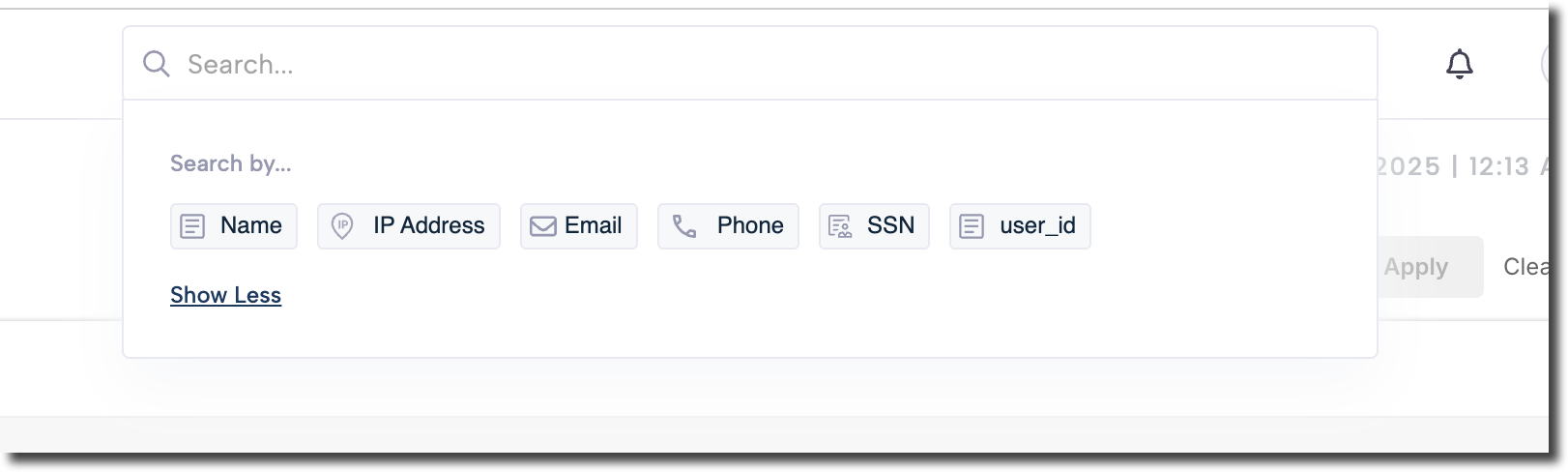
Accessible anywhere in the platform at the very top of the page, RiskOS™ provides an easy-to-use search bar that allows reviewers to quickly search evaluations across the platform. Searches are case-insensitive. By default, the search bar returns exact matches, except for the Name field, which also supports partial matches.
There are two modes of searching:
-
Direct search by field value — Type or paste the value directly into the search bar and press Enter. You can use this method to search by:
- Application ID
- Evaluation ID
-
Search by selecting a field — First select the search field, then type or paste the value and press Enter. You can use this method to search by:
- IP Address
- Phone
- SSN
- Device ID
- Name
- National ID
- User ID
Case filters and sorting
Cases can be filtered using multiple fields, both on the Case Queues dashboards and the All Cases dashboard.
- On the All Cases dashboard, two filters are shown upfront: Status and Review Queue. Advanced filters are available for more precise searches.
- On the Case Queues dashboards, one filter is shown upfront: Status. The same advanced filters are available here as well.
- All filters are case-insensitive.
Advanced filters
The advanced filters section allows you to refine searches further and locate specific cases. Available filters and conditions include:
- Applicant ID
- Assignee
- Tags
- Evaluation timestamp
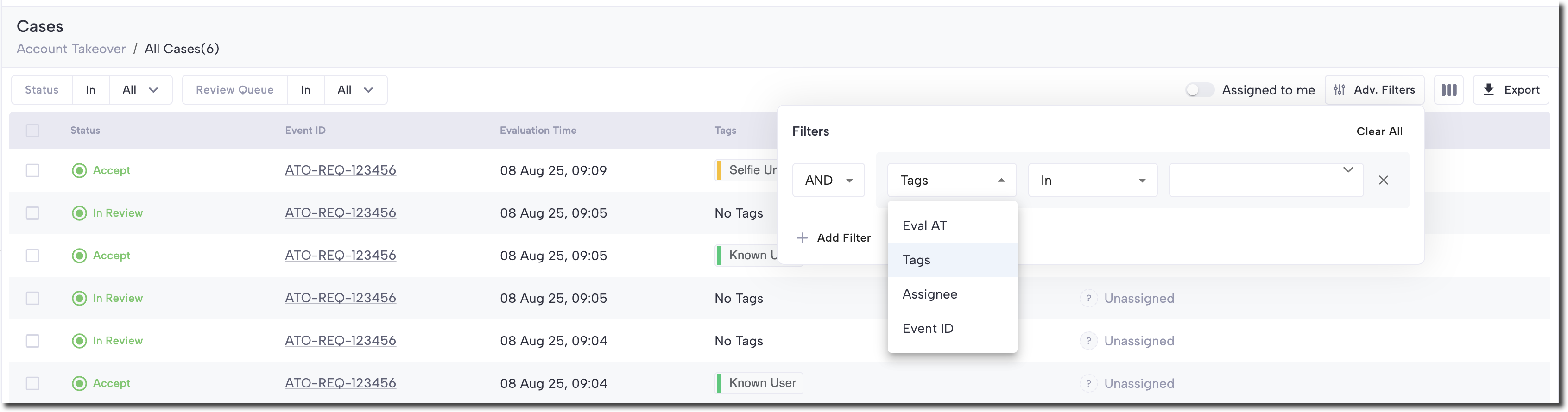
All Cases in the Dashboard
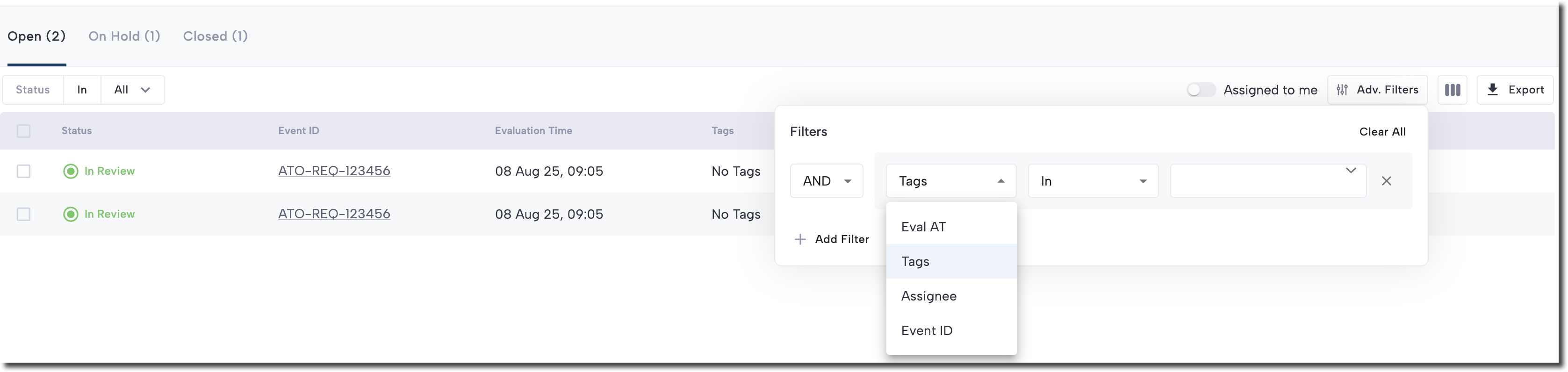
Case Queue in the Dashboard
Sorting
Cases displayed in tables can be sorted in ascending or descending order by clicking the sorting icon in the column headers. Sorting is supported on all single-value columns. Columns that can contain multiple values, such as Tags, are not sortable.
Updated 6 months ago