

Document Verification Flow
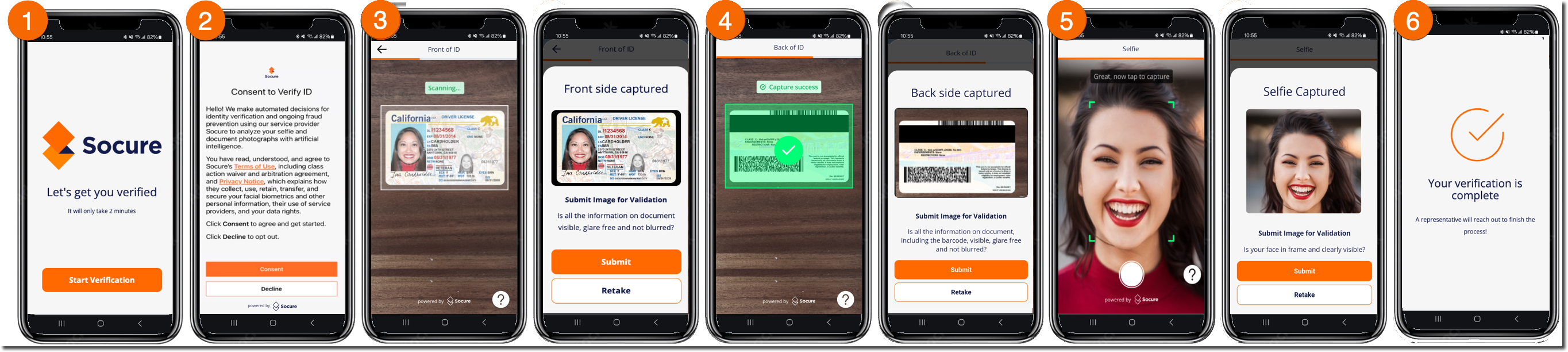
The typical sequence of Capture App screens for the Document Verification + Selfie flow, plus flow variations.
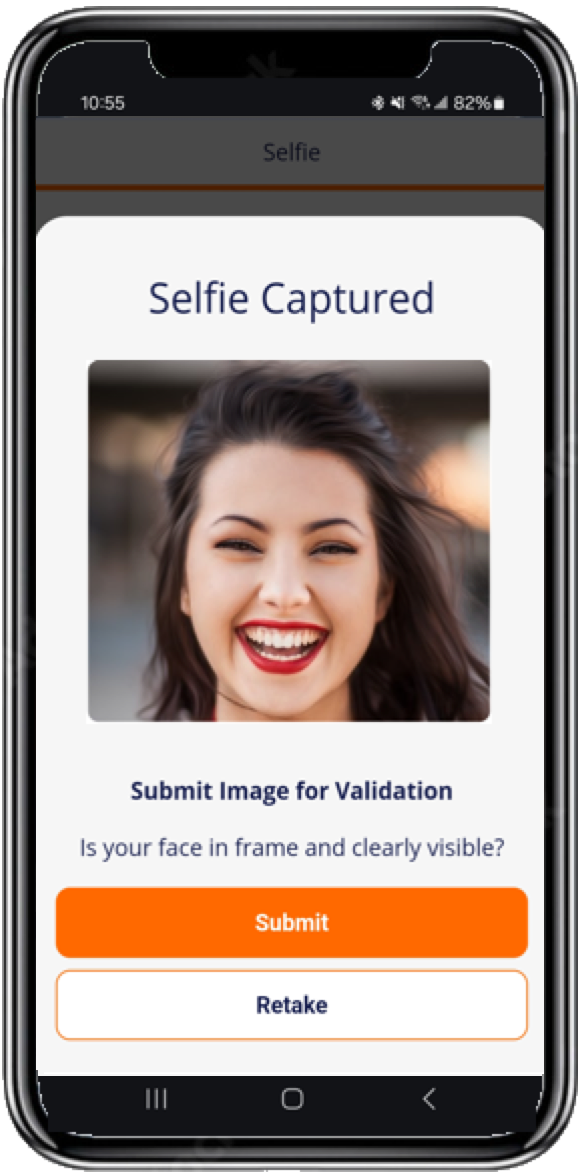
The Document Verification flow in the Capture App provides the consumer with a step-by-step process for capturing and uploading images of their government-issued ID and a selfie. Each time an image is successfully captured and submitted, the Capture App uses image validation services to check for quality issues (such as blur or glare) and confirm that facets within the image (such as the headshot, barcode, and OCR) are clear and readable.
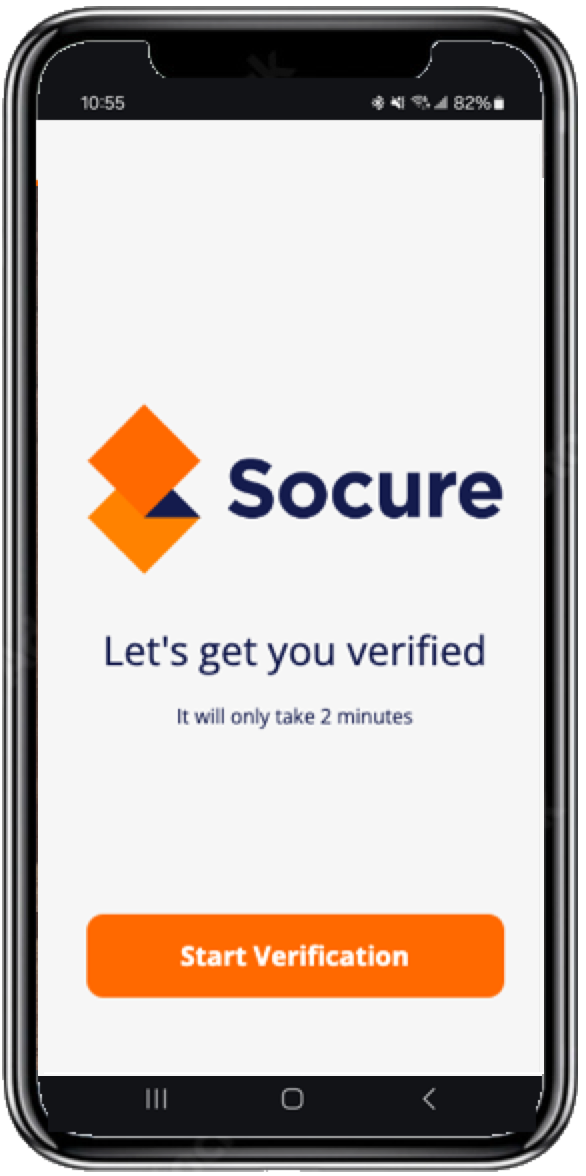
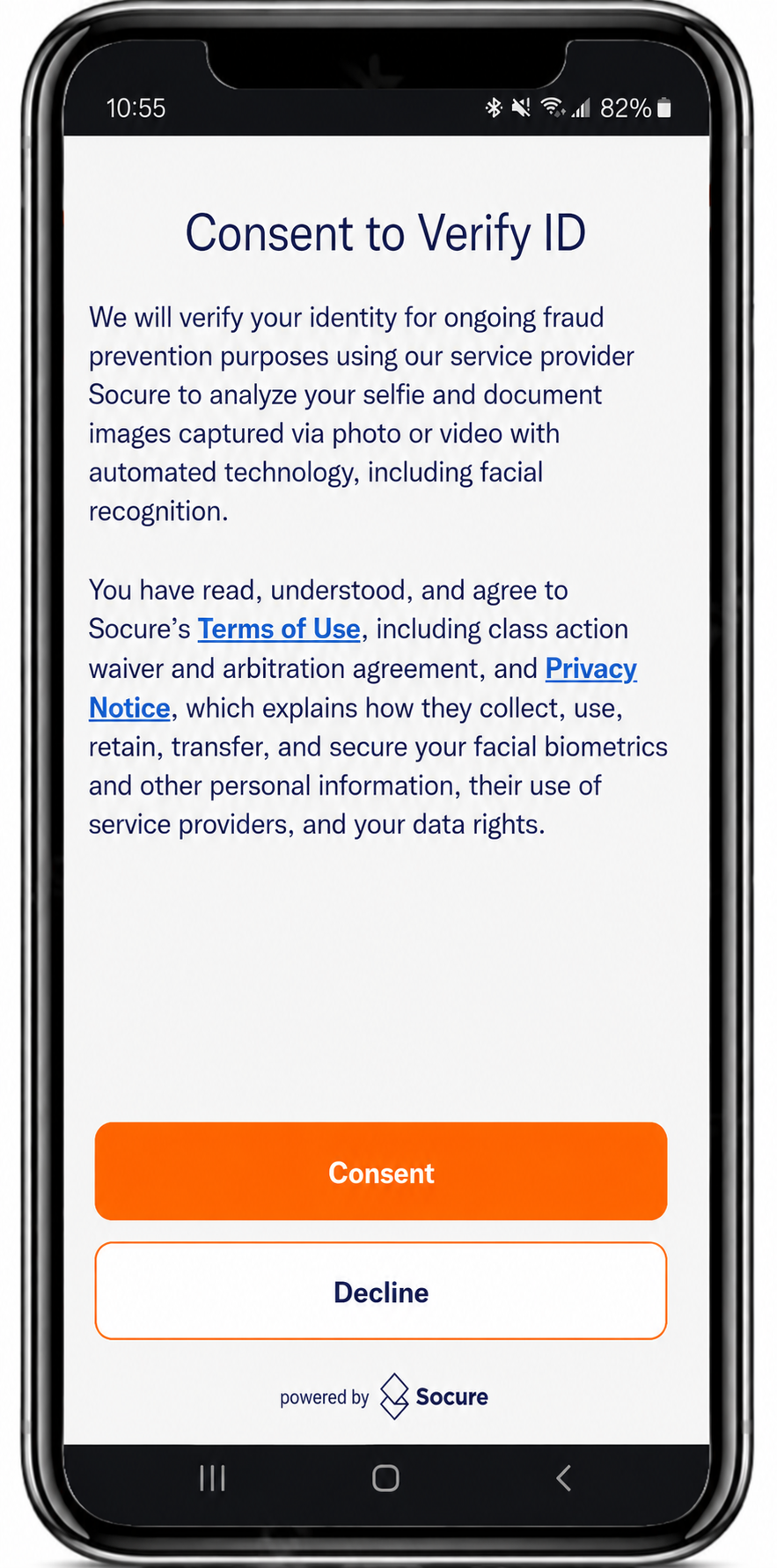
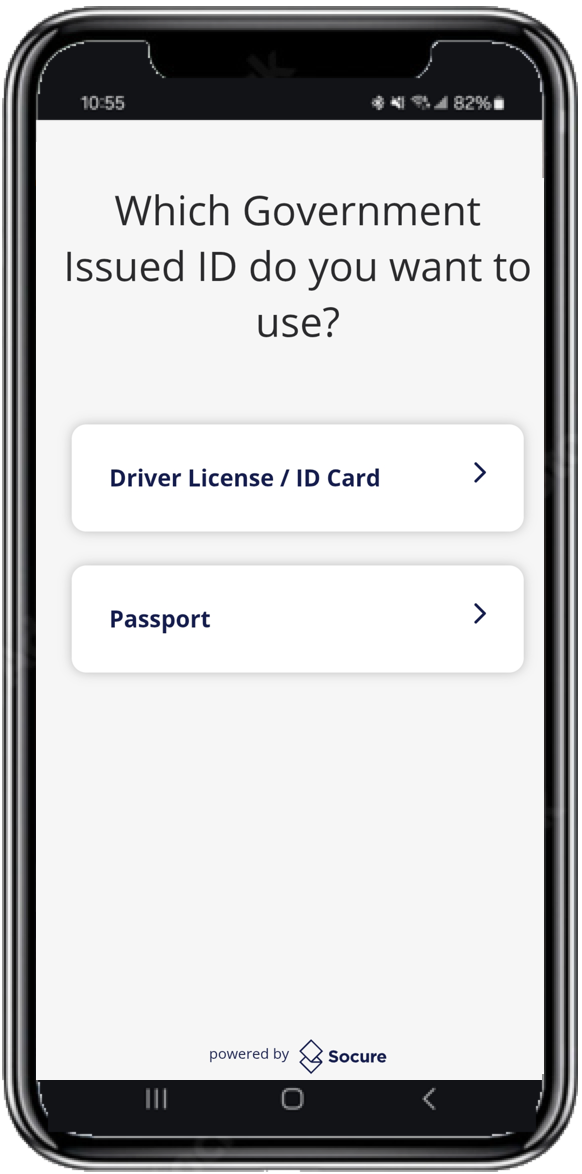
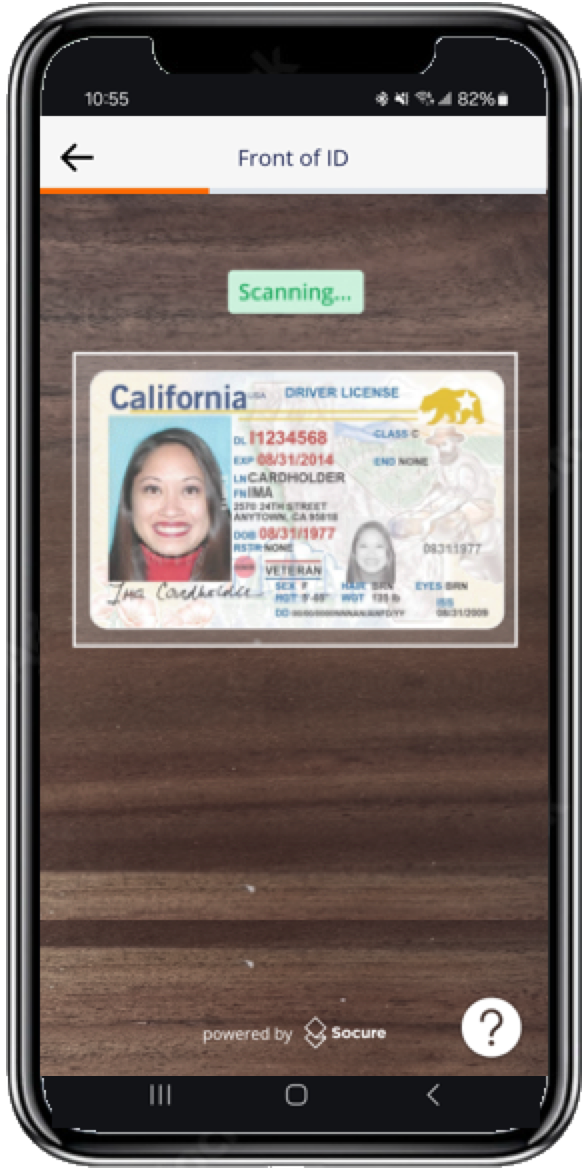
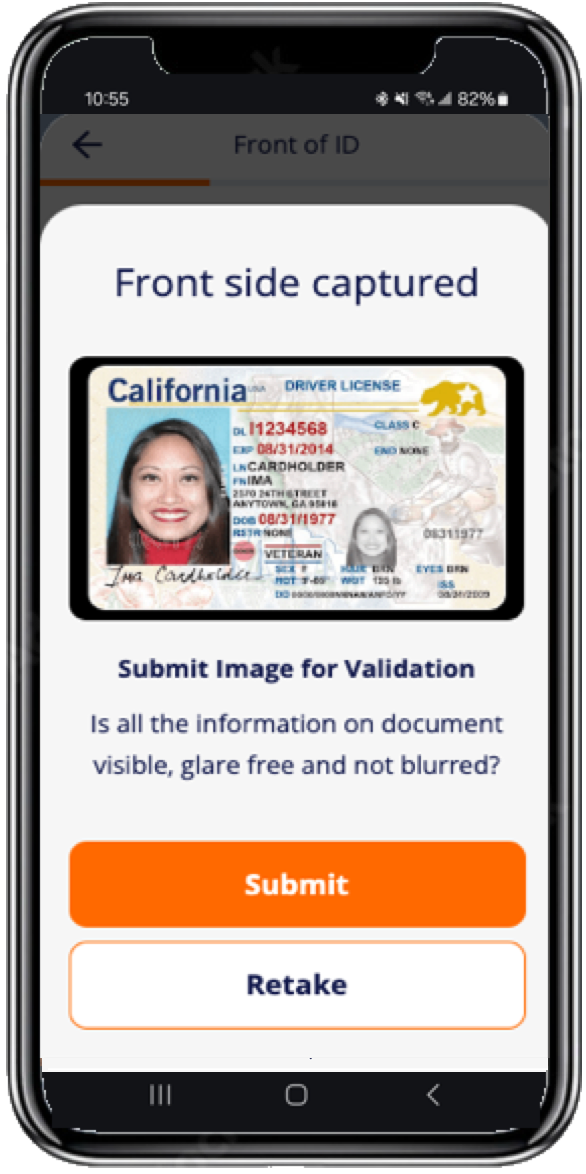
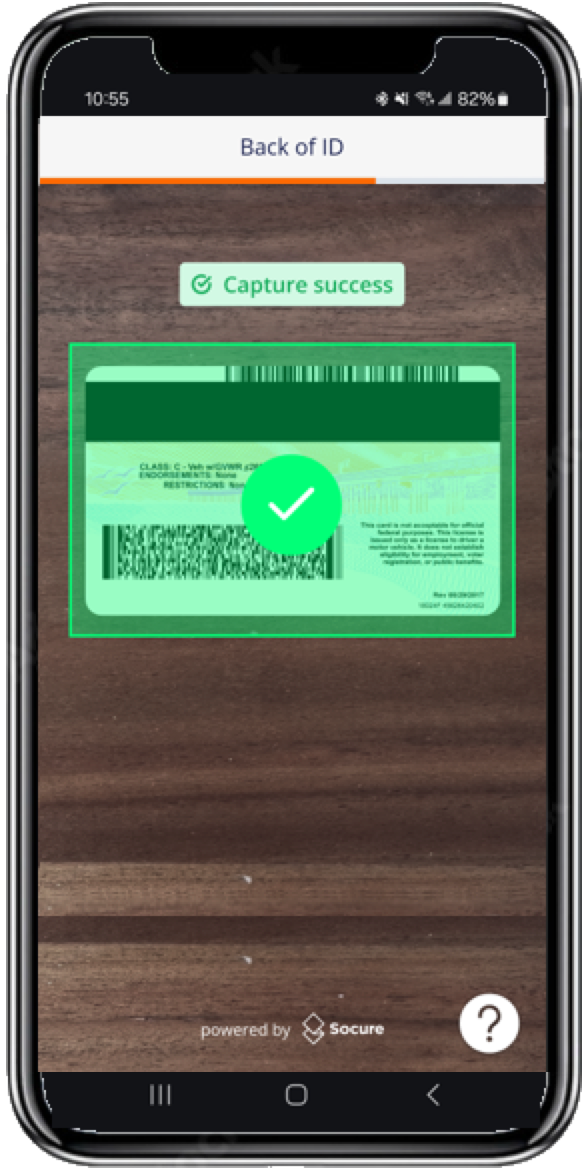
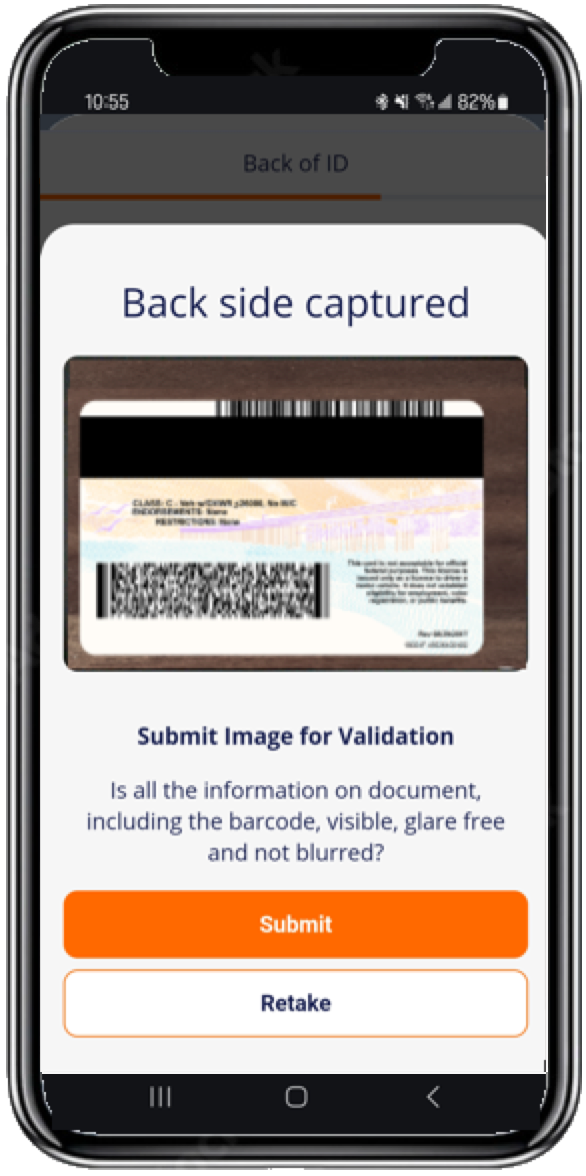
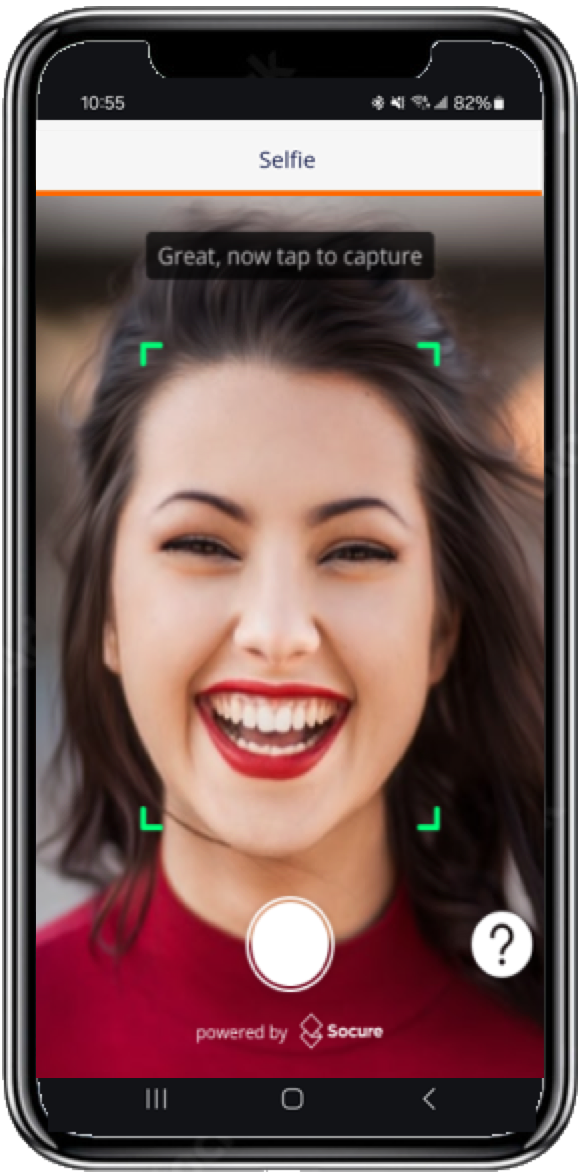
Consent Declined
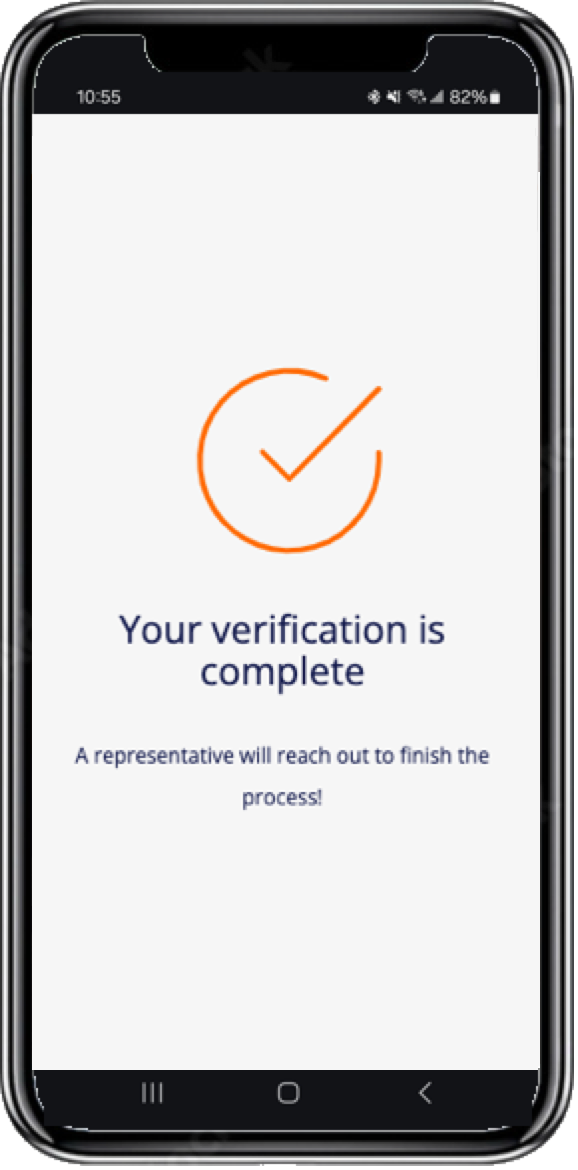
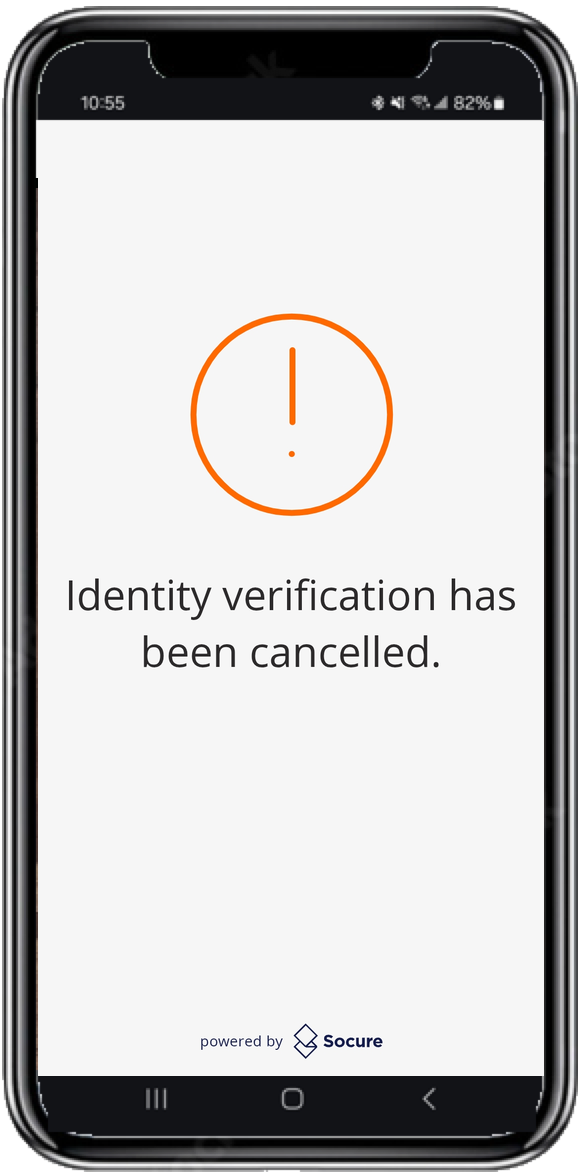
The Terms and Consent screen presents a mandatory notice that the consumer must accept before document capture begins. If the consumer declines consent, the Capture App stops the flow and displays a screen confirming that they can't continue without accepting the notice. The session ends with a terminal-negative Consent Declined outcome. To learn how your workflow resolves this outcome, see Receive DocV Results.
Selfie Auto-Capture
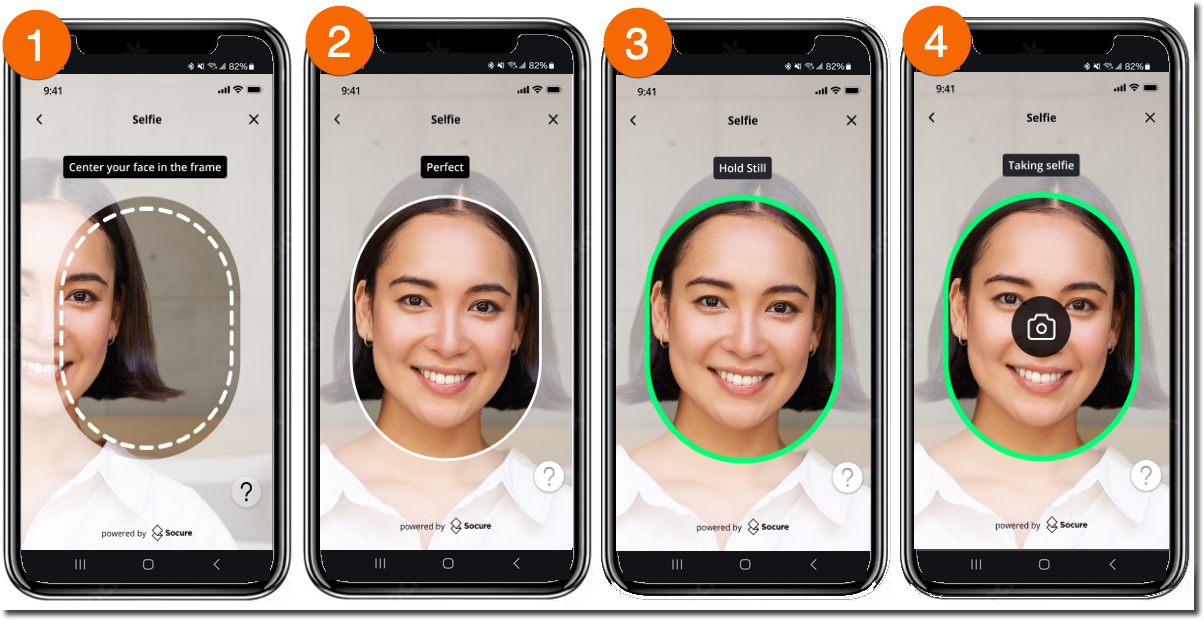
Use the Enable Selfie Auto Capture Interface setting to enable or disable the selfie auto-capture feature and apply an updated user interface for selfie capture.
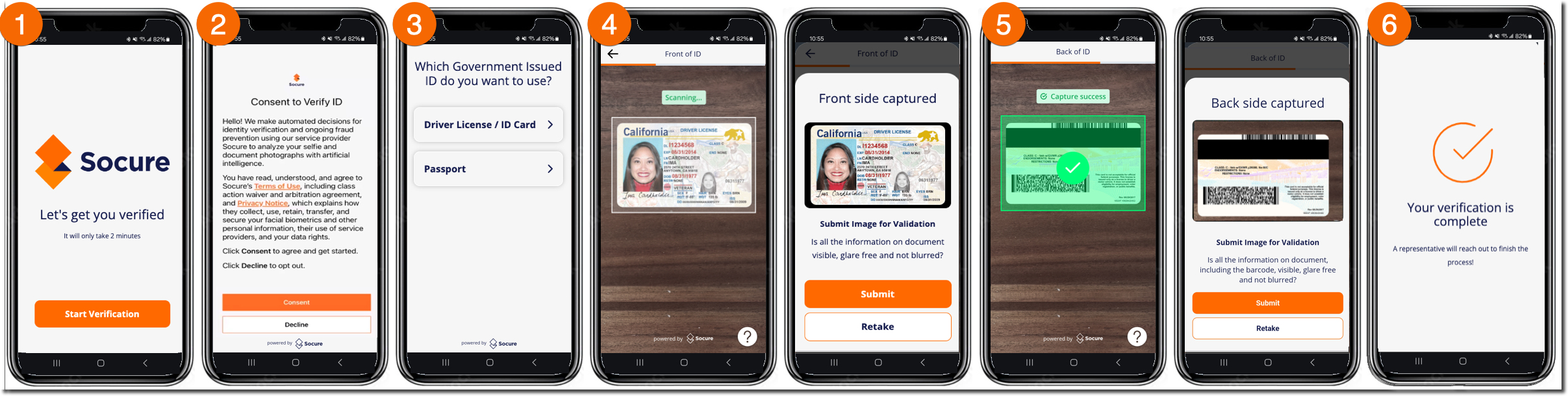
Set Document Type
Use the Document Type setting or API parameter to specify a single acceptable document type (driver's license) for the flow. After you initiate a document request, the Capture App implements a simplified flow that skips the Selected ID Type Screen and starts the consumer on the Document Capture Front Screen.
Disabled Selfie Capture
Use the Selfie Capture setting to disable the selfie capture process for the flow. After you initiate a document request, the Capture App implements a simplified flow that skips the Selfie Capture and Preview screens.
Related
Updated 17 days ago