

Set up Socure Verify
Learn how to set up Socure Verify or Verify Plus in the RiskOS™ Dashboard to confirm consumer identities.
Before you start
Make sure you have the following:
- Your account owner or administrator can enable this for you. If you're unsure who to contact, contact support for assistance.
- If this is your first time working with workflows, review the Workflow overview to understand inputs, enrichments, routing logic, and decisions.
How it works
Socure Verify and Verify Plus are identity verification enrichments available in RiskOS™. They check identity inputs like name, date of birth, and national ID against authoritative sources to return a decision.
Both products return:
-
socureId: A consistent identifier that follows the user across sessions, products, and teams -
reasonCodes: Structured insights about identity patterns contributing to the decision and how it aligns with your risk posture -
fieldValidations: Field-level results that show which inputs (e.g. name, DOB) passed or failed verification -
nationalId: US ONLY: When only the last 4 of the national ID are collected, we'll return the full 9 so you have the complete version on file in accordance with FinCEN standards.
-
socureId: A consistent identifier that follows the user across sessions, products, and teams -
reasonCodes: Structured insights about identity patterns contributing to the decision and how it aligns with your risk posture -
fieldValidations: Field-level results that show which inputs (e.g. name, DOB) passed or failed verification -
sourceAttribution: Identifies which authoritative sources contributed to the decision (e.g. credit bureau, government, utility data etc.) -
bestMatchedEntity: Returns the closest matching identity record, including resolved identity attributes available to your account.
Feature flags and data eligibility
Some datasets used in Verify and Verify Plus require additional configuration or eligibility steps. These features are controlled by Socure's account team.
One example is the eCBSV service, a U.S. Social Security Administration (SSA) integration that verifies a person’s name, date of birth, and SSN against SSA records.
To use eCBSV:
- Your organization must complete a registration and approval process with Socure and SSA.
- A special consent disclosure and provisioning step must be completed before this service is active.
- Your API request must include
consentto trigger the eCBSV lookup.
Until all requirements are met, this data source won’t be active in your workflow - even if the Verify or Verify Plus module is in place. Once provisioned, eCBSV data is included automatically in the enrichment process. It can improve match coverage, but it does not alter the structure of the response. Learn more about eCBSV requirements and registration steps.
How Verify and Verify Plus fit into a workflow
In RiskOS™, workflows are built by connecting reusable components. Verify and Verify Plus are added as Enrichment steps.
Once the enrichment runs, its outputs are available to downstream workflow components, including:
- Conditions
- Decision rules
- Rule score cards
- Manual review steps
- Final decisions
For more detail on these components, see Workflow Steps.
Execution flow in RiskOS™
Verify and Verify Plus run synchronously as part of a RiskOS™ workflow. There is no user handoff or pause in execution.
flowchart LR
    A[Input]
    B[Verify / Verify Plus]
    C[Routing logic]
    D[Decision]

    A --> B --> C --> D
At a high level, the execution flow looks like this:
-
Input
You call the Evaluation API with identity attributes. -
Verify / Verify Plus enrichment
RiskOS™ evaluates the inputs against configured data sources and match tolerances. -
Routing logic
The workflow evaluates decisions, field-level results, and reason codes. -
Decision
The workflow returns a final outcome (for example, Accept, Review, or Reject).
Workflow components used by Verify and Verify Plus
Verify and Verify Plus use a subset of standard RiskOS™ workflow components.
| Component | Purpose | Typical input | Output / What to use next |
|---|---|---|---|
| Input | Start an evaluation | Identity attributes | Workflow execution begins |
| Enrichment | Verify identity | — | Decision, reason codes, field validations |
| Condition | Branch based on results | Verify outputs | Route to appropriate path |
| Decision Rule / Score Card | Apply policy logic | Verification signals | Pass/fail or escalation |
| Decision | Emit final outcome | Routed value | Accept / Review / Reject |
Configure Verify or Verify Plus
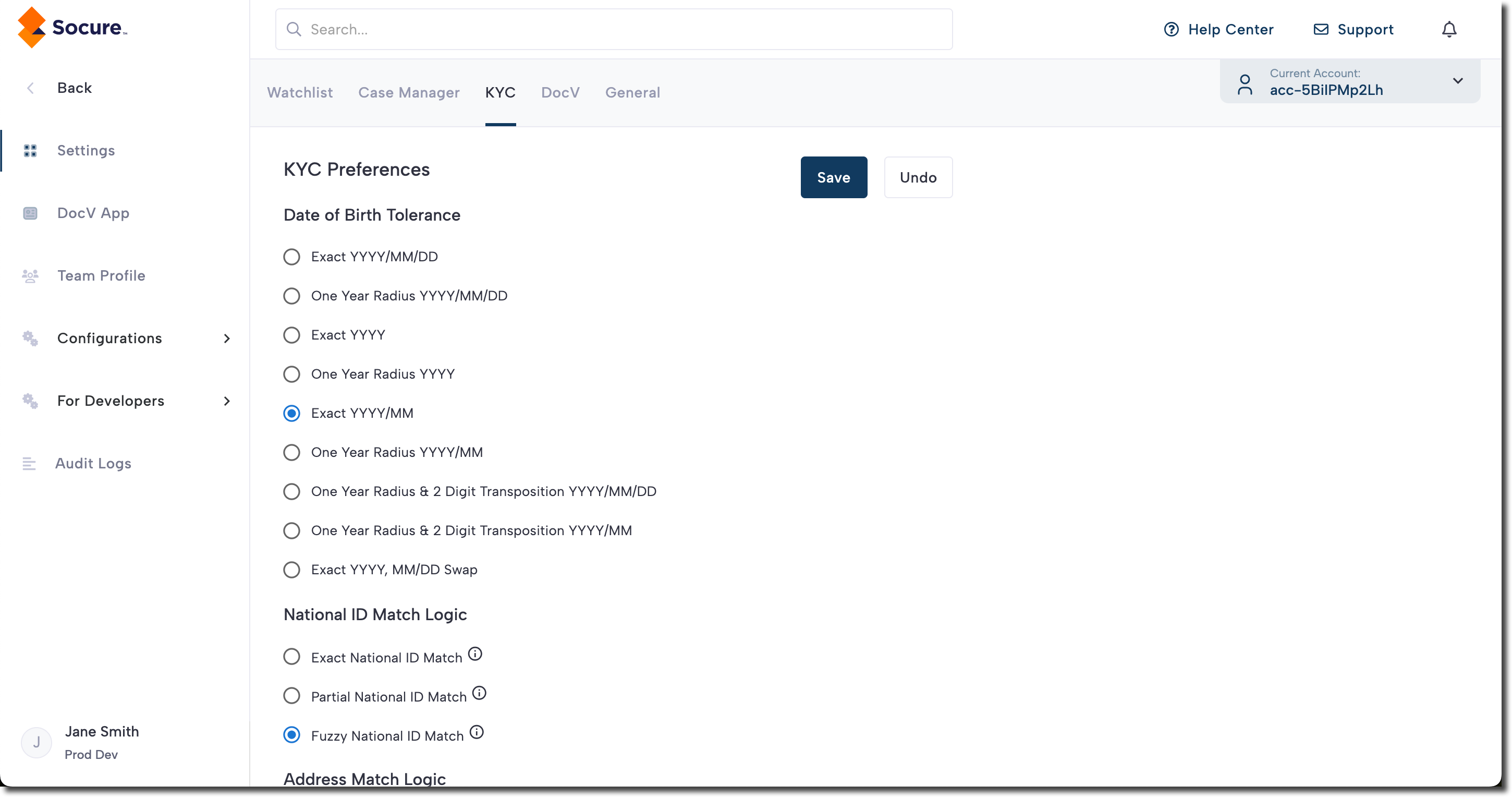
Configure match tolerances
Verify and Verify Plus include configurable match tolerances that control how strictly identity attributes are evaluated.
These settings are applied at the account level and affect all Verify evaluations.
Examples include:
| Field Type | Match Options | Default Behavior | Notes |
|---|---|---|---|
| Date of Birth | 9 tolerance levels: from exact to ±1 year w/ digit swaps | Configurable | If exact-only. |
| National ID | Exact Partial (1-char diff) Fuzzy (2-digit transposition) | Exact | If fuzzy not enabled. |
| Address Line 2 | Exact Fuzzy (unit ignored) | Exact | House number is always exact. Direction, suffix, and city are fuzzy |
Note:
Use these settings to align match strictness with your policy. Default is lenient - tighten only where needed.
Exceptions:
For international workflows, partial national IDs are not accepted. The U.S. is the exception - either the last four digits or the full nine-digit SSN can be used. When only the last four are submitted, an exact match is always applied. If the full SSN is provided, your account’s match settings determine whether exact or fuzzy matching is used.
Standard match settings
| Field Type | Match Options | Default Behavior | Notes |
|---|---|---|---|
| Given Name (First) | Fuzzy only | Fuzzy | Fuzziness cannot be disabled |
| Family Name (Last or Surname) | Fuzzy only | Fuzzy | Fuzziness cannot be disabled |
| House Number | Exact only | Exact | Matches local postal standards |
| Address Line 1 (Cardinal Direction, Street Name and Street Suffix) | Fuzzy only | Fuzzy | Matches local postal standards |
| Locality (city) | Fuzzy only | Fuzzy | Matches local postal standards |
| Major Admin Division(State) | Exact only | Exact | Matches local postal standards |
| Postal Code (ZIP) | Exact only | Exact | Matches local postal standards |
| Phone | Exact only | Exact | Not configurable |
| Exact only | Exact | Not configurable |
Set match tolerances for Socure Verify and Verify Plus on the Settings > KYC tab in the RiskOS™ Dashboard.
The settings configured on this page apply to all Socure Verify evaluations for your account.
Add Verify or Verify Plus to a workflow
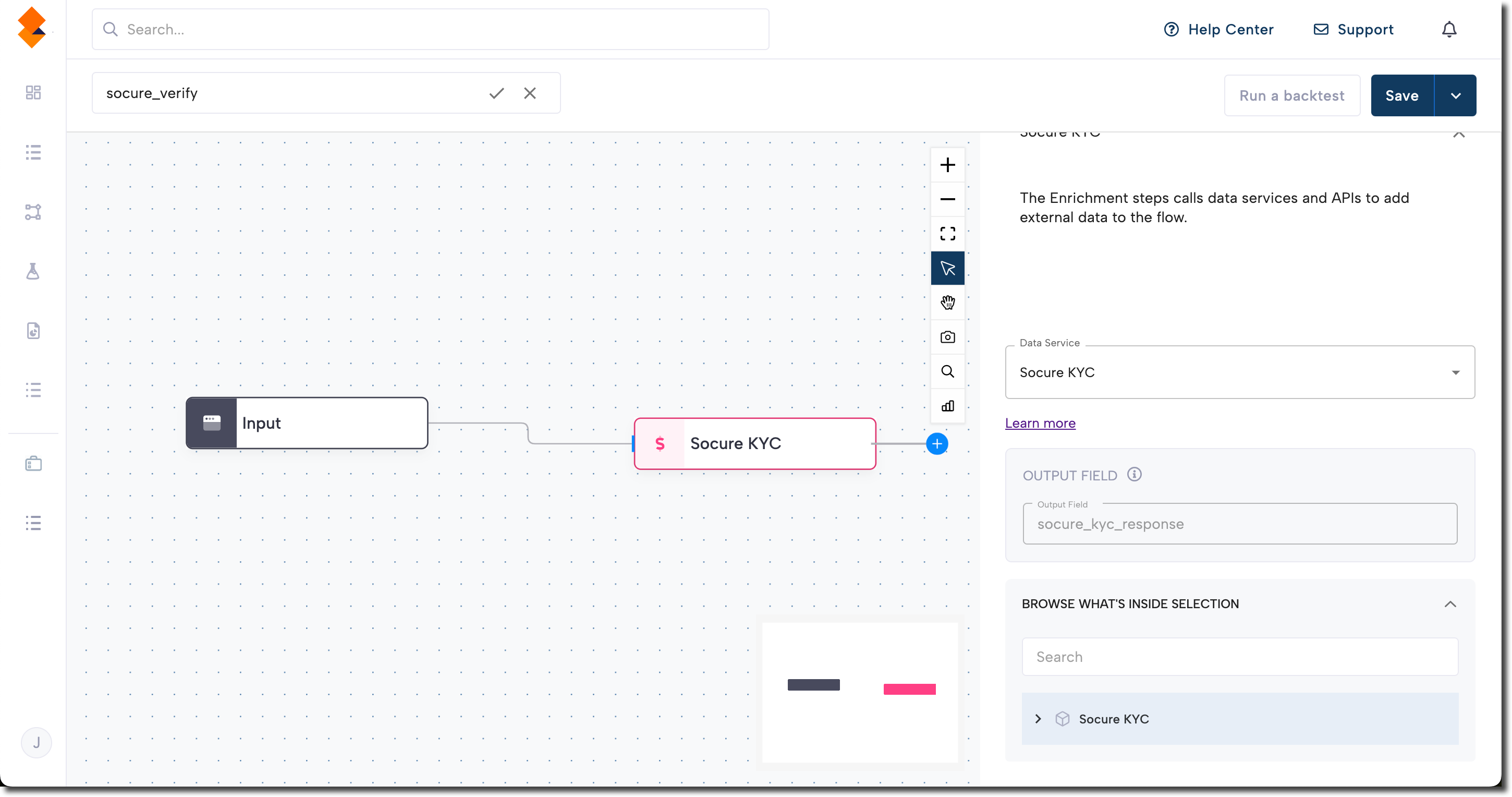
- In the RiskOS™ Dashboard, go to Workflows and create a new workflow or open an existing one.
- Add an Enrichment step.
- Select one of:
- Verify
- Verify Plus
Configure inputs and routing
Typical required inputs include:
- Name
- Date of birth
- National ID
Optional inputs may include feature-gated sources such as eCBSV.
Common routing strategies include:
- Blocking or failing when required inputs are missing
- Escalating to additional verification when identity signals conflict
- Re-prompting users to correct or complete inputs
- Routing edge cases to manual review
Reason codes and field validations can be used to inform these routing decisions.
Save and publish
Once your workflow is configured, publish it to go live.
Workflow testing checklist
Use this checklist to confirm accuracy, resilience, and completeness before going live.
Updated about 19 hours ago