

Manual Fraud Feedback
Mark cases as fraudulent or not fraudulent during review in RiskOS™ to provide fraud feedback and improve model performance.
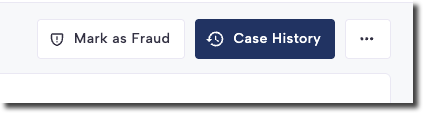
If the Manual Fraud Feedback functionality is enabled for your account, you will see a button at the top of the screen, next to the Case History button on the Single Case View. The button will display either Mark as Fraud or Mark as non-fraud, depending on the current status of the application being reviewed.
Marking a case as fraudulent
During the case review process, if you find sufficient evidence that an application is fraudulent, you can mark it as fraudulent by selecting Mark as Fraud. This action can be taken regardless of the application's current decision or status.
The case does not need to be assigned to anyone for it to be marked as fraudulent, and selecting this option will not automatically assign the case to you.
- After you click Mark as Fraud, a pop-up will appear, prompting you to provide details about the identified fraud.
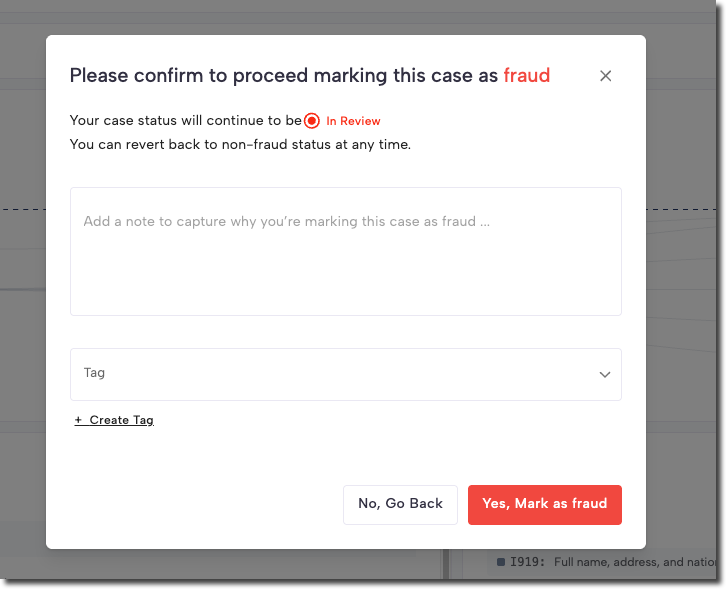
Note:
If you receive an error message stating "Insufficient Permission" when attempting to mark an application as fraudulent, please reach out to the RiskOS™ Support team for assistance.
Visual indicators of fraudulent case
When a case is successfully marked as fraudulent, several visual cues appear in the Case View to indicate this status:
- The entire case information header is highlighted in red, and a Marked as Fraud tag is added to the case.

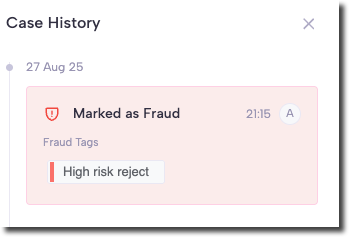
- A new event is added to the Case History view, also highlighted in red. This event indicates that the case was marked as fraudulent, displaying the user who took the action and the notes added to the case.
Mark a case as not fraud
If a case has already been marked as fraudulent, another action can be taken to indicate that the specific case is not fraudulent. This action can be performed in a similar manner to marking a case as fraud, by using the Mark as non-fraud button on the Single Case View.
When this action is taken, a pop-up will appear, displaying the reason why the application was originally marked as fraudulent, and by whom. This window will also allow you to add notes explaining why the case is now identified as non-fraudulent.
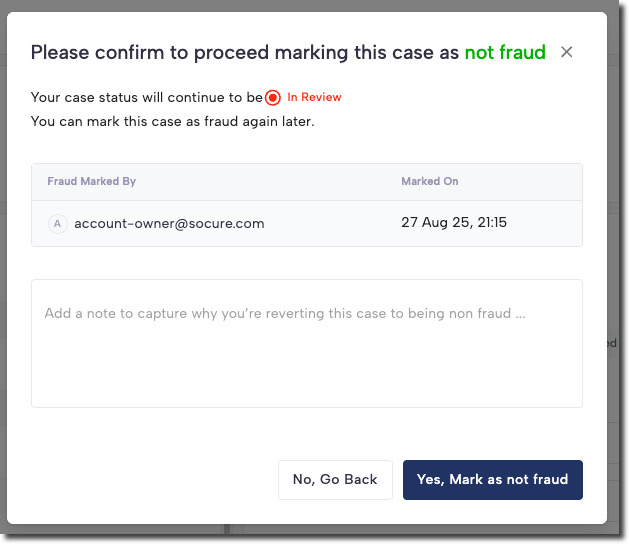
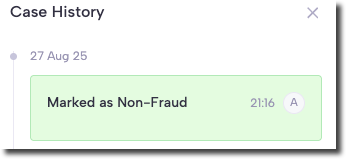
When confirming the Mark as non-fraud action, the red background color in the case information header will be removed. The Case History view will also log a new event, marked by a green background, indicating that the case was reclassified as not fraudulent.
Updated 5 months ago