

DocV Web SDK
Learn how to quickly integrate with the Predictive Document Verification (DocV) Web SDK.
Note:
To utilize RiskOS™ your DocV Web SDK integration must be on version 5 (v5) or later.
This page covers the Web-specific integration steps. For the complete server-to-server flow — starting an evaluation, the full docv.config payload for every flow type (Document Verification, Secondary Document, Selfie Intelligence, and Selfie Reverification), and receiving results — see DocV Integration.
Before you start
Make sure you have the following:
Step 1: Generate a transaction token and configure the Capture App
To initiate the verification process, generate a transaction token (docvTransactionToken) by calling the Evaluation endpoint. We strongly recommend that customers generate this token via a server-to-server API call and then pass it to the DocV SDK to ensure the security of their API key and any data they send to Socure.
Call the Evaluation endpoint
- From your backend, make a
POSTrequest to the/api/evaluationendpoint specifying the following information in theconfigobject:
| Parameter | Required | Description |
|---|---|---|
language | Optional | Determines the language package for the UI text on the Capture App. Note: Socure can quickly add support for any new language requirement that is not listed above. For more information, contact [email protected]. |
use_case_key | Optional | Deploys a customized Capture App flow on a per-transaction basis. Replace the customer_use_case_key value with the name of the flow you created in RiskOS™.
|
Note:
We recommend including as much consumer PII in the body of the request as possible to return the most accurate results.
curl --location 'https://riskos.socure.com/api/evaluation' \
  --header 'accept: application/json' \
  --header 'authorization: Bearer YOUR_API_KEY' \
  --header 'content-type: application/json' \
  --header 'X-API-Version: 2025-01-01.orion' \
  --data-raw '{
    "id": "onb-12345",
    "eval_id": "6dc8f39c-ecc3-4fe0-9283-fc8e5f99e816",
    "workflow": "consumer_onboarding",
    "data": {
      "individual": {
        "id": "9876543",
        "first_name": "John",
        "middle_name": "M",
        "family_name": "Doe",
        "national_id": "000-10-0007",
        "dob": "2002-07-28",
        "email": "[email protected]",
        "phone_number": "+447767198341",
        "docv": {
          "config": {
            "use_case_key": "customer_use_case_key",
            ...
          }
        },
        "address": {
          "line_1": "Address Line 1",
          "locality": "New York City",
          "major_admin_division": "NY",
          "country": "US",
          "postal_code": "12345"
        }
      }
    }
  }'
import os
import requests
url = "https://riskos.socure.com/api/evaluation"
headers = {
"accept": "application/json",
"authorization": f"Bearer {os.getenv('YOUR_API_KEY')}",
"content-type": "application/json",
"X-API-Version": "2025-01-01.orion",
}
payload = {
"id": "onb-12345",
"eval_id": "6dc8f39c-ecc3-4fe0-9283-fc8e5f99e816",
"workflow": "consumer_onboarding",
"data": {
"individual": {
"id": "9876543",
"first_name": "John",
"middle_name": "M",
"family_name": "Doe",
"national_id": "000-10-0007",
"dob": "2002-07-28",
"email": "[email protected]",
"phone_number": "+447767198341",
"docv": {
"config": {
"use_case_key": "customer_use_case_key",
# ...
}
},
"address": {
"line_1": "Address Line 1",
"locality": "New York City",
"major_admin_division": "NY",
"country": "US",
"postal_code": "12345"
}
}
}
}
response = requests.post(url, headers=headers, json=payload)
data = response.json()- When you receive the API response, collect the
docvTransactionToken. This value is required to initialize the DocV Web SDK.
{
  "id": "Test-API-1",
  "workflow": "sc_onboarding",
  "workflow_id": "a8dff53b-74c1-411f-a43d-9597ae60e5ae",
  "workflow_version": "3.2.0",
  "eval_source": "API",
  "eval_id": "500c6b88-9f5c-4d62-9422-163a59a343fe",
  "eval_start_time": "2025-01-08T14:57:42.08985Z",
  "eval_end_time": "0001-01-01T00:00:00Z",
  "decision": "REVIEW",
  "decision_at": "2025-01-08T14:57:43.223321Z",
  "status": "ON_HOLD",
  "sub_status": "",
  "tags": null,
  "notes": "",
  "review_queues": [
    "Default Queue"
  ],
  "data_enrichments": [
    {
      "enrichment_name": "SocureDocRequest",
      "enrichment_endpoint": "https://service.socure.com/api/5.0/documents/request",
      "enrichment_provider": "SocureDocRequest",
      "status_code": 200,
      "request": {
        "city": "New York City",
        "country": "US",
        "dob": "2002-07-28",
        "firstName": "John",
        "mobileNumber": "+1234567891",
        "physicalAddress": "Address Line 1",
        "state": "NY",
        "surName": "Doe",
        "zip": "12345"
      },
      "response": {
        "data": {
          "docvTransactionToken": "70c6a4bc-f646-4c6a-94c1-9cd428e356ef",
          "eventId": "70c6a4bc-f646-4c6a-94c1-9cd428e356ef",
          "qrcode": "data:image/png;base64,iVBO......K5CYII=",
          "url": "https://verify.socure.com/#/dv/70c6a4bc-f646-4c6a-94c1-9cd428e356ef"
        },
        "referenceId": "aacdc975-0eb8-428d-9954-b42aab67f85f"
      },
      "is_source_cache": false,
      "total_attempts": 1
    }
  ],
  "eval_status": "evaluation_paused"
}
Step 2: Add the DocV Web SDK
To enable DocV SDK functionality, add the SDK script inside your <head> section:
<script src="https://websdk.socure.com/bundle.js"></script>Add the handoff component
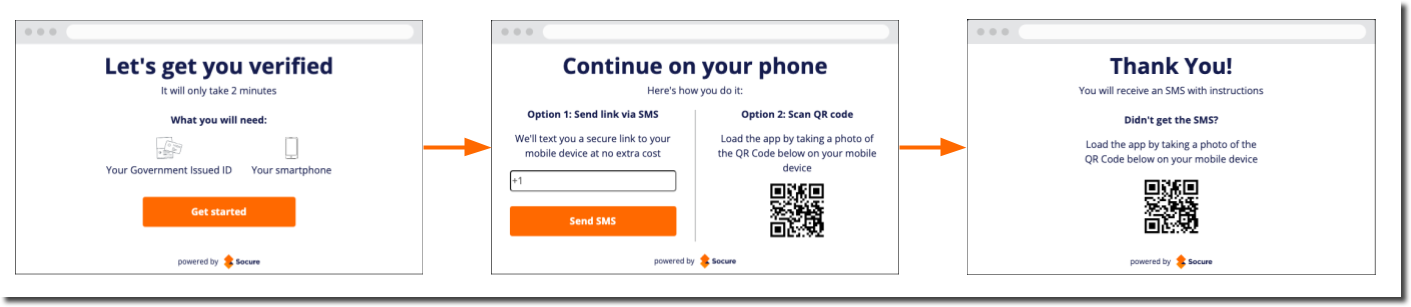
The handoff component is displayed on the webpage in a <div> element where the id="websdk" is provided.
<button onclick="start()">Start Verification</button>
<div id="websdk"></div>
When the consumer clicks Start Verification, the SDK launches inside the #websdk container. The following example displays the default screens for the handoff component:
Initialize and launch the SDK
To launch the SDK, configure the SocureDocVSDK.launch function in your front-end:
<html>
  <head>
    <script src="https://websdk.socure.com/bundle.js"></script>
  </head>
  <body>
    <button onclick="start()">Start Verification</button>
    <div id="websdk"></div>

    <script>
      var config = {
        onProgress: function (event) {
          /* Called during capture */
        },
        onSuccess: function (response) {
          /* Called on success */
        },
        onError: function (error) {
          /* Called on error */
        },
        qrCodeNeeded: true, // Show QR code option
        disableSmsInput: false, // Enable SMS input
        closeCaptureWindowOnComplete: true, // Auto-close tab after document upload confirmation
        autoOpenTabOnMobile: true, // Skip "Continue on New Tab" screen on mobile and launch Capture App in a new tab
      };
      function start() {
        SocureDocVSDK.launch(
          'SDKKey',
          'docvTransactionToken',
          '#websdk',
          config[optional]
        );
      }
    </script>
  </body>
</html>
SocureDocVSDK.launch function parameters
SocureDocVSDK.launch function parametersThe following table lists the SocureDocVSDK.launch function parameters:
| Parameter | Required | Description |
|---|---|---|
SDKKey | Required | The unique SDK key obtained from RiskOS™ used to authenticate the SDK. |
docvTransactionToken | Required | The transaction token retrieved from the API response of the/api/evaluationendpoint. Required to initiate the document verification session. |
websdk | Required | The div element where the SDK should render the Web SDk handoff component. |
config | Optional | Contains the callback methods for the progress, success, and error responses. See the section below for more information. |
The config object and callback methods
config object and callback methodsYou can pass a config object into the SocureDocVSDK.launch method to control behavior and handle events during the verification process.
var config = {
  onProgress: function(event) { ... },
  onSuccess: function(response) { ... },
  onError: function(error) { ... },
  qrCodeNeeded: true,
  disableSmsInput: false,
  closeCaptureWindowOnComplete: true,
  autoOpenTabOnMobile: true
};Note:
The callback functions are required. If you are not using them, the contents within the brackets may be left empty, but the functions themselves must still be defined.
The following table lists the arguments passed to the config object:
| Parameter | Type | Required | Description |
|---|---|---|---|
onProgress | Function | Required | Callback function triggered during the document capture process. |
onSuccess | Function | Required | Callback function executed when the document capture process completes successfully. |
onError | Function | Required | Callback function triggered when an error occurs during the document capture process. |
qrCodeNeeded | Boolean | Optional | Determines whether a QR code is displayed on the handoff component. If true, the system generates a QR code. |
disableSmsInput | Boolean | Optional | Disables the SMS entry option on the handoff component, showing only the QR code option. Setting this to true overrides qrCodeNeeded: false. |
closeCaptureWindowOnComplete | Boolean | Optional | Automatically closes the Capture App browser tab 2 seconds after the consumer reaches the Confirmation screen at the end of the Capture App flow.Note: If a redirect.url is included in the redirect object of the Evaluation API call, or if a redirect URL is configured in the flow on the RiskOS™ Dashboard, the redirect will take precedence and this setting will be ignored. |
autoOpenTabOnMobile | Boolean | Optional | Automatically opens the Capture App in a new browser tab on mobile devices, bypassing the intermediate Continue on New Tab confirmation screen. |
skipSplashScreen | Boolean | Optional | Skips the SDK splash screen so that the first screen displayed is the SMS/QR code selection screen. |
Note:
On mobile browsers, when
skipSplashScreen: trueis set, theautoOpenTabOnMobile: truesetting is not honored. The SDK instead displays the Continue on New Tab screen as a fallback.
Handle the response
The SocureDocVSDK.launch() function returns a Promise that resolves with either a success or error result. This allows you to handle immediate initialization feedback on the client side. For example, if a transaction token is invalid or expired, you can request a new evaluation from your backend and retry launching the SDK.
Launch response handling
Success response:
{
  "result": "success"
}
Error response:
{
  "result": "error",
  "errorMessage": "<message>"
}
Possible error messages include:
| Category | Error Message |
|---|---|
| Transaction Errors | Invalid DocV Transaction Token (If loading transaction from Step Up fails) |
| Input Validation | Please provide a valid public API key (If no key is provided) |
You need to provide a W3C compatible selector to the init method. (If no selector is provided) | |
Invalid selector found (If selector is not found in the DOM) | |
Please provide a valid pollingInterval (If polling interval value is invalid) | |
| SDK Load Failure | Failed to load websdk (If WebSDK fails to load) |
Reset the SDK
You can reset the DocV Web SDK by calling the SocureDocVSDK.reset() function in your front-end implementation.
This function will:
- Clear the Web SDK cache.
- Clean up stored data and API state.
- On mobile browsers: if a
captureAppWindowis active (opened by the Web SDK), it will automatically close the new tab window.
Example:
// Reset the Socure DocV SDK
SocureDocVSDK.reset();
Callbacks and webhooks
You can use either callbacks or webhooks to track the consumer's progress in the document capture and upload process, and receive error messages if the flow fails. For more information, see Predictive DocV Web SDK Callback Methods and Predictive DocV Webhook Events.
Step 3: Receive the verification results
After the consumer finishes the document capture and upload process with the Capture App, RiskOS™ runs the evaluation process and returns the results in the evaluation_completed webhook event. The DocV verification results are included in the data_enrichments array within the payload.
Alternatively, you can fetch the RiskOS™ results by making a GET request to the /api/evaluation/{eval_id} endpoint.
{
  "data": {
    "decision": "REVIEW",
    "decision_at": "2025-04-08T18:27:31.924196163Z",
    "environment_name": "",
    "eval_at": "2025-04-08T18:27:31.924196043Z",
    "eval_id": "8770e076-f568-48a9-8201-dca13087e592",
    "eval_source": "API",
    "evaluation_status": "evaluation_completed",
    "id": "abc-test-123",
    "notes": "Test Notes",
    "reason_codes": ["test"],
    "review_queues": ["Default Queue"],
    "status": "OPEN",
    "sub_status": "Surveillance",
    "tags": ["test"],
    "data_enrichments": [
      {
        "third_party_name": "Socure Document Request",
        "third_party_endpoint": "https://service.socure.com/api/5.0/documents/request",
        "third_party_provider": "SocureDocRequest",
        "status_code": 200,
        "request": {
          "country": "US",
          "firstName": "John",
          "surName": "Smith"
        },
        "response": {
          "data": {
            "docvTransactionToken": "9979eda7-9694-476d-ab8b-e6bbc0153dc3",
            "eventId": "9979eda7-9694-476d-ab8b-e6bbc0153dc3",
            "qrcode": "data:image/png;base64,iVBO......K5CYII=",
            "url": "https://verify.socure.com/#/dv/9979eda7-9694-476d-ab8b-e6bbc0153dc3"
          },
          "referenceId": "b902702f-a07a-4180-acdd-20266f776ba3"
        },
        "is_source_cache": false,
        "total_attempts": 1
      },
      {
        "third_party_name": "Socure Predictive Document Verification Prod",
        "third_party_endpoint": "https://service.socure.com/api/3.0/EmailAuthScore",
        "third_party_provider": "Socure",
        "status_code": 200,
        "request": {
          "country": "US",
          "docvTransactionToken": "9979eda7-9694-476d-ab8b-e6bbc0153dc3",
          "firstName": "John",
          "modules": ["documentverification"],
          "parentTxnId": "e3c35948-5141-4e3d-836d-31ee7fcc8b8d",
          "surName": "Smith",
          "workflow": "api_consumer_onboarding"
        },
        "response": {
          "documentVerification": {
            "scores": {
              "activeModelVersion": "0.1.0",
              "activeModelScore": 0.02
            },
            "decision": {
              "name": "standard",
              "value": "accept"
            },
            "documentType": {
              "country": "USA",
              "state": "WA",
              "type": "Drivers License"
            },
            "reasonCodes": [
              "I834",
              "I845",
              "I831",
              "I820",
              "I836",
              "I838",
              "R823",
              "R822"
            ]
          },
          "referenceId": "06bf2f66-7d18-47c2-b12f-4be3a30e1d49"
        },
        "is_source_cache": false,
        "total_attempts": 1
      },
      {
        "third_party_name": "Socure Image Request Prod",
        "third_party_endpoint": "https://upload.socure.com/api/5.0/documents/{referenceId}",
        "third_party_provider": "SocureImageRequest",
        "status_code": 200,
        "request": {
          "referenceId": "06bf2f66-7d18-47c2-b12f-4be3a30e1d49"
        },
        "response": {
          "docId": "077bd0be-129e-4352-bb6b-cc07c9a86fdc"
        },
        "is_source_cache": false,
        "total_attempts": 1
      }
    ],
    "workflow": "api_consumer_onboarding",
    "workflow_id": "7ba6948f-502d-446e-a1e5-45d66cc50983",
    "workflow_version": "1.0.0"
  },
  "event_at": "2025-04-08T18:27:31.9244894Z",
  "event_id": "df9252b5-85c8-426e-9590-8f51b6e5b5c0",
  "event_type": "evaluation_completed"
}
Updated about 19 hours ago