

Ashby Integration — Seamless Setup in Under 10 Minutes
Integrate Ashby with RiskOS™ for instant identity and document verification in hiring workflows — no engineering effort required for Ashby customers.
This guide walks Ashby customers through configuring Socure's workforce verification solution via webhooks in Ashby. All you must do is configure webhooks in Ashby. RiskOS™ then automatically initiates a workforce verification workflow and applies a tag (for example, HIGH_RISK_IDENTITY or LOW_RISK_IDENTITY) to the candidate profile in Ashby. RiskOS™ Case Management provides all the insights including model scores, reason codes, and Gen AI powered explanations to explain the "why" behind the decision.
-
Configure Ashby to capture candidate consent or other legal requirements (5 Minutes)
Use a required question for any necessary legal language or links to documents (e.g., a candidate privacy policy) or to collect any required consents for workforce verification. For example, you may require a user to answer "I Consent" before submission. Consult your legal team for any specific requirements.
Before you start configuration
Make sure the following setup steps are complete:
| Step | Details |
|---|---|
| RiskOS™ Account | Your RiskOS™ account is provisioned and the workforce_verification workflow is enabled. Your Socure Solutions Consultant can confirm. |
| Review workflow | Review your workflow and adjust risk thresholds as needed. The workforce_verification workflow includes the following modules by default: Email Risk + Graph Intelligence, Phone Risk + Graph Intelligence, Sigma Identity Fraud + Graph Intelligence, Sigma Synthetic Fraud, Document Verification. You can add additional modules and adjust risk thresholds as needed. |
How it works with Ashby
- Configure an Application Submitted webhook in Ashby to trigger passive checks in RiskOS™.
- RiskOS™ retrieves the following information from Ashby: Name (this is subsequently parsed as First Name and Last Name), Primary Phone Number, Primary Email, Physical Address (if available), IP Address
- RiskOS™ feeds the candidate information to a pre-configured workflow using Socure products such as Phone Risk, Email Risk, Sigma Identity Fraud, Sigma Synthetic Fraud, Graph Intelligence
- RiskOS™ evaluation includes model scores, reason codes and graph intelligence signals, which are fed into a decisioning logic, which drive one of two pre-configured tag values:
HIGH_RISK_IDENTITYorLOW_RISK_IDENTITY - RiskOS™ applies the tag to the applicant profile in Ashby (e.g.,
HIGH_RISK_IDENTITY,LOW_RISK_IDENTITY). - Configure a Candidate Hired webhook for document verification at the bottom of the funnel.
- RiskOS™ applies final document verification tags (
DOCUMENT_VERIFICATION_PASSED,DOCUMENT_VERIFICATION_FAILED,DOCUMENT_VERIFICATION_REVIEW).
Example workflow
sequenceDiagram
  participant Ashby
  participant RiskOS™
  participant HR

  Ashby->>RiskOS™: Application Submitted webhook
  RiskOS™->>RiskOS™: Run Workforce Verification workflow
  RiskOS™->>Ashby: Apply HIGH_RISK_IDENTITY or LOW_RISK_IDENTITY tag
  HR->>RiskOS™: Review flagged cases

  Ashby->>RiskOS™: Candidate Hired webhook
  RiskOS™->>RiskOS™: Run Document Verification workflow
  RiskOS™->>Ashby: Apply final verification tag
Configuring Ashby webhooks
Note:
Before you start, contact [email protected] to:
- Get a Request URL and Secret Token from Socure. You will use this to configure webhooks in Ashby.
- Share your Ashby API key with Socure. This is required to complete the configuration.
Application Submitted webhook (Top-of-Funnel Passive Checks)
- Sign in to Ashby as an Administrator.
- Navigate: Admin > Integrations > Webhooks.
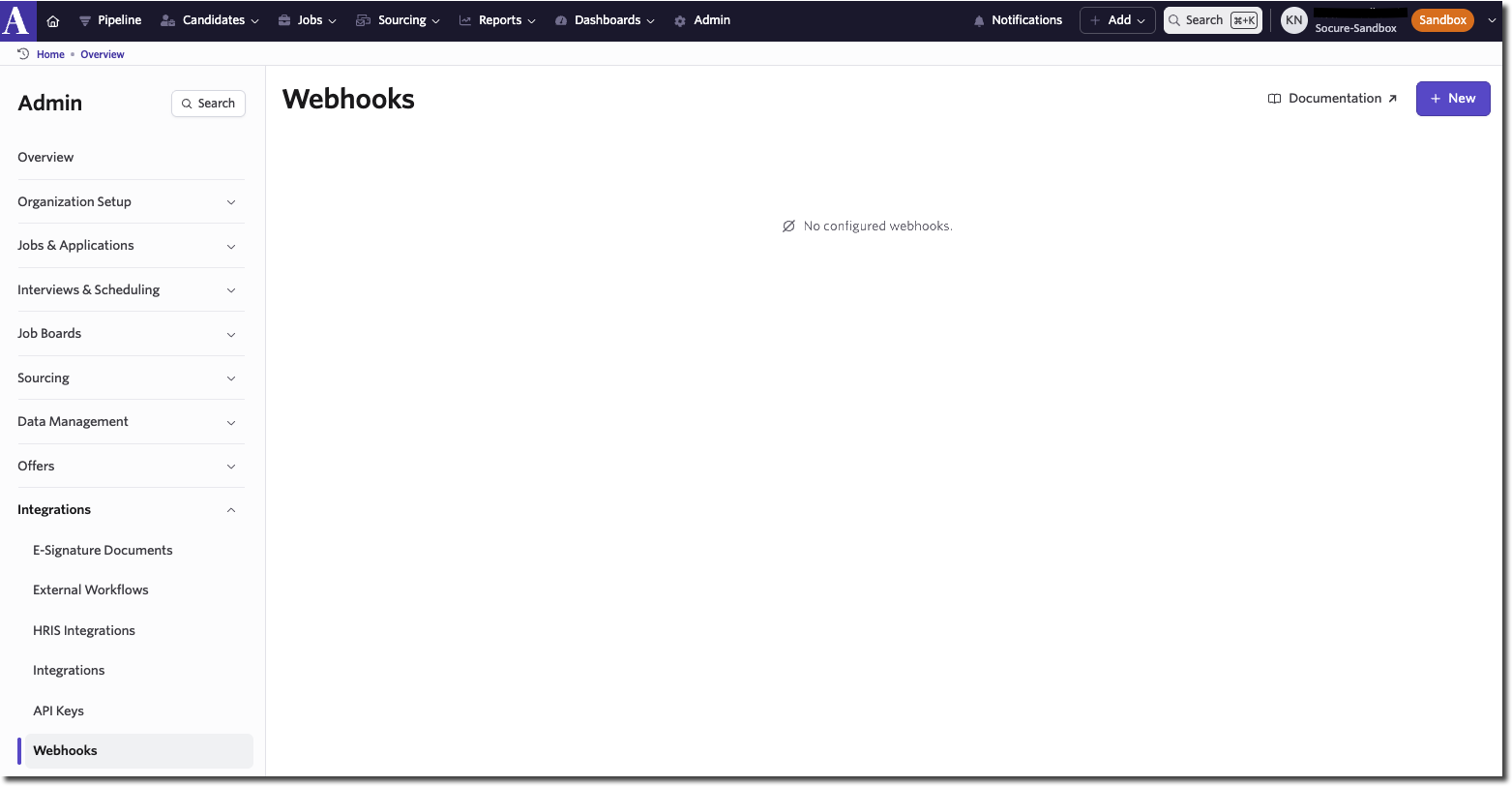
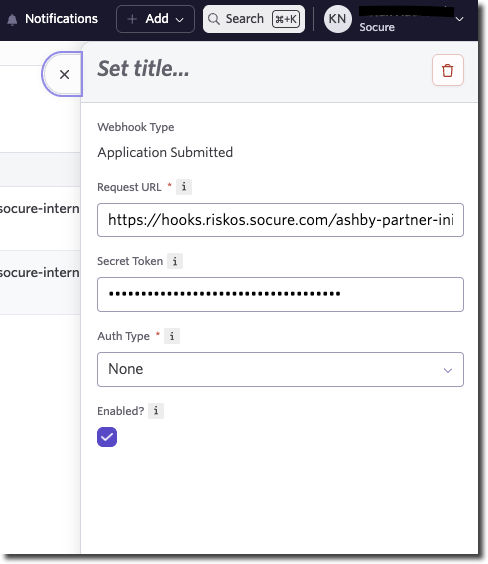
- Click + New to add a webhook and configure as follows:
| Field | Value |
|---|---|
| Webhook Type | Application Submitted |
| Request URL | https://hooks.riskos.socure.com/ashby-partner-init?accountId=<customerId> |
| Secret Token | Your secret token |
| Auth Type | None |
| Enabled | True (checked) |
customerId` is available in your RiskOS™ account under Developer Workbench → API Keys.
- You will now see the Application Submitted webhook on the Webhooks page.
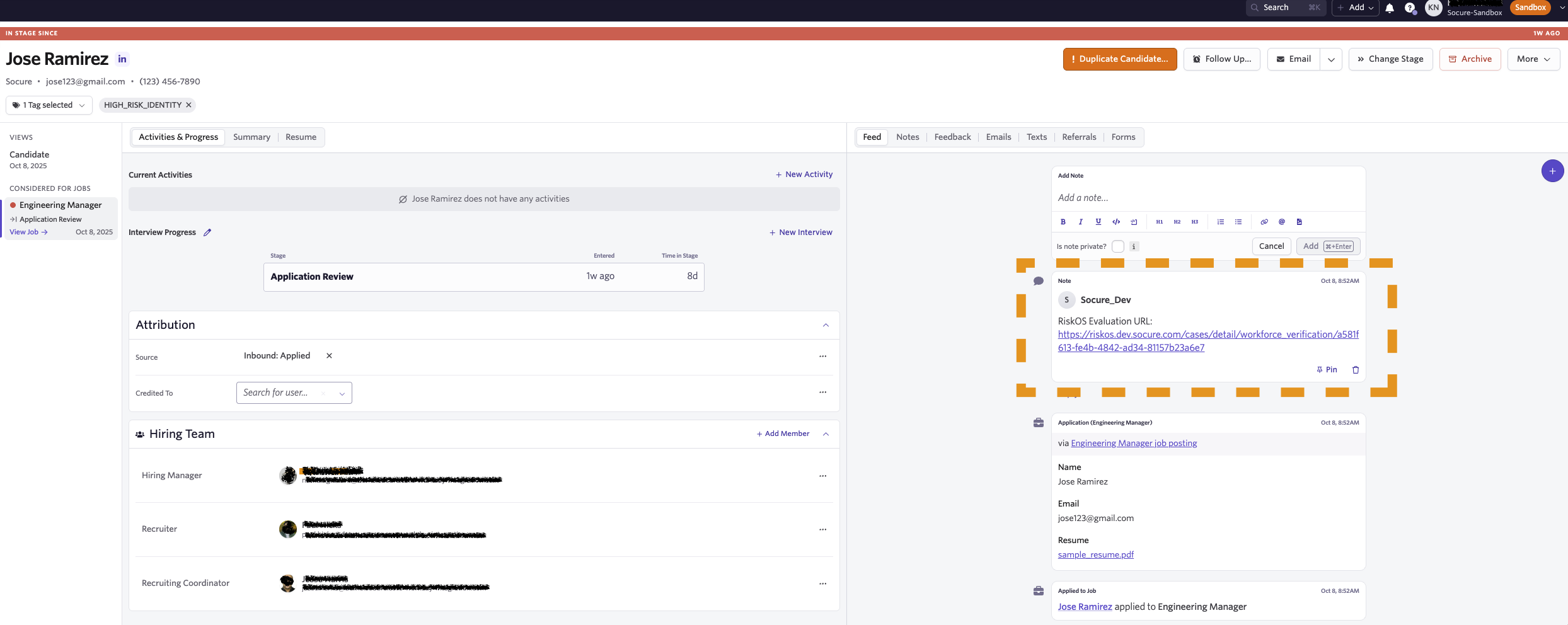
Once configured, RiskOS™ appends tags (HIGH_RISK_IDENTITY or LOW_RISK_IDENTITY) to the applicant profile.
Candidate Hired webhook (Bottom-of-Funnel Document Verification)
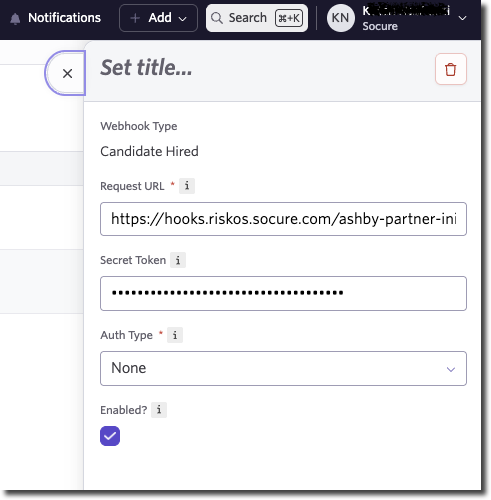
Follow the same configuration steps as the Application Submitted webhook section to add a second webhook with Webhook Type: Candidate Hired. RiskOS™ appends tags such as:
DOCUMENT_VERIFICATION_PASSEDDOCUMENT_VERIFICATION_FAILEDDOCUMENT_VERIFICATION_REVIEW
Case review in RiskOS™
RiskOS™ offers a case management solution for flagged candidates. Review includes:
- Tags and decision logic
- Reason codes and model scores
- Gen AI explanations of risk signals
This helps your HR team understand why a candidate was flagged and supports compliance/audit readiness.
Best practices for integration and maintenance
- Validate webhook configurations and test with sample applicants.
- Use RiskOS™ sandbox mode for safe testing before production rollout.
- Escalate issues with
eval_id, webhook payload, and context to Socure Support. - Log applicant evaluations, decision tags, and errors for auditability.
Validation checklist
Webhook events
Schema + error handling
Logging + observability
Next steps
Once webhooks are configured, test the integration by submitting a test application or hiring a test candidate in Ashby. Confirm RiskOS™ applies the expected tags (HIGH_RISK_IDENTITY, DOCUMENT_VERIFICATION_PASSED, etc.).

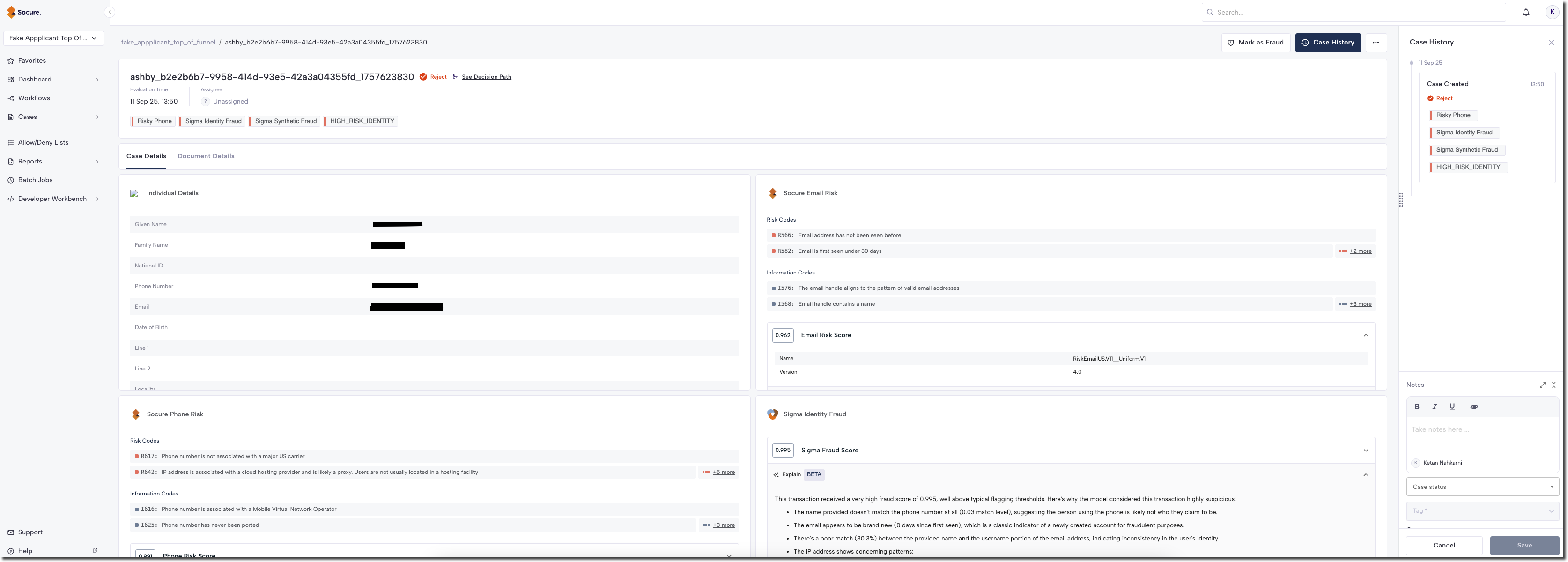
RiskOS™ also adds a note to the candidate profile with a deep link to the RiskOS™ case. HR team members can click the link (for example, https://riskos.socure.com/cases/detail/workforce_verification/a581f613-fe4b-4842-ad34-81157b23a6e7) to access the case details in RiskOS™ Case Management.
Note:
Add the HR team member as a RiskOS™ user from the Users page.
RiskOS™ Case Management empowers reviewers and analysts to make confident decisions about the cases they investigate. Each case provides detailed insights including model scores, reason codes, and workflow decisions. GenAI Explainability adds natural-language explanations to key outputs across Socure's platform, surfacing the "why" behind risk scores, identity match decisions, and document verification results.
Updated about 2 months ago