

Watchlist Webhooks
Listen for Watchlist Monitoring events and Watchlist Case Management updates
Watchlist webhook use cases
The two primary use cases for Watchlist webhook notifications include:
| Use Case | When It's Triggered | Event Name |
|---|---|---|
| Monitoring Events | Triggered when a monitored transaction’s entity is added to or removed from a watchlist. Requires Watchlist Monitoring. | monitored_search_updated |
| Case Management Events | Triggered when a case is approved or closed from the Watchlist Case Management tab in the RiskOS™ Dashboard. | case_closure |
Watchlist webhook configuration
Configure webhooks to receive real-time alerts from Socure for Watchlist Monitoring and Watchlist Case Management events.
You can choose to receive event notifications in one of two ways:
- Via an HTTPS
POSTrequest to a webhook endpoint at a URL you specify. - Via email to a designated address.
To enable watchlist webhooks:
- Build a webhook endpoint.
- Register the endpoint in RiskOS™.
- (for Monitoring) Enable monitoring on one or more evaluations
1. Build a webhook endpoint
A webhook endpoint is a public HTTPS URL that receives POST requests from Socure when an event occurs.
Requirements
At a minimum, your webhook endpoint must:
- Accept
POSTrequests with aContent-Type: application/json. - Respond with a
200 OKstatus code to acknowledge receipt. All status codes outside of this range result in a redelivery attempt.
Idempotency
Webhook events may be delivered more than once. To prevent duplicate processing, ensure your endpoint is idempotent by tracking each event using its unique identifier:
monitored_search_updated: use theevent_idfieldcase-closure: use theeventReferenceIdfield
Retry logic
Events must be acknowledged (with a 200 OK status code) within 30 seconds, or delivery is aborted and retried with linear backoff. After 5 failures, the webhook is deleted.
When your server receives a webhook, it must acknowledge it within 30 seconds (by returning an HTTP 200 response). If your server does not respond in time or returns a non-200 status, the delivery is treated as failed.
The system retries delivery up to 5 times using an increasing delay (linear backoff) between each attempt. After the 5th failed attempt, the webhook is marked as failed and deleted - no more automatic retries occur.
The following table shows the delay between the previous failed attempt and the next retry.
| Attempt | Delay |
|---|---|
| 1 | 1 min |
| 2 | 8 min |
| 3 | 57 min |
| 4 | 6 hrs 40 min |
| 5 | 46 hrs 40 min |
Note:
- If the endpoint is disabled or deleted, the system stops retrying immediately.
- You can manually trigger tests for disabled endpoints from the RiskOS™ Dashboard.
- For auto-enrolled transactions, retries continue indefinitely until a successful delivery (2xx response) occurs.
Security requirements
- The endpoint URL must be publicly accessible.
- The server must be configured to use HTTPS and TLS 1.2 (or later).
- If your endpoint uses a self-signed certificate or one issued by an internal (private) certificate authority, you must upload that certificate to RiskOS™ when registering the endpoint. Endpoints that use a certificate from a public certificate authority don't require an upload. See Do you need to upload a TLS certificate?.
- The endpoint should only accept requests from the following IPs:
Production
34.230.131.8334.199.1.10435.199.32.202/3254.209.34.129/32100.24.247.109/3244.195.229.53/32
2. Register the endpoint in RiskOS™
Follow these steps to create a webhook for Watchlist Monitoring or Case Management events in the RiskOS™ Dashboard:
Note:
To limit traffic, configure your endpoint to receive only the event types required for your integration – either
Case ManagementorMonitoring.
- Go to Developer Workbench > Webhooks.
- Select the Watchlist Alerts tab.
- Click New Webhook.
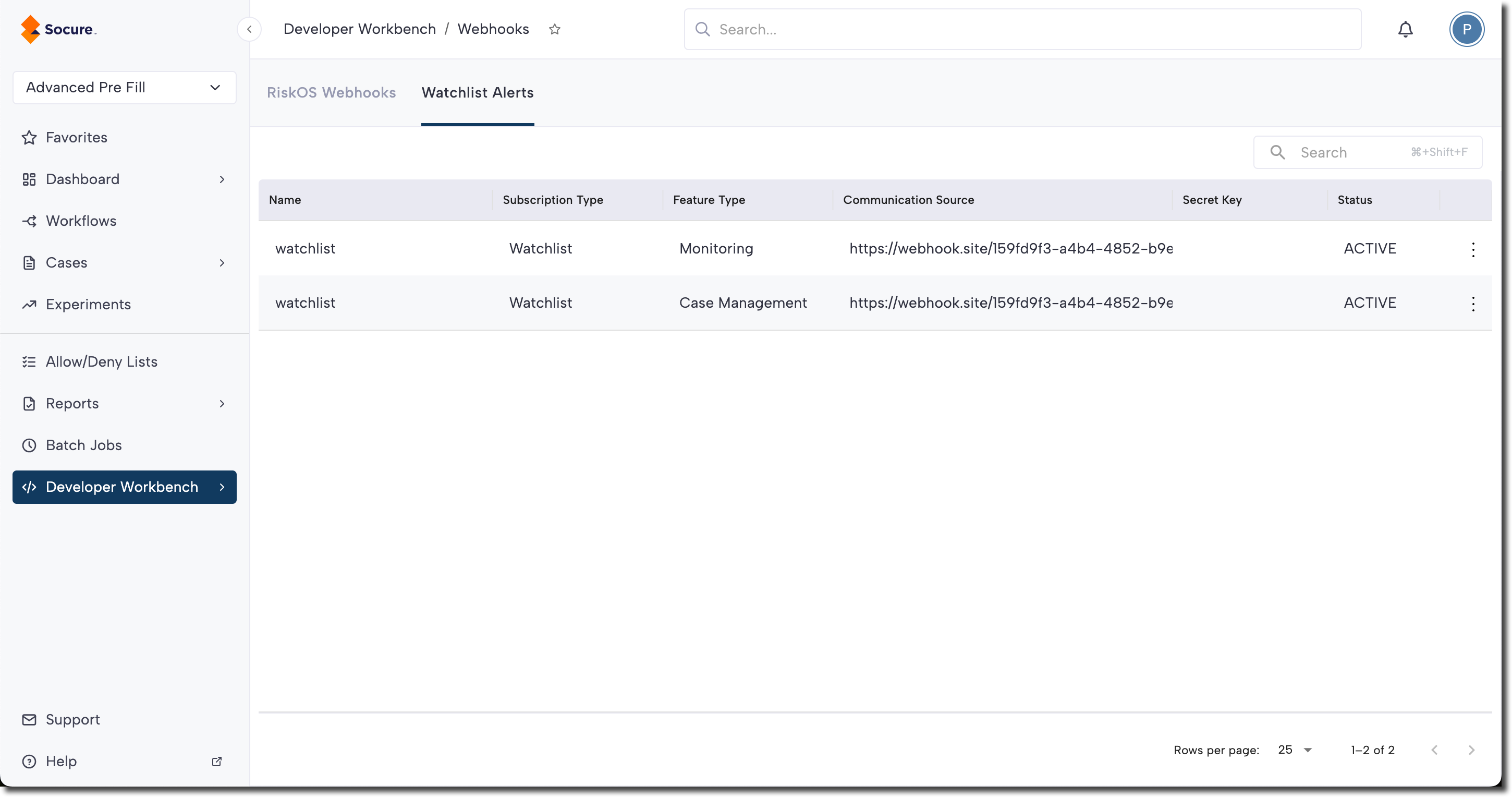
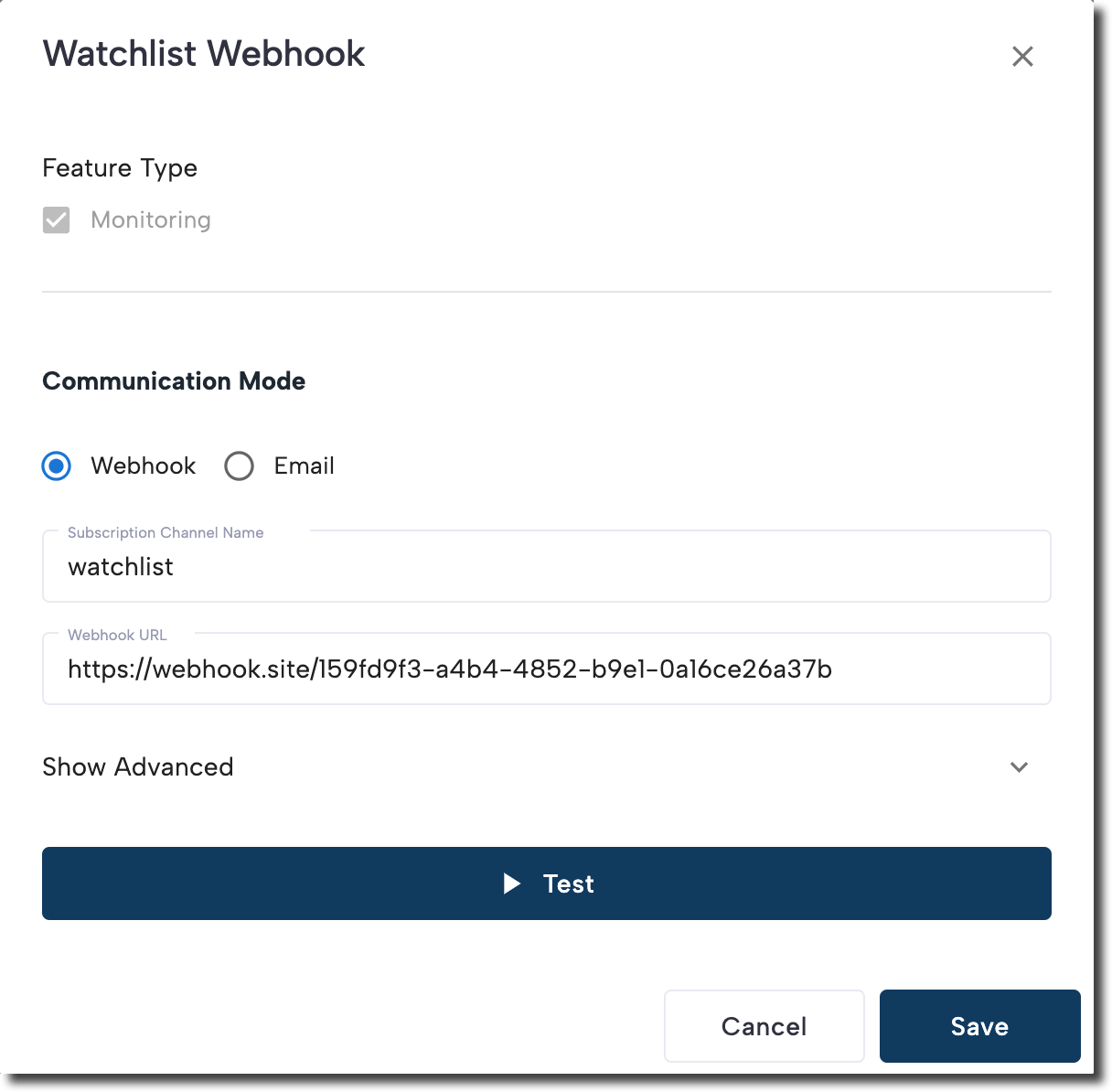
- Fill out the following fields:
- Feature Type: Select the type of Watchlist event you want to subscribe to:
Monitoring: Receive events when watchlists are updated for monitored entities.Case Management: Receive events when a case is approved or closed in the RiskOS™ Dashboard.
- Communication Mode: Choose how you'd like to receive notifications:
Webhook: Sends an HTTPS POST request to your specified endpoint.Email: Sends event details via email.
- Subscription Channel Name: A unique name to identify this webhook subscription.
- Webhook URL: Only applicable for Communication Mode
Webhook. Provide the publicly accessible HTTPS endpoint where events should be delivered. - Email: Only applicable for Communication Mode
Email. Provide valid email address - Alert Types: Configure the event types (Add, Change, Delete) that you want to be notified.
- (Optional) Click Show Advanced to configure:
- Secret Key: A shared secret that RiskOS™ sends in the
Authorizationheader of every webhook request, asAuthorization: Bearer <secret>. RiskOS™ sends the exact value you enter — not a hashed or computed signature — so your endpoint verifies authenticity by comparing the received value against the secret you stored. If you don't configure a Secret Key, RiskOS™ sends noAuthorizationheader at all. - TLS Certificate: If your endpoint uses a self-signed or private-CA certificate, upload it here so RiskOS™ can trust and validate your HTTPS endpoint during the TLS handshake. Endpoints that use a public-CA certificate don't need an upload. This is not client-certificate or mutual TLS (mTLS) authentication. Supported formats include:
.PEM,.CSR,.CER,.CRT,.KEY. See Do you need to upload a TLS certificate?.
- Secret Key: A shared secret that RiskOS™ sends in the
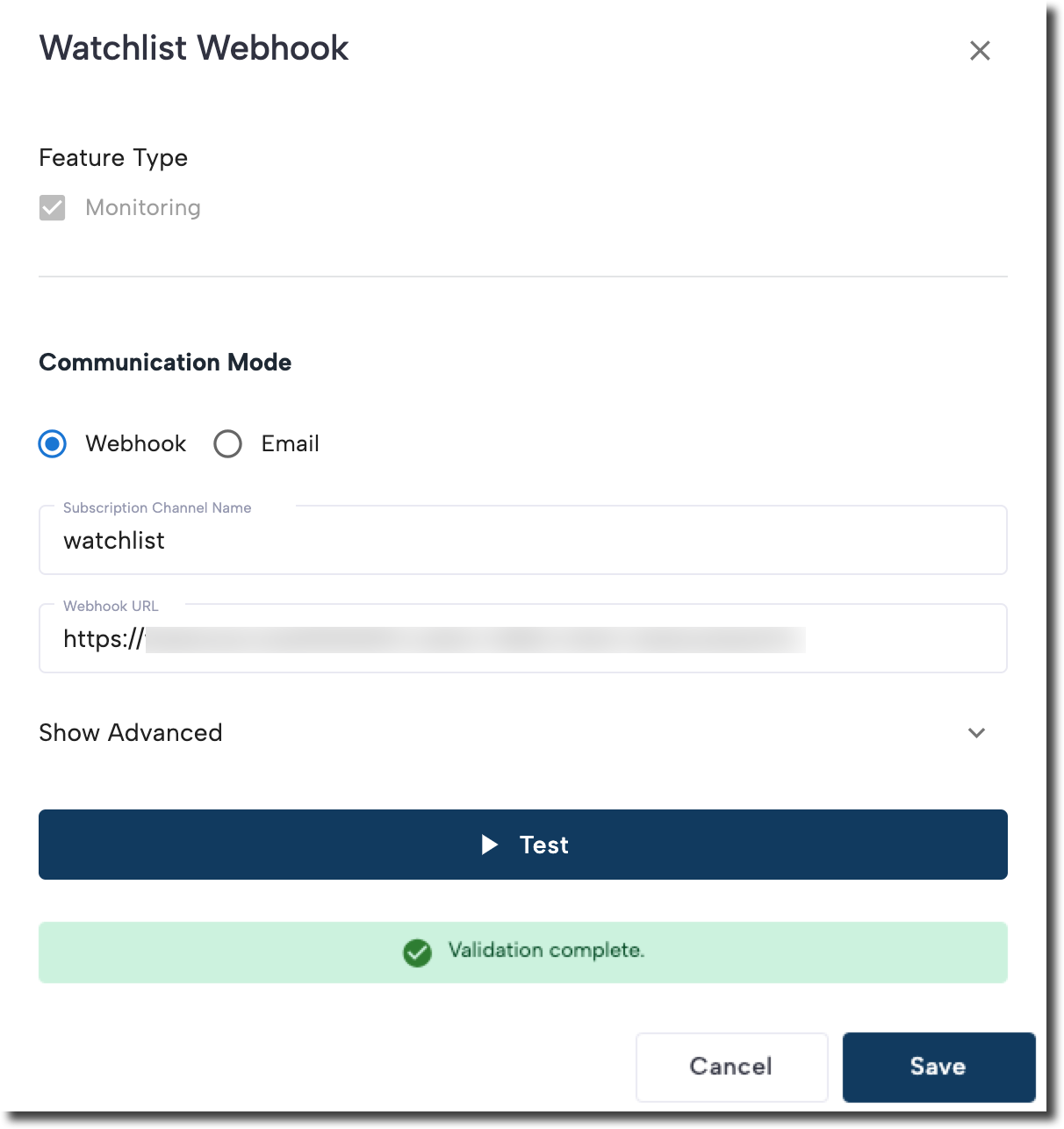
- Click Test to send a test event. If your endpoint returns a
200 OK, a "Validation complete" message is displayed. - Click Create to create the webhook.
- Feature Type: Select the type of Watchlist event you want to subscribe to:
Do you need to upload a TLS certificate?
When RiskOS™ delivers an event, it checks your endpoint's TLS certificate to confirm it's connected to your real server — the same check a browser performs before it shows the padlock icon. Whether you need to upload a certificate depends on who issued yours:
| Who issued your endpoint's certificate? | Upload a certificate? |
|---|---|
| A public certificate authority (DigiCert, Let's Encrypt, AWS ACM, GoDaddy) | No. The standard check already trusts it. |
| Your own internal (private) certificate authority, or a self-signed certificate | Yes. Upload it so RiskOS™ can trust your endpoint. |
To tell which applies, open your webhook URL in a browser. If the page loads with no security warning, your certificate is from a public certificate authority and you can skip the upload. If the browser shows a security warning, the certificate is self-signed or from an internal certificate authority, so upload it.
When you upload, prefer your issuing (intermediate CA) certificate over the individual server certificate. Server certificates are typically replaced every few months, and each replacement requires a re-upload. An intermediate CA certificate is long-lived and keeps working across those renewals. If you upload the server certificate instead, re-upload it whenever you rotate it.
This is certificate pinning on Socure's outbound calls — not mutual TLS (mTLS). You don't present or manage any client certificate for webhook delivery.
Edit or disable a webhook
To make changes to an existing webhook, click the three-dot menu next to it and choose View/Edit or Deactivate from the menu.
Troubleshooting failed webhooks
If your webhook isn’t receiving events, use the following checklist to identify and resolve common issues:
-
Confirm public access
Ensure your webhook endpoint is publicly accessible over the internet. -
Check for a valid response
The endpoint must return an HTTP200 OKstatus. Use tools like Hurl.it to test the response. -
Allow traffic from Socure IPs
Verify your server allows traffic from the specified IP ranges. -
Validate TLS certificate
If you're using certificate pinning, ensure the certificate is valid and trusted by the server receiving the request.
Note:
Self-signed and private-CA certificates are supported. Upload the certificate when you register the endpoint so RiskOS™ can trust it. See Do you need to upload a TLS certificate?.
-
Disable custom headers
Ensure custom headers aren't required for processing the request. -
Still having issues?
Contact your Solutions Consultant team and include the webhook endpoint URL for further investigation.
Test your webhook endpoint
You can manually test your webhook endpoint from the RiskOS™ Dashboard to confirm it’s set up correctly.
- Go to Developer Workbench > Webhooks.
- Select the Watchlist Alerts tab.
- Locate the webhook you want to test.
- Click the three-dot menu next to the webhook.
- Click View/Edit option
- Select Test.
This triggers a sample event to be sent to your configured endpoint. If your endpoint responds with 200 OK, the test is considered successful and you’ll see a “Validation complete” confirmation message.
Trigger Watchlist webhooks in Sandbox
Trigger the Monitoring and Case Closure webhooks from your own Sandbox screening cases to validate your integration end to end before going live.
Two triggers are available:
- Monitoring webhook trigger: a Send test monitoring alert button on any monitored Sandbox case fires a Monitoring webhook using that case's real
eval_id,case_id, andreference_id. - Case closure webhook trigger: closing a Sandbox case through the normal case-management flow fires the configured Case Closure webhook with the case's real IDs and match statuses.
Note:
The Monitoring alert reuses the entity from the case's original screening result and appends a
(Test)suffix, so the payload is dynamic rather than a static sample.
Set up
Complete these steps once before you test either webhook:
- Confirm you are in the Sandbox environment.
- Under Developer Workbench > Webhooks, configure both the Monitoring webhook and the Case Management (case-closure) webhook. Point each at your Sandbox endpoint.
- Generate test cases: call the evaluation endpoint to create Watchlist screening alerts. Create a variety of cases for OFAC, PEP, and Adverse Media.
- Check whether your Case Management settings use a One-Step or Two-Step workflow, then confirm your roles match to avoid a submit error later:
- For a Two-Step workflow, keep the Case Analyst and Case Supervisor roles, and deselect Case Officer.
- For a One-Step workflow, keep the Case Officer role, and deselect Case Analyst and Case Supervisor.
Roles and workflow check:
If your account moved between the One-Step and Two-Step workflows and still carries the prior roles, case closure submission fails with
caseSubmitError. To fix this, temporarily switch to the other workflow, remove the roles that don't belong to the workflow you intend to test, then switch back.
Trigger a Monitoring webhook
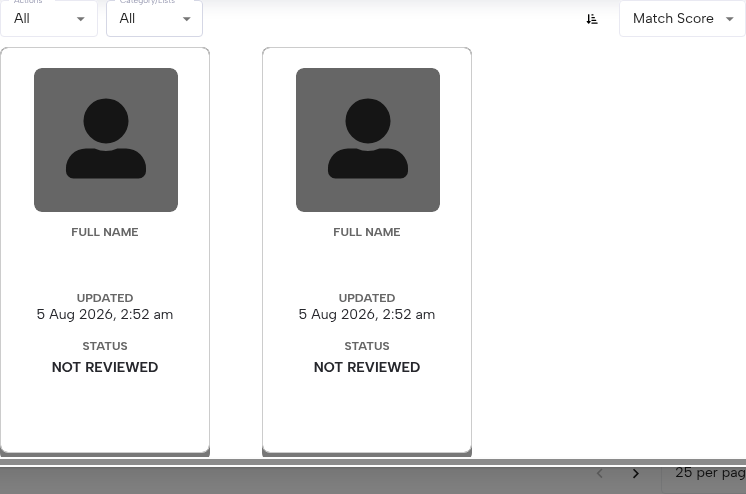
- Go to Watchlist > Cases and open a case with Monitored toggled on, or turn Monitored on for the transaction you want to test.
- Click Send test monitoring alert.

What happens:
- If the transaction has no existing Monitoring Case, RiskOS™ creates one and sends the Monitoring Alert webhook.
- If a Monitoring Case already exists for that transaction, no duplicate case is created — only the webhook is sent. This prevents duplicate Monitoring Cases from repeated clicks.
- Click View Monitoring Case to open the new or existing case.
- The webhook is sent asynchronously. If delivery fails, an error toast appears.
What's in the payload:
- Real
eval_id,case_id, andreference_idfrom the underlying Sandbox screening case — not static test values. - The matched entity from the case's original screening result, with a
(Test)suffix appended. - To exercise a specific match type — OFAC, Enforcement, PEP, Adverse Media, or a combination — screen a case with that variation before you send the test alert. The alert reflects what was actually matched on the original case.
Trigger a Case Closure webhook
Prerequisites:
- The Case Management webhook is configured under Developer Workbench > Webhooks.
- A Watchlist Case to test with. Generate a sample case if you don't have one.
Steps:
- Assign the Monitoring Case to yourself.
- Disposition every entity on the case as Mark as Match or Not a Match.
- Click Close Case to submit the case.
What happens:
- Closing the case fires the configured Case Closure webhook, populated with the case's real IDs and match statuses.
- If source-level dispositioning is enabled on your account, the webhook payload reflects the source-level dispositions from your account settings.
Troubleshooting
- Error on submit: Check your roles against the active workflow. See step 4 under Set up.
- Webhook not received: Confirm that you configured the Case Management webhook in the same environment (Sandbox) you're testing in.
Send notifications to your email
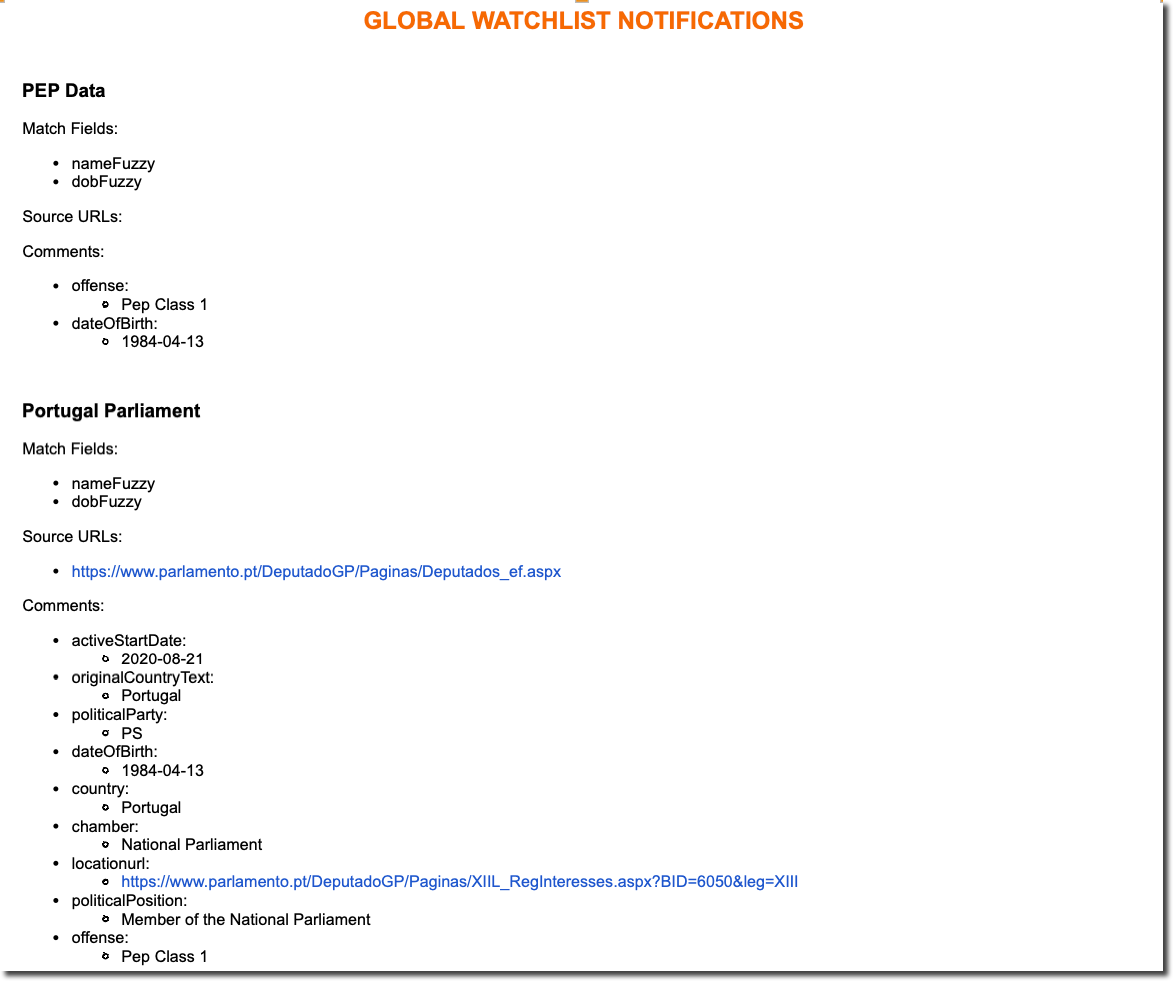
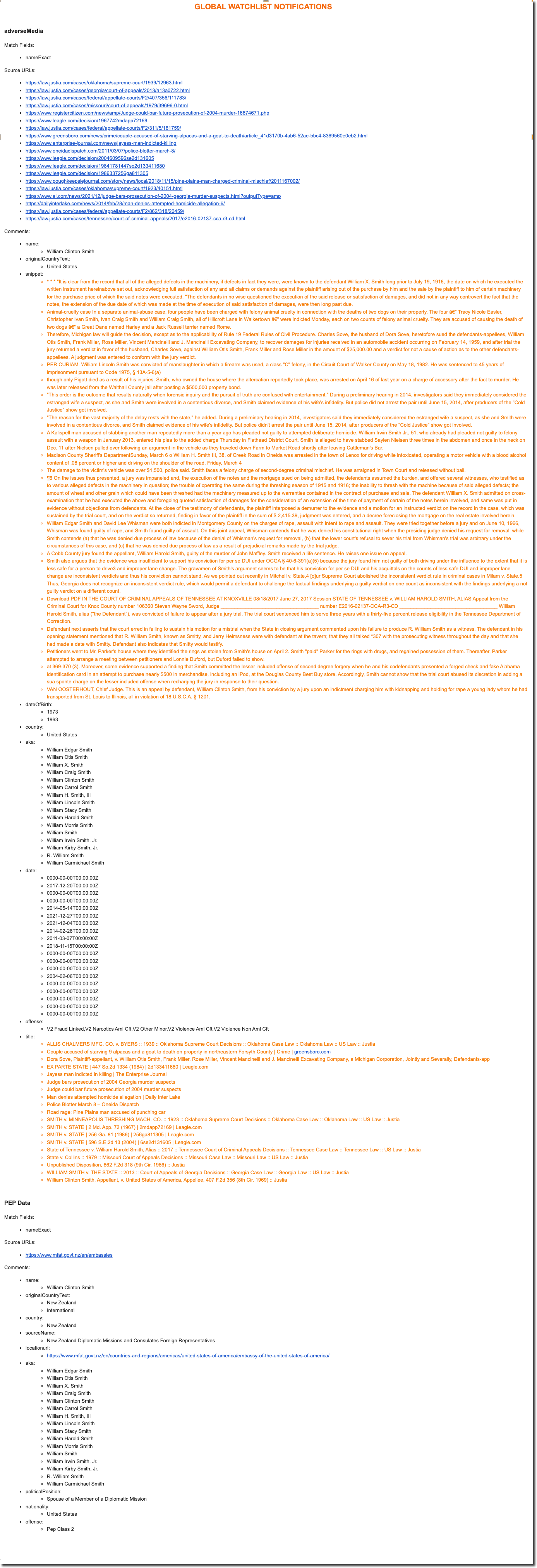
If you configured watchlist webhooks to receive email alerts, you will receive automated email notifications when a monitored entity is matched, updated, or removed from a global watchlist.
Sanctions and Enforcement monitoring email notification
Triggered when a monitored entity matches a sanctions or enforcement watchlist.
The alert includes key details such as match fields and status (for example, Added, Updated, Removed).
Adverse Media monitoring email notification
Triggered when a monitored entity matches an adverse media source in your configured watchlist.
Updated 29 days ago