

Set up Silent Network Auth
Learn how to set up Silent Network Authentication (SNA) in the RiskOS™ Dashboard for secure, in-session phone number possession checks.
Set up Silent Network Authentication in the RiskOS™ Dashboard
Socure Silent Network Authentication confirms in-session possession of a mobile phone number using real-time mobile operator signals. When SNA is unavailable, One-Time Passcode (OTP) serves as a configurable fallback.
Step 1 - Provisioning
Your account must be provisioned for the SilentNetworkAuth feature. Contact your Socure account team for provisioning.
Step 2 - Add Socure Silent Network Authentication enrichment
- In the RiskOS™ Dashboard, go to Workflows and create a new workflow or open an existing one.
- On the workflow canvas, select the plus (+) icon.
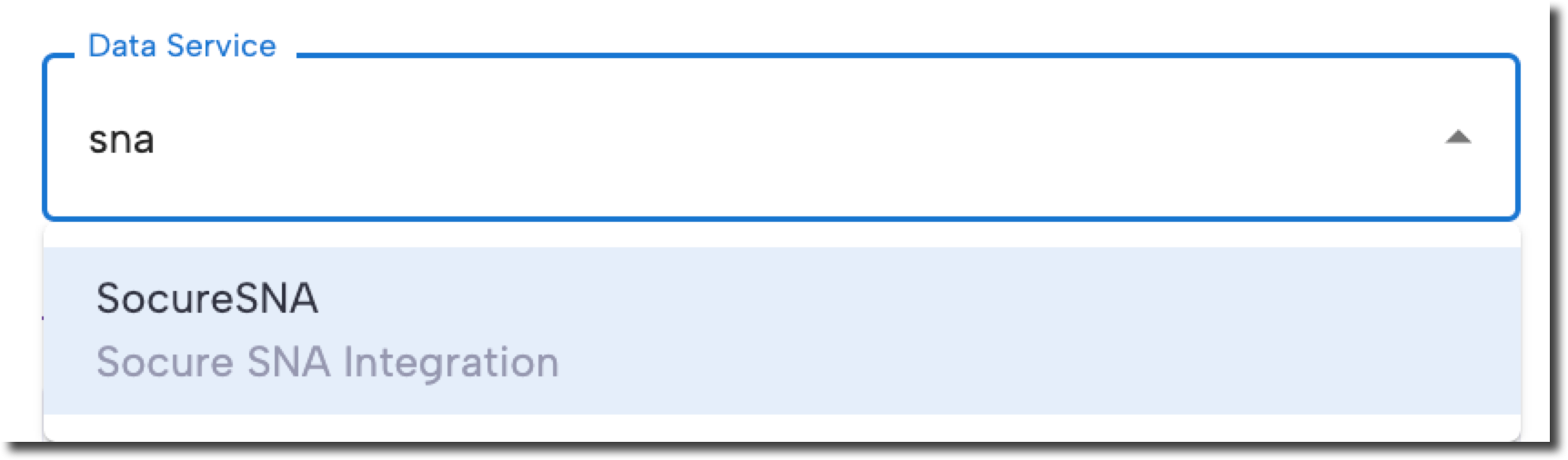
- Add an Enrichment step and select SocureSNA.
Step 3 - Configure Conditions
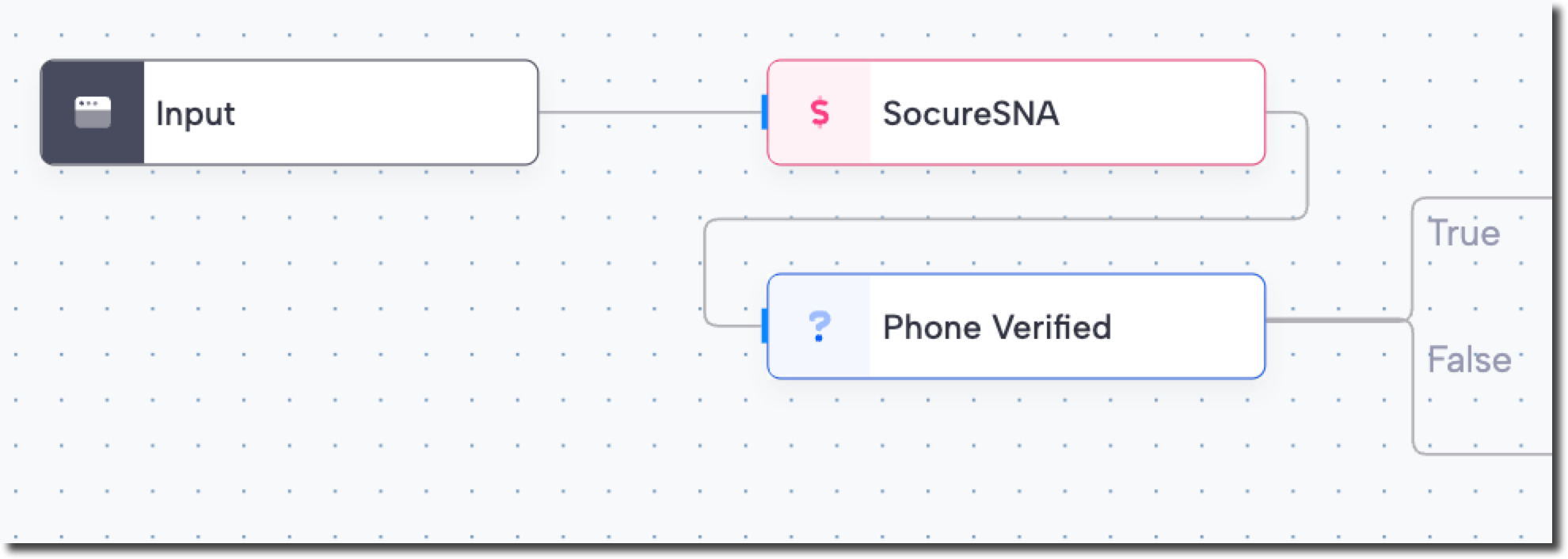
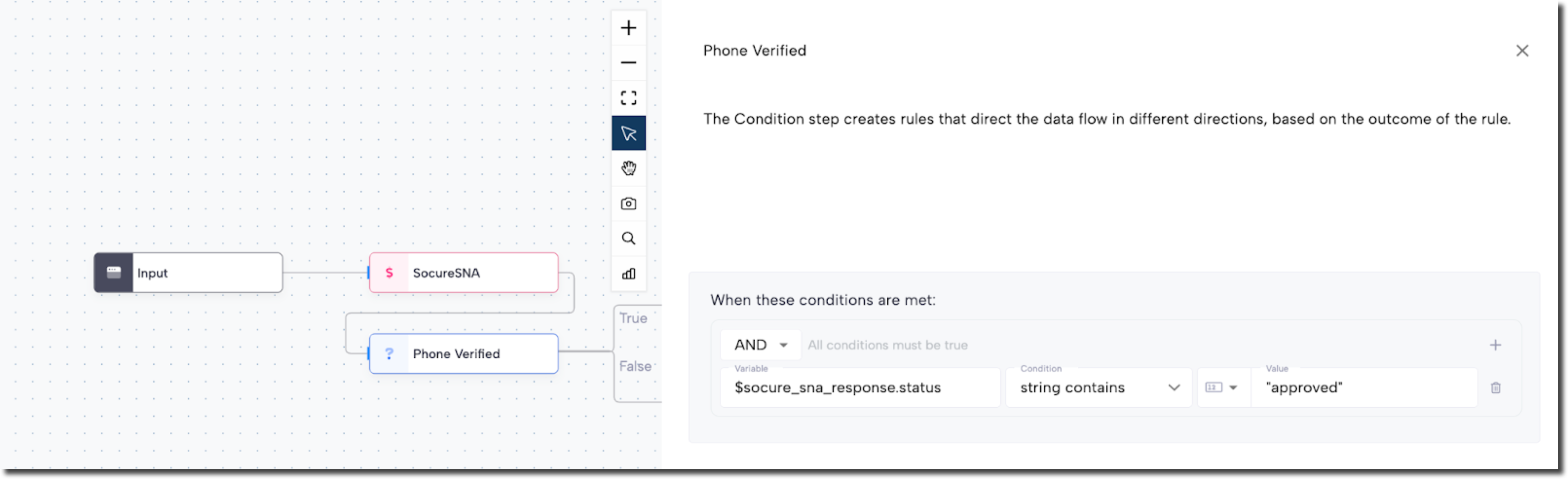
Connect the SocureSNA enrichment to a Condition to evaluate the result of the phone number possession check. In this example, we’ve renamed the condition to Phone Verified.
-
The result of the SNA check is stored in the variable:
socure_sna_response.status -
Click on the Phone Verified condition and choose
socure_sna_response.statusfrom the Variable dropdown. -
Choose string contains as the operator.
-
Enter
approvedas the value.
Now, when the Silent Network Authentication check confirms that the user-supplied phone number matches the SIM-registered number, the condition will evaluate to true, and your workflow will proceed.
Step 4 - Handle Phone Number Mismatch
If the Phone Verified condition is false:
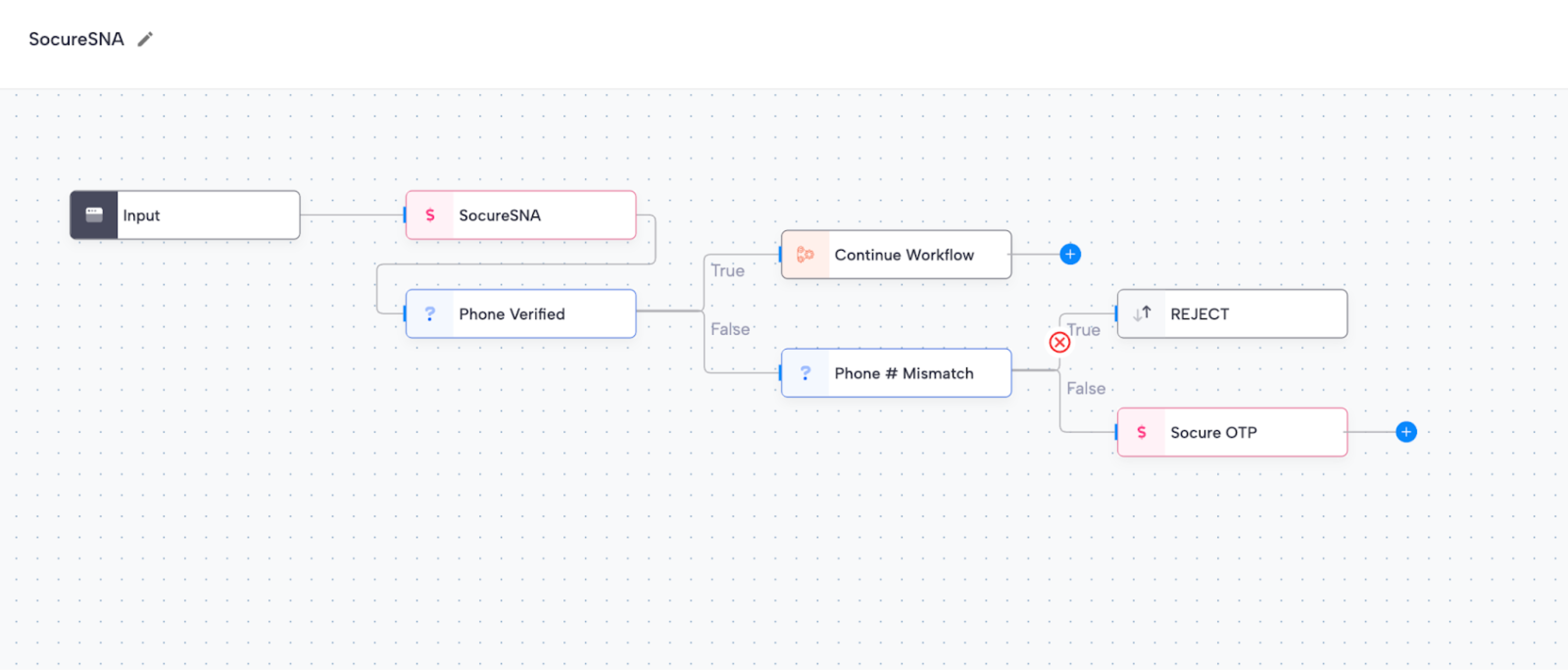
- Add another condition on the false branch named Phone Number Mismatch.
- Configure it to check if
socure_sna_response.statuscontainsphoneNumberMismatch.
If a mismatch is confirmed, reject the transaction (user does not have possession of the phone number). Alternatively, route to manual review or handle according to your policies.

Step 5 - Fallback to One-Time Passcode
If no mismatch is confirmed and SNA cannot complete (for example, unsupported carrier, no SIM, or no cellular connectivity), fall back to an OTP check to verify phone number possession. This ensures continuity and coverage for all users while maintaining a layered security approach.
Example workflow outcomes
- Accepted → Workflow continues normally.
- Phone Number Mismatch → Reject or review transaction.
- Unsupported / Error → Fall back to OTP.
Updated about 1 month ago