

Case Queues
Use RiskOS™ Case Queues to manage workflow-decisioned cases and route them to the right teams by use case.
What are Case Queues?
Case Queues in RiskOS™ are where cases land after they are decisioned by workflows. Teams can utilize Case Queues in order to triage and assign cases to different team members.
Case Queues are segmented by use case. For example, a Consumer Onboarding use case will have its own set of queues, while a Trust and Safety use case will have different queues.
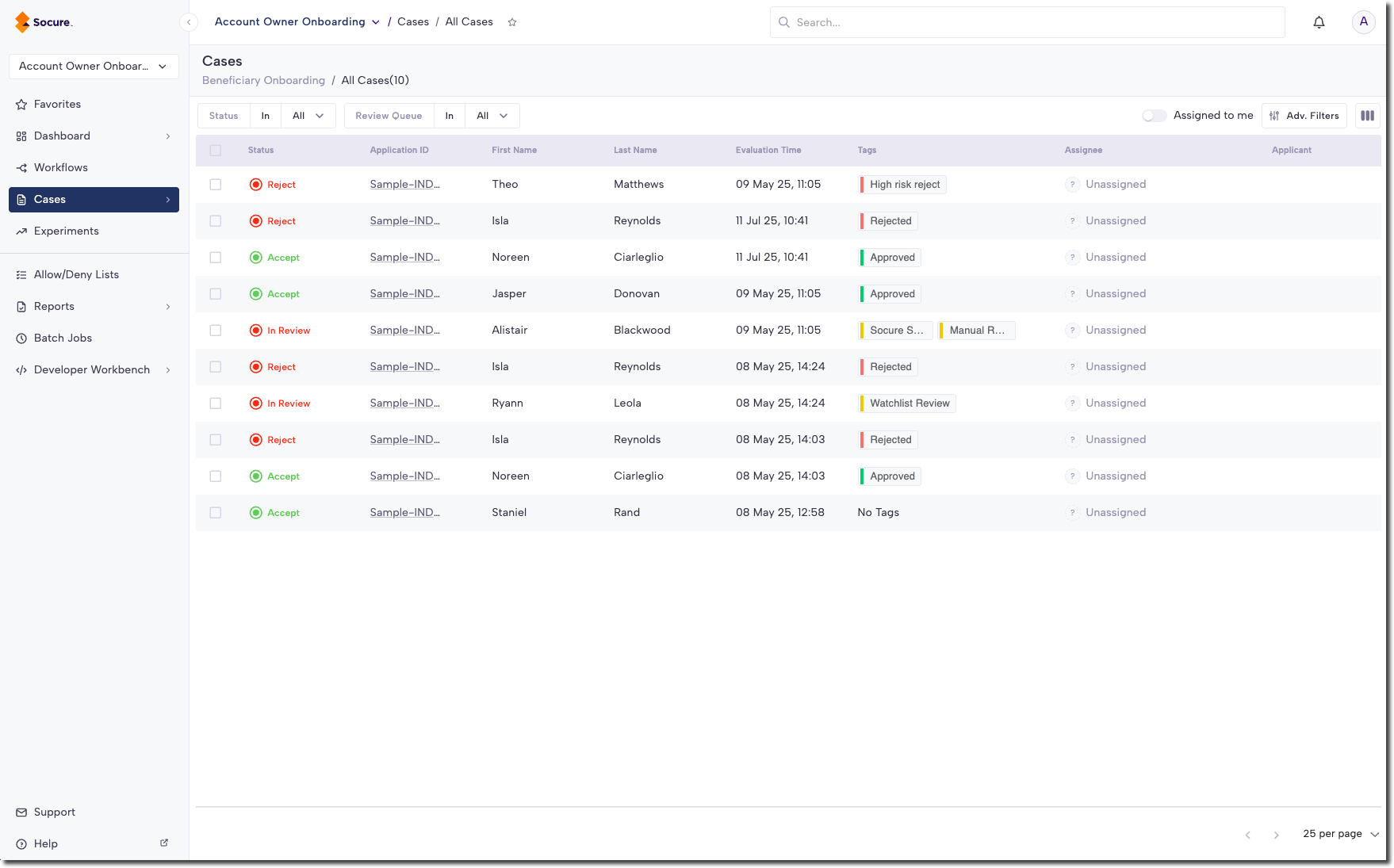
Case Queue features
While they might seem like simple lists, Case Queues are powerful tools in the toolbelt of a fraud or compliance team. RiskOS™ Case Queues have the following features:
Case queues include details such as tags, which display easily readable outcomes from the workflow evaluation. Additionally, an interactive preview panel provides the most important details about a case.
From Case queues, team members can be assigned or unassigned cases so that they know what they need to work on next. User permissions and access controls ensure team members access the appropriate use cases and queues.
Finding the right case is simple with robust search, sorting, and filtering tools. No need to waste time scrolling endlessly through queues.
It's east to add new queues and their associated statuses and sub-statuses. Queues can be tailored for your team's use case.
Updated 17 days ago