

Case Statuses and Tags
Create and manage custom case statuses and tags in RiskOS™ to categorize, track, and highlight key case attributes.
A Case Status categorizes cases based on their progress or required actions. You can create custom statuses to further classify and track cases based on specific conditions.
A Case Tag categorizes or highlights key attributes of one or more cases and provides context to help users quickly identify case characteristics or risk factors.
Create a Case Status
You can customize the Open and On Hold statuses in RiskOS™. To create a custom Case Status, complete the following steps:
-
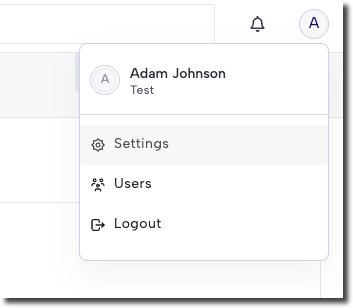
Click your profile menu (top right), then click Settings.
-
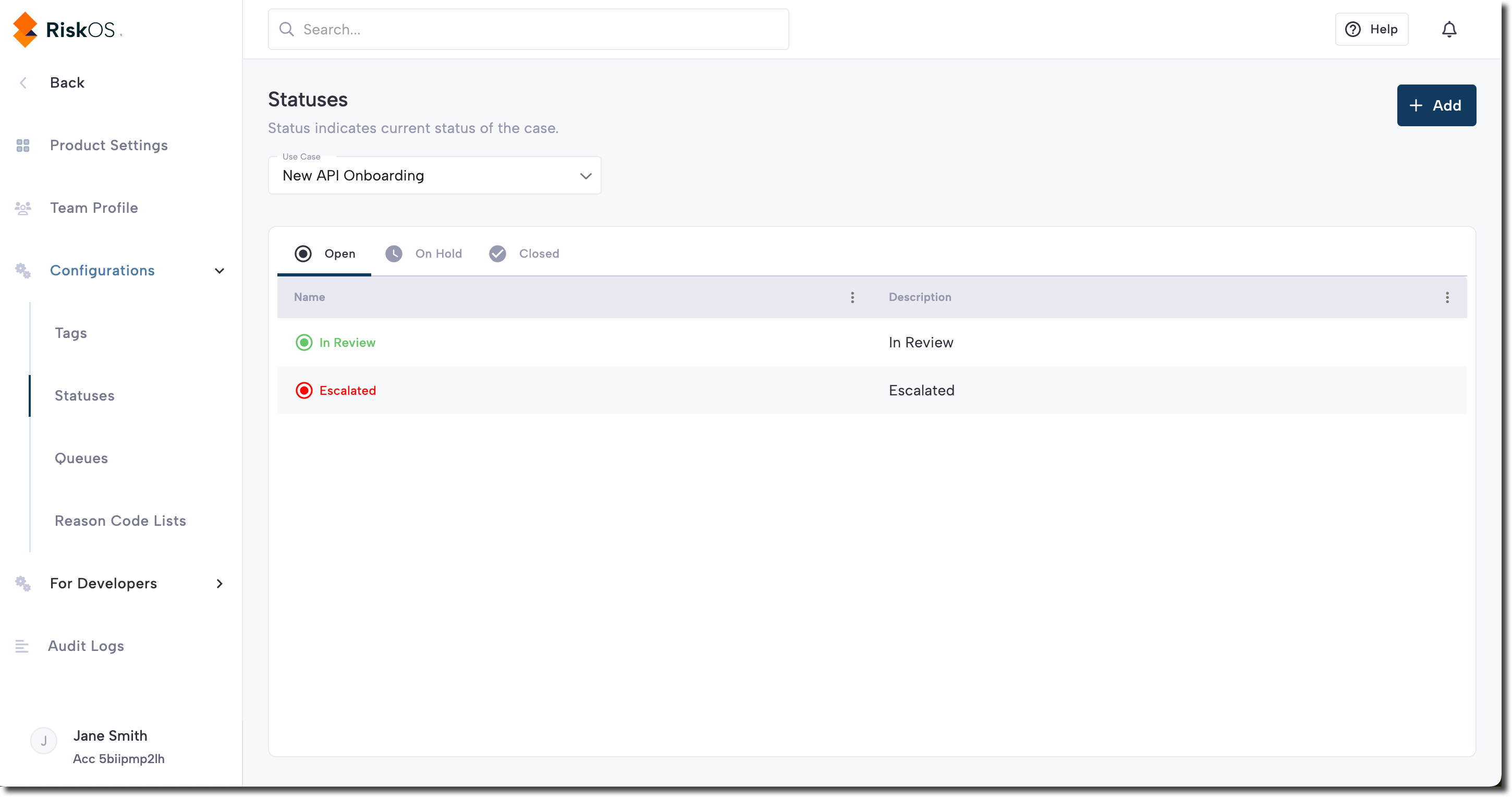
Click Configurations > Statuses.
-
Click + Add.
-
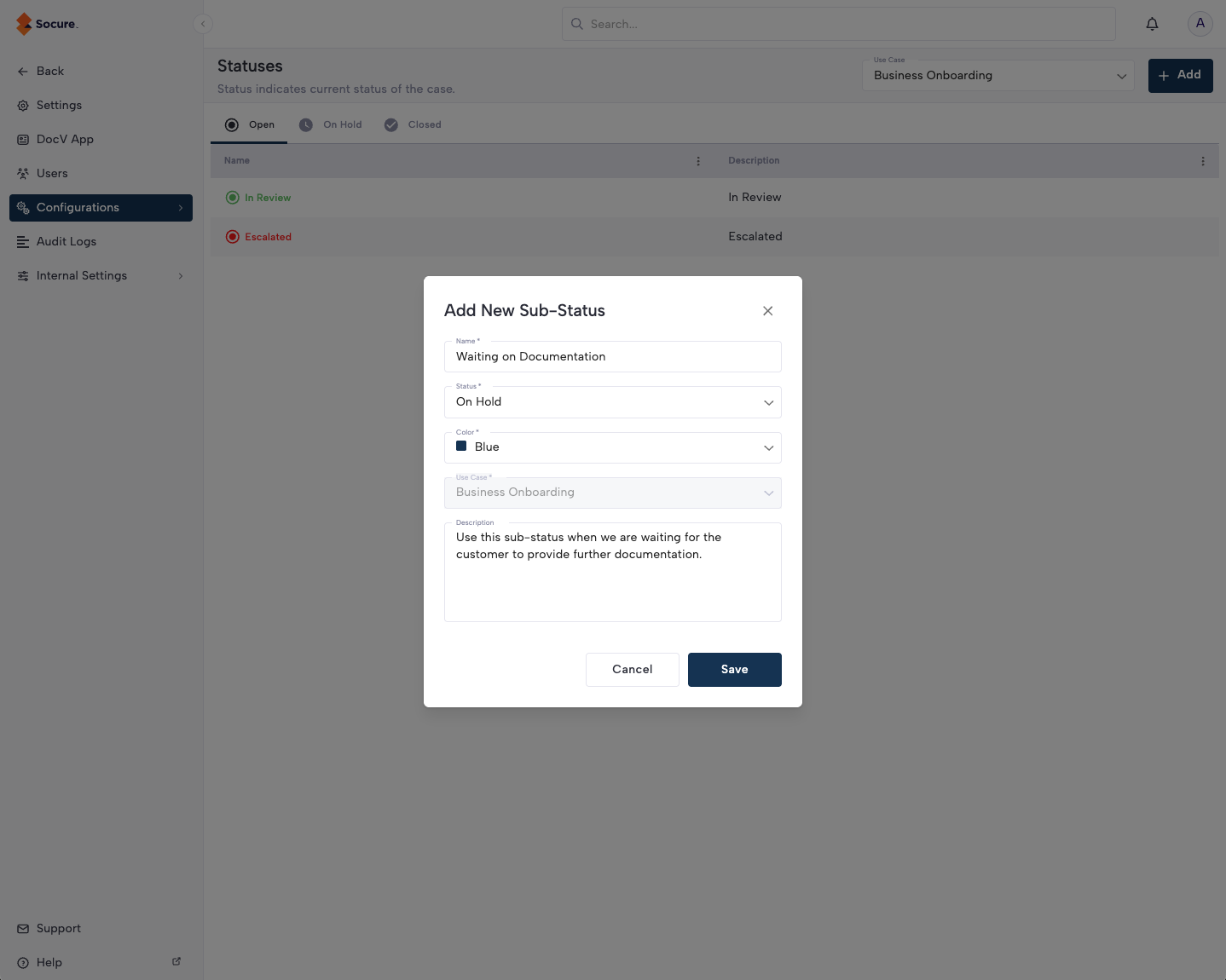
On the Add New Status menu, configure the settings for the new status.
-
Click Save.
Create a Tag
To create a custom Case Tag, complete the following steps:
-
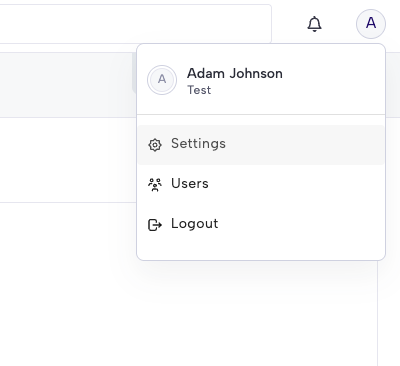
Click your profile menu (top right), then click Settings.
-
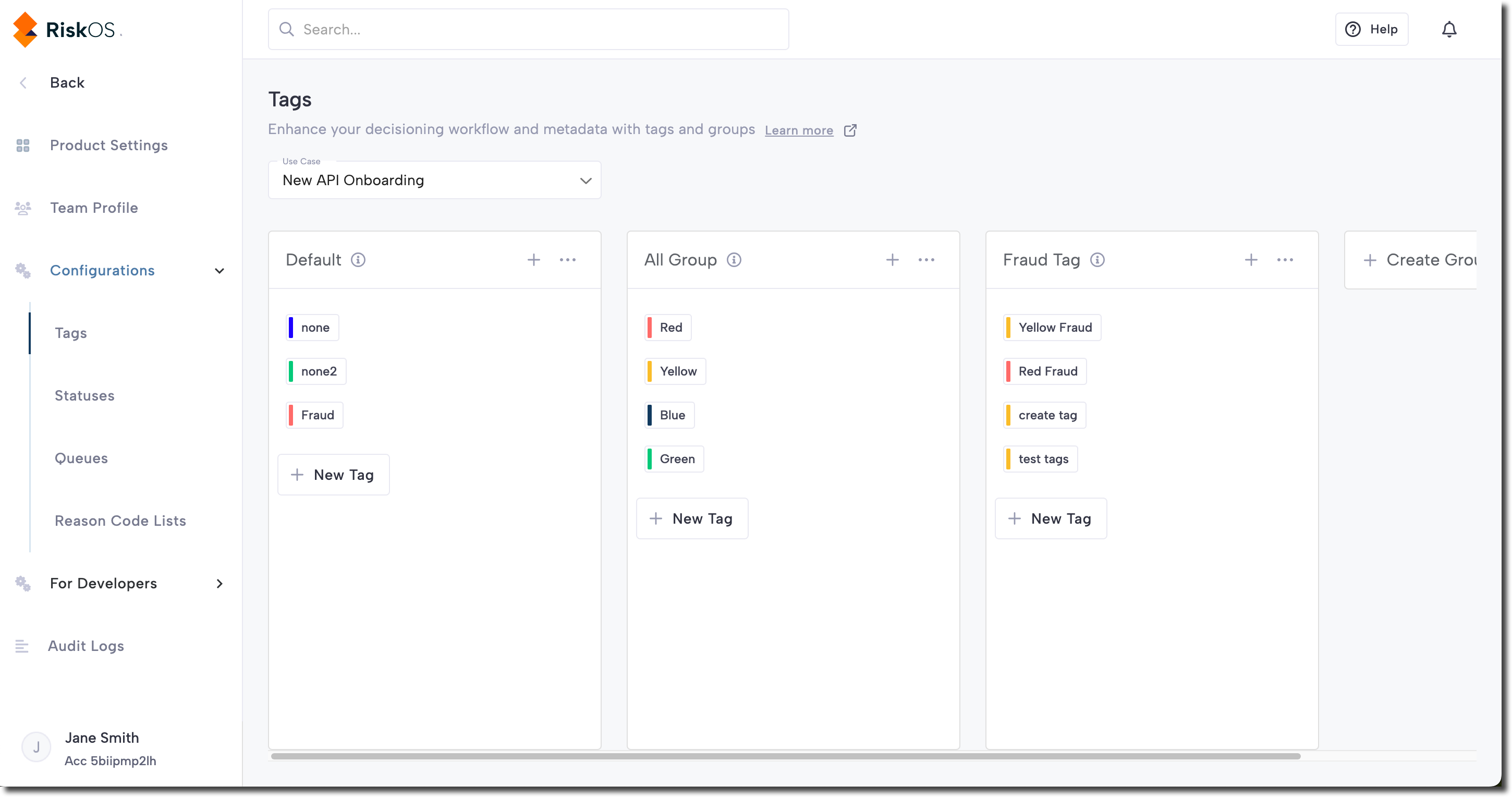
Click Configurations > Tags.
-
Select a use case for your Tag from the Use Cases dropdown.
-
In the appropriate Tag group, click the + icon.
Note:
To create a new group for your Tag, click Create Group.
-
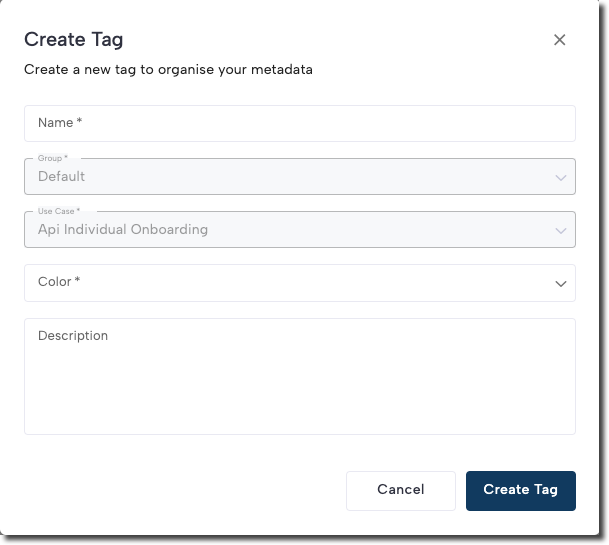
On the Create Tag menu, configure the settings for the new Tag.
-
Click Create Tag to save your settings.
Edit or delete a Tag
You can edit or delete a Tag by hovering over the Tag, then clicking the pencil icon (edit) or the trashcan icon (delete).
Note:
To edit or delete a Tag group, click the three-dot icon, then click Edit Group or Delete Group.
Updated about 2 months ago