

Watchlist One-Step Workflow
Follow the one-step watchlist case management workflow in RiskOS™ where Compliance Officers review, disposition, and close cases independently.
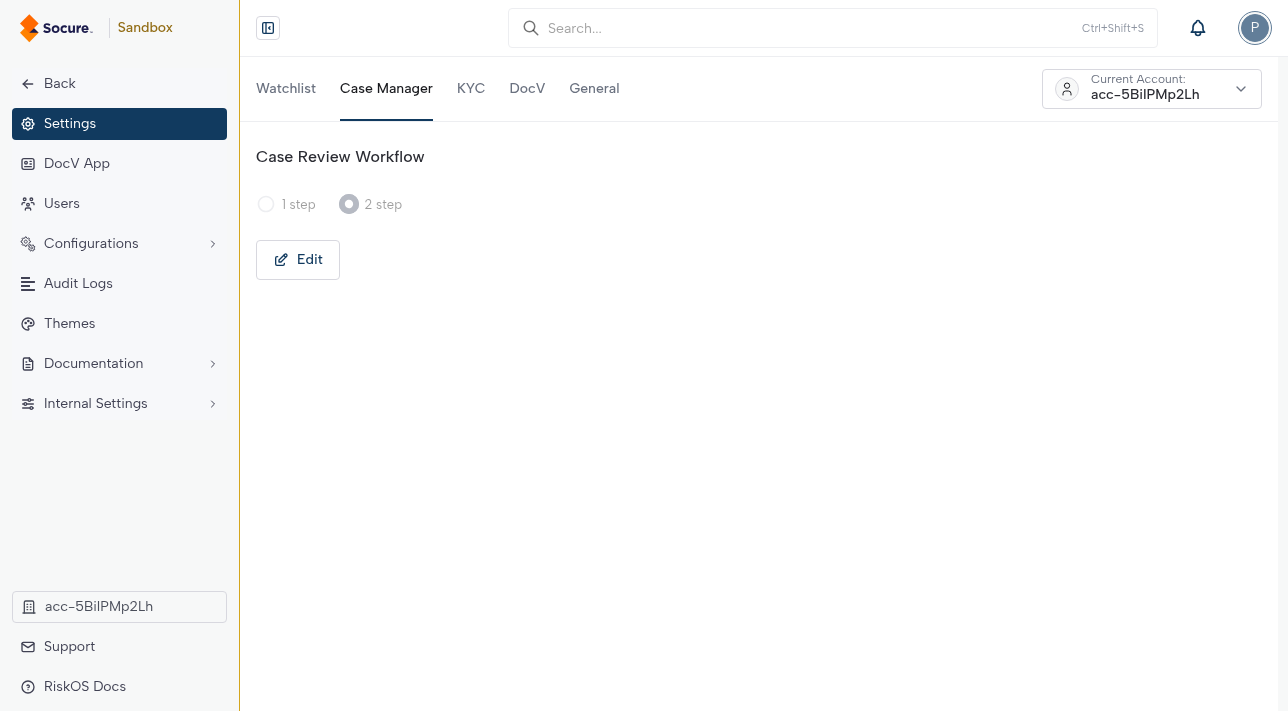
To configure your desired Case Management workflow, click your Profile icon (top right), then go to Settings > Case Manager.
Overview
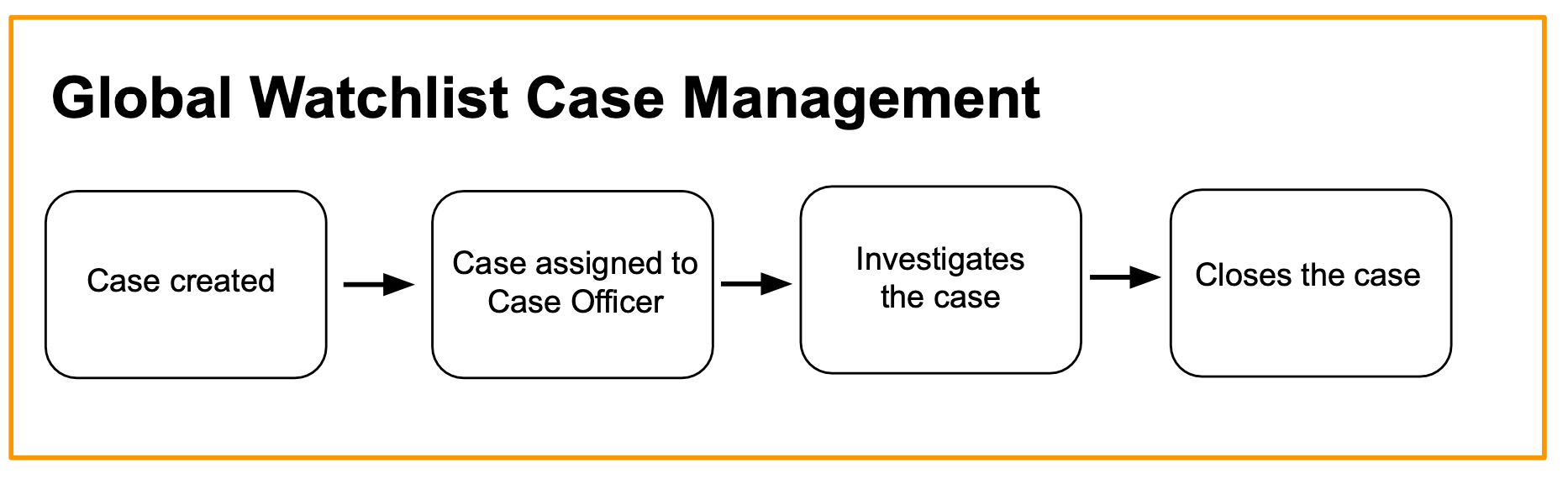
In a one-step workflow, watchlist cases are automatically assigned to users with the Compliance Officer role. These users are responsible for reviewing, dispositioning each entity as a match or no match, and closing them. This streamlined workflow ensures efficient case management.
A typical one-step workflow looks like the following diagram:
Note:
Before switching to the one-step workflow, ensure that no users have Compliance Supervisor and Compliance Analyst roles, and there are no custom roles with can approve or can review permissions for the Case Management page.
How it works
The following sections walk through each step a Compliance Officer completes to investigate, disposition, and close a watchlist case in a one-step workflow.
-
Assign a case to Compliance Officer
Watchlist cases are automatically assigned to Compliance Officers in your
account in a rotational manner. When a user with the Compliance Officer
role logs in to RiskOS™, they will see a list of their assigned cases on
the Watchlist Monitoring page.Note: The Compliance Officer can re-allocate their assigned case to the team by clicking Reassign.
-
Investigate a case
A Compliance Officer can investigate an assigned case by completing the following steps:
-
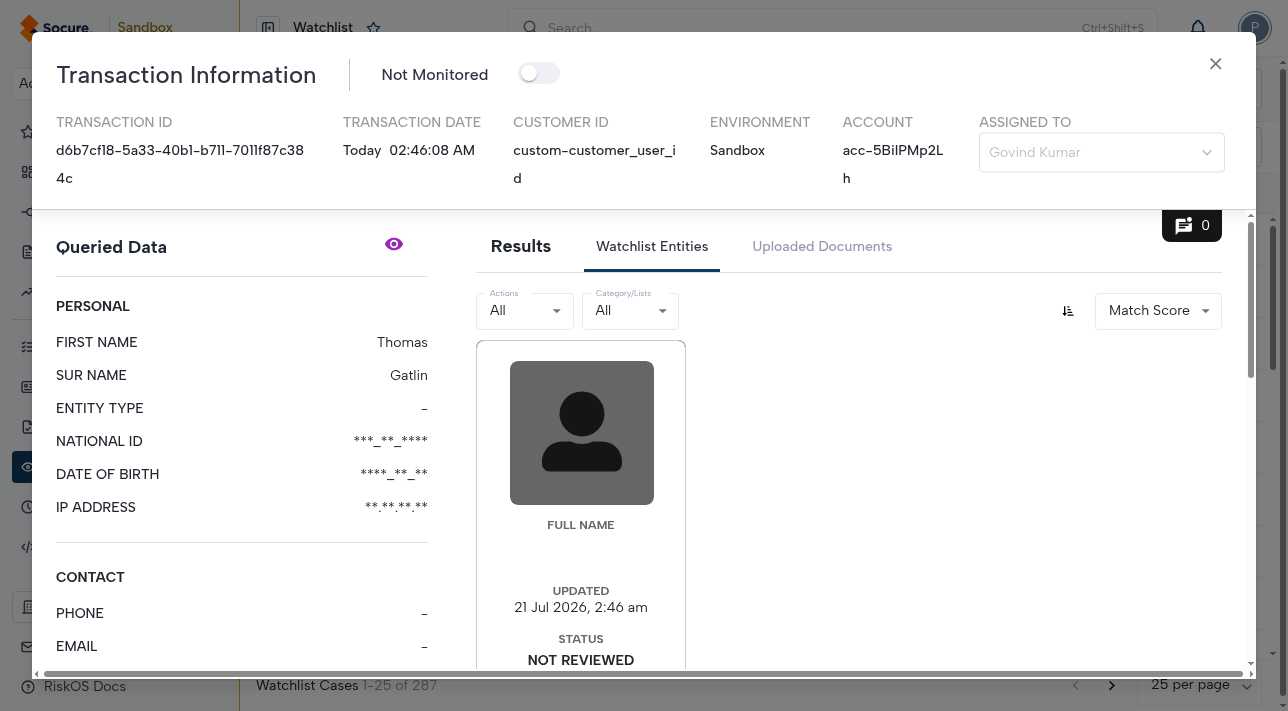
Click the Case ID to open the
Transaction Information
dialog box, which contains the following information:- Queried Data: Data that was provided when creating the transaction.
- Watchlist Entities: The watchlist entities that match the queried data.
-
To begin reviewing the watchlist entities, click the
Watchlist Entities tab. If the transaction results
in multiple entity cards, use the following filters to aid your
investigation process:- Filter by status: Click the Actions dropdown menu, then select the status to filter. Entity cards have one of the following statuses: Match, No Match, Not Reviewed, Escalate, Approve.
- Filter by category/lists: Click the Category/Lists dropdown menu, then select the category or list to filter.
-
Sort cards by Match Score or
Last Updated.
-
To view the details of a watchlist entity, click the entity card. Each
entity card displays the following information:- The entity's full name
- Last updated timestamp
- Status (Match, No Match, Not Reviewed)
- Profile image (if available)
- List of source lists where the entity is included
-
To review the details found in each source list, expand the respective
list. Carefully compare these details with the queried data to ensure
accuracy and identify any potential matches or discrepancies. See
Resolve a Watchlist Match
for best practices for reviewing and resolving a Watchlist match. -
After you finish reviewing the entity hits, mark the entity as
Match or No Match by selecting the
corresponding label under the Status heading. If
available, upload additional documents that support the dispositioning.
You can also add comments by clicking the comment icon. Comments can be
edited and saved or removed from the card. -
If needed, escalate a case by clicking the
Escalate button. After a case has been escalated, it
is removed from your case list and assigned to the Escalation Queue. -
Once all cases are reviewed, they can be marked as closed. Click the
Close Case button to close the case.
-
Upload supported documents:
You can view or upload additional documents that support the investigating and dispositioning process through the Uploaded Documents tab. Supported file formats include JPEG, PDF, DOC, CSV, XLSX, TIFF, TXT, HTML, GIF, PNG, and PPTX. Each file uploaded must not exceed 20 MB in size.
Watchlist Monitoring
Finding and filtering cases
The Watchlist Monitoring tab provides an overview of all cases within your account. Watchlist Cases are automatically assigned to Compliance Officers in your workforce in a rotational manner.
Use the search feature to find a watchlist case by the case ID. You can also filter your case list based on date, case status, assigned Compliance Officer, and case type for quick reference and efficient case management.
Case status
The Case Status column on the Watchlist Cases tab indicates the current state of each case using the following values:
NEW: The case has just been created.NOT REVIEWED: The case has not been reviewed by the Compliance Officer yet.IN PROGRESS: The Compliance Officer is currently reviewing and investigating the case.CLOSED: The Compliance Officer has closed the case.
Case-created timestamp
Use the case-created timestamp to track when a case was created. All timestamps are displayed in your local timezone.
Bulk closing cases
Compliance Officers can close watchlist cases in bulk by following these steps:
- Go to the Batch Jobs page, then click the Plus (+) icon on the Account menu and select Watchlist Case Closure.
- Drag and drop the
.csvfile or browse to select the file to upload. The file must include the following columns:caseId: The unique identifier for the case.transactionId: ThereferenceIdfor the transactions you want to close.comment: Additional context about the case closure. This column is optional.
- Click Upload to initiate the batch job.
- When the batch job is complete, go to the Batch Jobs page, then click the Download link to download a report that contains the results of the bulk closure.
Note:
If both
caseIdandtransactionIdare present in the same row, only thecaseIdwill be processed.
Updated about 2 months ago