

Set up Account Intelligence
Learn how to configure Socure Account Intelligence or Account Intelligence Premier in the RiskOS™ Dashboard for bank account verification.
Before you start
Make sure you have the following:
- Your account owner or administrator can enable this for you. If you're unsure who to contact, reach out to support for assistance.
- If this is your first time working with workflows, review the Workflow overview to understand inputs, enrichments, routing logic, and decisions.
How it works
Socure Account Intelligence and Account Intelligence Premier are identity verification enrichments available in RiskOS™. They validate inputs such as account number, routing number, and PII elements (e.g., name, address, or date of birth) against authoritative sources to generate score-based decisions on account ownership and availability.
Account intelligence is available as either Standard or Premier enrichments. Each enrichment will have a standard set of entitlements.
Best for quick confirmation of account existence and ownership.
availabilityScore: Confidence level that the account is open and active \
ownershipScore: Confidence level that the applicant owns or controls the account \
reasonCodes: Structured insights into why an account passed, failed, or was inconclusive \
fieldValidations: Input-level checks (e.g., routing number, account number, SSN/EIN, name) and their verification results
Best for high-assurance account validation with deeper insights.
availabilityScoreandownershipScore: Expanded with deeper insights from premium data sources \
reasonCodes: More granular attribution to highlight signals from authoritative and premium sources \
fieldValidations: Enhanced input-level verification across consumer and business accounts \
premiumSignals: Additional insights from exclusive data sources to increase confidence in high-risk use cases
How Account Intelligence fits into a workflow
In RiskOS™, workflows are built by connecting reusable components. Account Intelligence is added as an Enrichment step.
Once the enrichment runs, its outputs are available to downstream workflow components, including:
- Conditions
- Decision rules
- Rule score cards
- Manual review steps
- Final decisions
For more detail on these components, see Workflow Steps.
Execution flow in RiskOS™
Account Intelligence runs synchronously as part of a RiskOS™ workflow. There is no user handoff or pause in execution.
flowchart LR
    A[Input]
    B[Account Intelligence]
    C[Routing logic]
    D[Decision]

    A --> B --> C --> D
At a high level, the execution flow looks like this:
-
Input
You call the Evaluation API with account details and supporting identity attributes. -
Account Intelligence enrichment
RiskOS™ evaluates account availability and ownership using configured inquiry types. -
Routing logic
The workflow evaluates availability, ownership, and reason codes. -
Decision
The workflow returns a final outcome (for example, Accept, Review, or Reject).
Workflow components used by Account Intelligence
Account Intelligence uses a subset of standard RiskOS™ workflow components.
| Component | Purpose | Typical input | Output / What to use next |
|---|---|---|---|
| Input | Start an evaluation | Account + identity data | Workflow execution begins |
| Enrichment | Verify account | — | Availability score, ownership score, reason codes |
| Condition | Branch based on results | Account Intelligence outputs | Route to appropriate path |
| Decision Rule / Score Card | Apply policy logic | Account Intelligence signals | Pass/fail or escalation |
| Decision | Emit final outcome | Routed value | Accept / Review / Reject |
Configure Account Intelligence
Add Account Intelligence to a workflow
- In the RiskOS™ Dashboard, go to Workflows and create a new workflow or open an existing one.
- On the workflow canvas, select the plus (+) icon.
- Add an Enrichment step and select:
- Socure Account Intelligence, or
- Socure Account Intelligence Premier
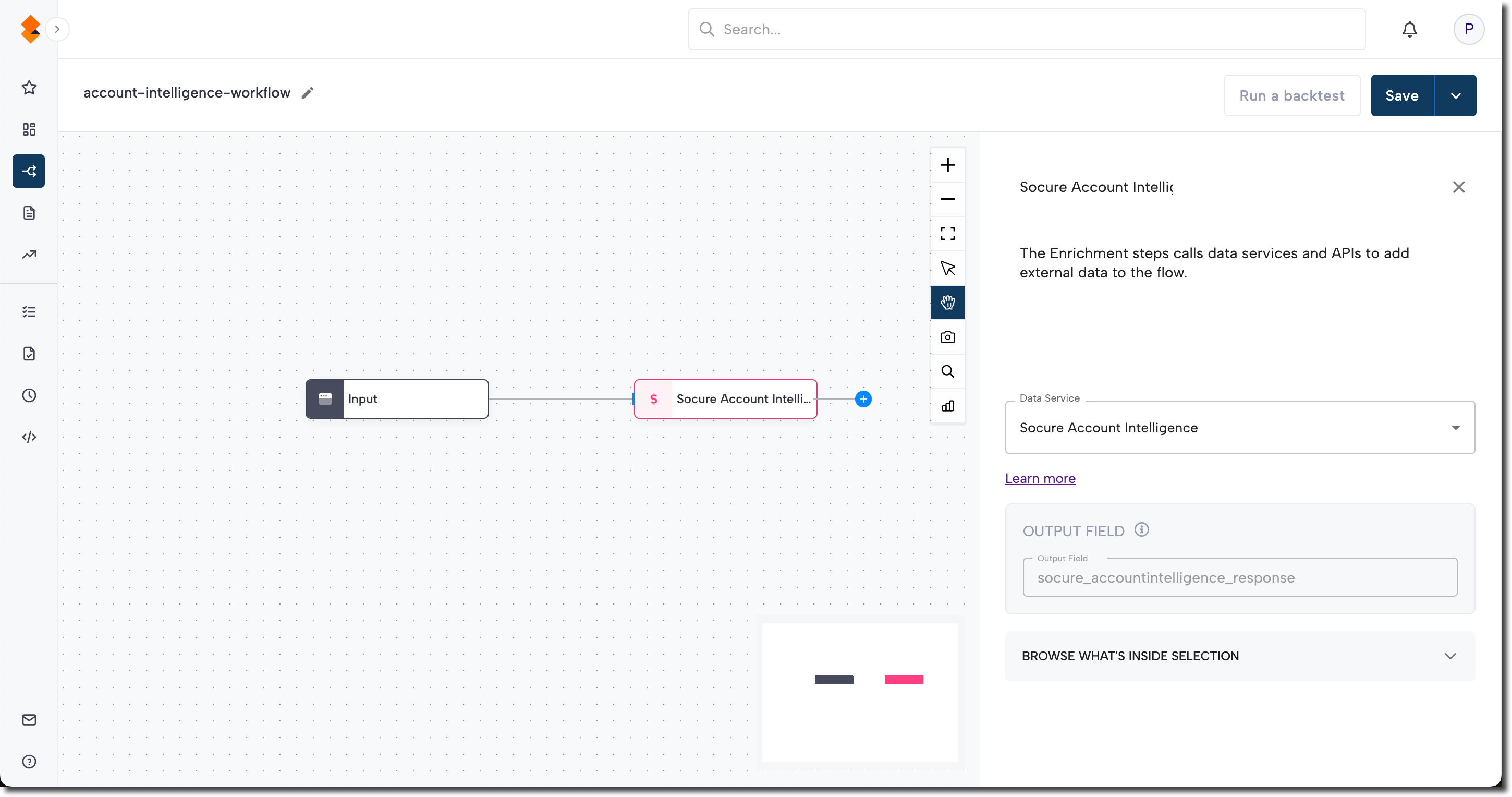
Where to add it in a workflow:
Account Intelligence is often added at identity onboarding, payment method addition, or funding steps, and can serve as a gatekeeper (hard decision), a scoring input, or an enrichment for routing (e.g., escalate to review if inconclusive).
Configure inputs and routing
Typical required inputs include:
routing_numberaccount_numberaccount_inquiries(for example,AVAILABILITY,OWNERSHIP, or both)
Optional inputs may include:
- Consumer or business identity attributes
- Account type (checking, savings)
- Additional PII to improve ownership confidence
Routing strategies should align with your risk policy, including how to handle:
- Inactive or closed accounts
- Ownership mismatches
- Inconclusive or insufficient data
Save and publish
Once your workflow is configured, publish it to go live.
Workflow testing checklist
Use this checklist to confirm accuracy, resilience, and completeness before going live.
Updated 3 months ago